Here is a folder you might recognise: 37 PDF invoices, exported from an old invoicing tool you stopped paying for, plus a handful you built in Word for one-off jobs. Somewhere in that folder is money that clients still owe you, possibly a lot of it. You can't chase it until you know which invoices are open, for how much, and since when. An AI invoice reader can turn that folder into a clean list in a couple of minutes. It can also turn it into a confident, tidy list that is wrong in three places. The review step decides which one you get.
This post shows what an AI invoice reader actually pulls from a PDF, the six places it tends to go wrong, how to use confidence scores without reading every field yourself, and a 15-minute routine for checking a batch before any of it reaches a client.
What an AI invoice reader actually does
Older tools used OCR templates: you told the software "the invoice number lives in the top-right box" and it read that box on every page. That broke the moment a supplier or an old system used a different layout. Current AI models read the whole page the way a person does. They see the words, the table, the layout and the labels, and return structured fields.
Google's documentation for its Gemini models, for example, says they can take PDFs of up to 50MB or 1,000 pages and extract the contents into structured output. The same page notes that text already embedded in a PDF is handled differently from scanned images, which are processed as pictures. In plain terms: a PDF exported from software is easy, and a phone photo of a printed invoice is harder.
For chasing unpaid invoices, you only need a short list of fields from each document:
- Invoice number, so you and your client are talking about the same document
- Customer name and email, so the reminder goes to the person who pays
- Amount still due and currency, which is not always the same as the invoice total
- Issue date and due date, which together tell you how late it is
- Status, if the document says paid, part-paid or void
A good reader returns each field with a confidence mark: how sure it is that it read the right thing. That mark is the whole point. Without it, you either trust everything or check everything, and both are bad options.
Six places PDF invoice data goes wrong
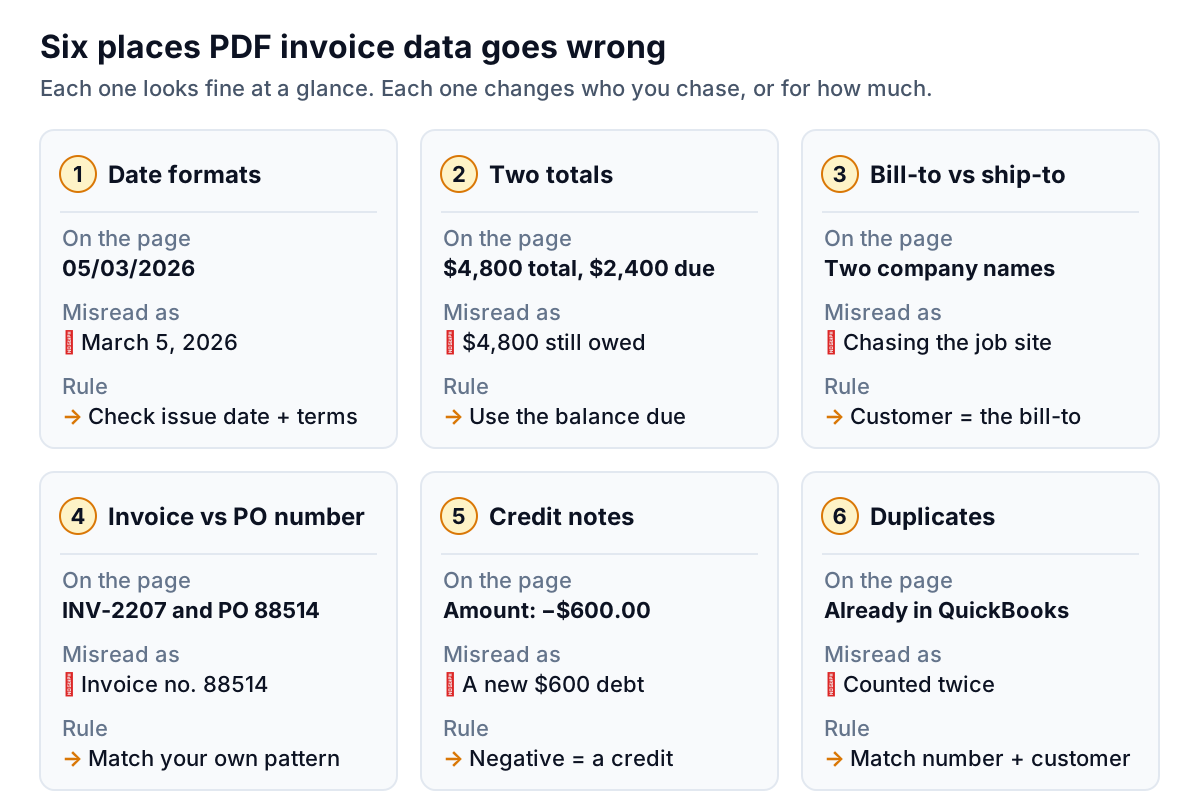
None of these are exotic. They show up in almost any folder of real invoices, and each one changes either who you chase or how much you ask for.
1. Dates that read two ways
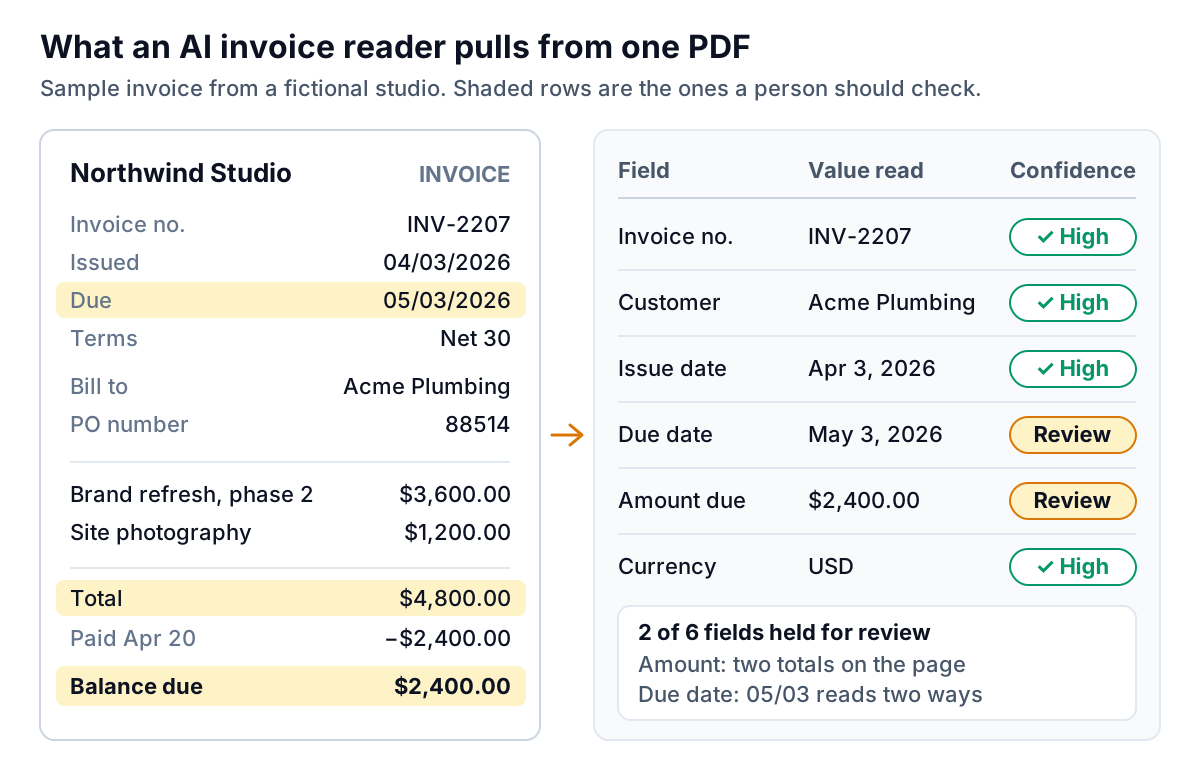
05/03/2026 is May 3 in the US and 5 March in the UK and Australia. If your old system used a different date setting from the one you use now, or a contractor invoiced you in the other format, a reader has to guess. The fix is a cross-check, not a better guess: the issue date plus the payment terms should land on the due date. In the example above, issued April 3 with Net 30 gives roughly May 3. If the reader says March 5, the dates contradict the terms and the row should be held.
2. Two totals on one page
Invoices that were part-paid often show a total, a payment line and a balance due. The total is the biggest, boldest number on the page, so it is the one a careless read picks. If you chase for the total, you ask a client who has already paid half to pay the whole thing again. Always take the balance due, and hold the row if both numbers appear and the reader is not sure which is which. We cover what that mistake costs in the post on wrong amounts in payment reminders.
3. Bill-to versus ship-to
Trades and contractors often show the client who pays and the site where the work happened. A reader that grabs the first company name may give you the property management company, the tenant or the job address. The customer for chasing purposes is always the bill-to.
4. Invoice number versus PO number
Larger clients make you quote their purchase order number. Now the page has two reference numbers. If the reader takes the PO as the invoice number, your reminder subject line refers to a number your client's accounts team will match against the wrong thing. The simplest check is pattern matching against your own numbering: if all your invoices start with INV- or run from 1001 upward, a five-digit number with no prefix is suspicious.
5. Credit notes that look like invoices
A credit note for $600 uses the same template as an invoice. Read carelessly, it becomes a new $600 debt. Look for negative amounts, the words "credit note" or "credit memo", and a reference to an original invoice.
6. Duplicates of invoices you already have
If some of your invoices live in QuickBooks or Xero and you also upload PDFs of the same work, you will count them twice. Your overdue total doubles and the client gets two reminders for one bill. Matching on invoice number plus customer catches most of these. Matching on amount, due date and customer catches the ones where the number was retyped.
Confidence scores, and how to use them
A confidence score is the reader telling you where it might be wrong. Used well, it means you check 5 to 10 rows out of 40 instead of all 40. Used badly, it becomes a column nobody looks at.
Three decision rules make it useful:
- Hold the whole row if any money or date field is unsure. A confident invoice number does not help if the amount is a guess. The amount, due date and customer email are the fields that end up in a message to a client, so they set the bar for the row.
- Run cross-checks even on confident rows. Do the line items add up to the total? Do issue date plus terms equal the due date? Does the invoice number fit your pattern? A reader can be confidently wrong. Arithmetic is not.
- Look at the page, not just the field. Checking "$2,400.00" against nothing tells you nothing. A useful review screen shows the PDF page next to the extracted fields so you can see what the reader saw.
Why the review step matters more when you're chasing money
If you are extracting invoices for bookkeeping, a wrong field is an internal problem. Your accountant finds it at month end, fixes it and moves on. When the extracted data drives payment reminders, a wrong field becomes a message to a client, under your name, about money. That is a different kind of mistake.
The money involved is not small. In the QuickBooks 2026 Small Business Late Payments Report, businesses with unpaid invoices were owed $17.7K on average, and 59% had invoices more than 30 days overdue. That is exactly the money sitting in folders of PDFs from systems you no longer log into.
Here is a worked example with a fictional business. Harbor Lane Design uploads 37 PDFs from an invoicing tool it stopped using in March:
| Result | Invoices | Balance due | What happens |
|---|---|---|---|
| Read cleanly, all checks pass | 26 | $9,450 | Added to the list |
| Already in QuickBooks (duplicate) | 5 | $6,200 | Linked, not added |
| Held: two totals on page | 3 | $5,100 | Owner picks balance due |
| Held: ambiguous due date | 2 | $2,800 | Owner confirms date |
| Held: credit note | 1 | −$600 | Applied to its invoice |
Without the duplicate check, Harbor Lane's overdue total would have been inflated by $6,200, and five clients would have received a reminder for an invoice they were already being reminded about from QuickBooks. Without the held rows, three clients who had paid half would have been asked for the full amount. The review took six rows and about ten minutes.
A 15-minute routine for checking a batch
You don't need to review every invoice. You need to review the right ones, in the right order. This is the routine we would use on any batch, whatever tool did the reading:
- Start with the totals. Before looking at any single row, compare the batch total of balances due with what you expect. If your old system's last aged receivables report said $18,000 outstanding and the batch says $31,000, something is double-counted or a paid invoice slipped in.
- Clear duplicates next. Any invoice that also exists in your accounting software should be linked to that record, not added. The accounting software is the better source because it knows about payments.
- Work through held rows with the page open. For each one, check the amount against the balance due line and the due date against the terms. Most take under a minute.
- Spot-check three confident rows at random. If all three are right, move on. If one is wrong, lower your trust in that batch and check more.
- Mark anything already paid. A PDF can't tell you that the client paid by bank transfer last week. Your bank feed can. Mark those paid before anything gets chased.
- Check customer emails last. An invoice addressed to a project manager who left the client in June will bounce, or worse, reach someone who can't approve payment. Update the contact before the first reminder.
If your old system can produce a CSV or Excel export instead of PDFs, use that. Exports skip the reading step entirely: the columns are already labelled. You only need to map the headers once ("Amt Due" is the amount, "Client" is the customer) and the mapping holds for every later export. For more on pulling invoices from several places into one view, see how to track invoices from several systems in one place.
How Parity handles PDFs and exports
Parity's invoice chaser, which launches in late November 2026, connects directly to QuickBooks Online, Xero and FreshBooks. For anything else, it takes PDF invoices or a CSV or Excel export, and it follows the approach above.
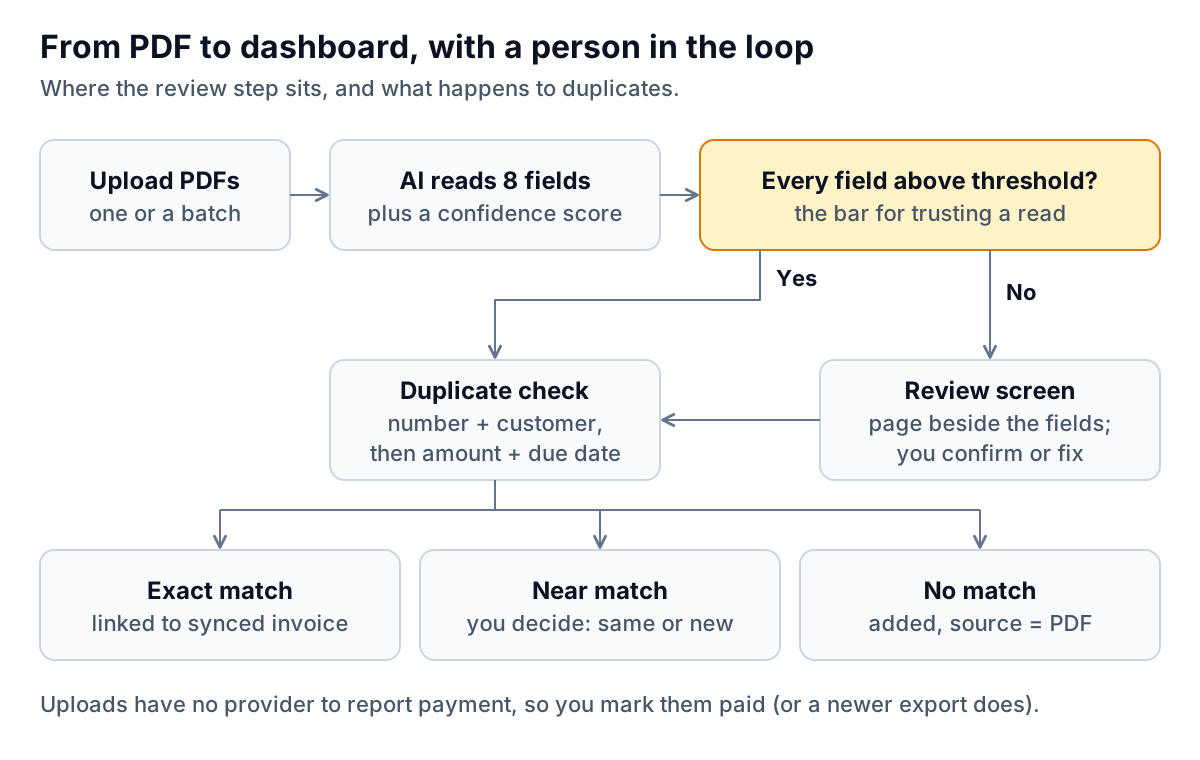
- Eight fields per invoice: invoice number, customer, customer email, amount, currency, issue date, due date and status, each with a confidence mark.
- Held rows go to a review screen with the PDF page beside the extracted fields. Our launch bar is reading amount, due date and customer correctly on at least 95% of a test set, and the review screen exists for the rest.
- Duplicates are matched to invoices already synced from your accounting software, first by invoice number and customer, then by amount, due date and customer. Near matches are shown for you to decide.
- Exports are mapped once per source, and the mapping is saved for next time.
- You mark uploads paid, or a newer export does, since a PDF has no provider to report payment.
Uploaded invoices then sit in the same dashboard as synced ones, with the same ageing buckets, and follow the same rules for reminders: a friendly draft in your voice for overdue invoices, which you approve before anything is sent. Version 1 has limits worth knowing: English-language invoices only, amounts in US dollars or your provider's currency, and up to 200 PDFs per batch.
Parity reads your PDF invoices and exports, holds the uncertain rows for a quick review, and drafts reminders only from numbers that check out. Get early access to Parity's invoice chaser
Whatever tool you use, the order matters more than the software: read, cross-check, review the held rows, clear duplicates, and only then chase. An AI invoice reader saves you the typing. The review step keeps that time saving from turning into an awkward email to a client.