Sixty-four open invoices, four places to look. That's the real picture at a lot of service businesses, and almost no advice on invoice management for small business admits it. The guides assume every invoice lives in one accounting system. In practice, one business can bill from QuickBooks for project work, from a job-scheduling app for site visits, from an old FreshBooks account that never got shut down, and from a Word template for the odd one-off.
None of that is a mistake. It's what happens when a business grows faster than its admin. The problem is that no single screen can answer the only question that matters on a Monday morning: who owes me money, and how late is it? This guide shows how to build that one list, keep it honest, and stop counting the same invoice twice.
Why your invoices ended up in four places
Here is an example business we'll use throughout: Cedar & Pine Interiors, a made-up design studio with 64 open invoices spread across four sources.
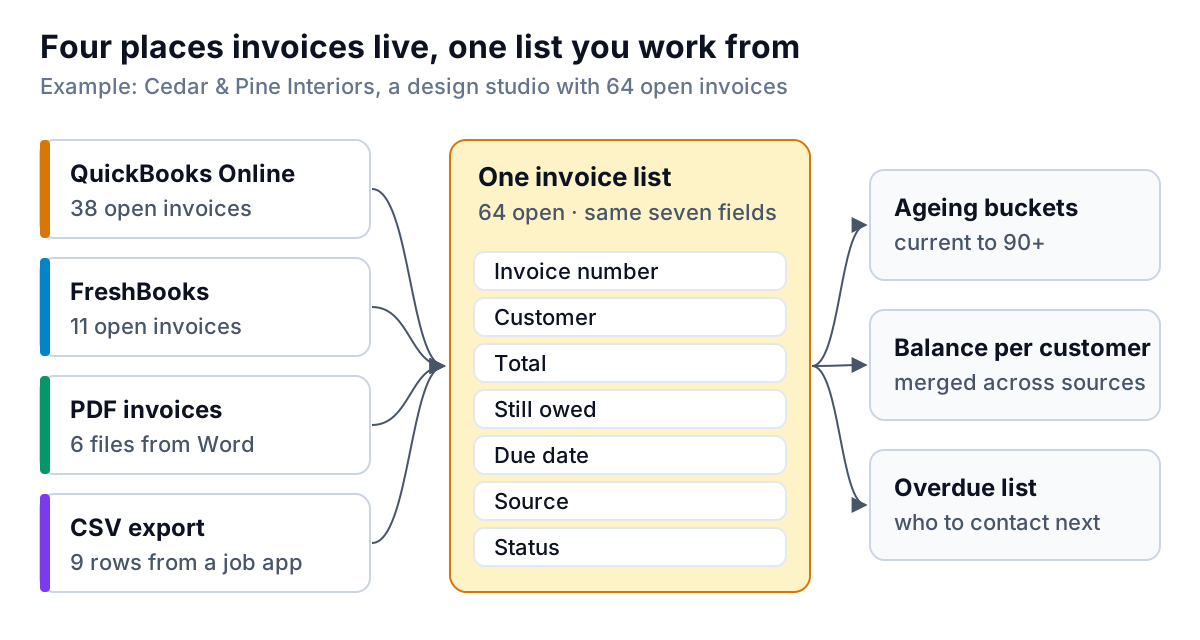
The usual reasons look like this:
- A switch that never finished. You moved to QuickBooks Online in March, but the old FreshBooks account still holds eleven unpaid invoices from before the move.
- A job or booking app that invoices on its own. Field-service, salon and scheduling tools often create invoices at the end of a job. They may or may not sync to your books.
- Templates for one-offs. A Word or Google Docs invoice for a speaking fee or a small side project, saved as a PDF and emailed.
- A partner or acquired practice that kept its own system after joining.
Most US small businesses will have QuickBooks somewhere in that mix: by one estimate, QuickBooks products hold over 60% of the accounting software market (most of it the desktop editions), with Xero around 9% (Ace Cloud Hosting). But the main system is rarely the whole story.
Step 1: List every source and how it gets paid
Before you combine anything, write down each place invoices come from. For each one, answer four questions: how do you get data out, how does it find out about payments, how often do you need to check it, and who looks after it.
| Source | How data gets out | How it learns about payments | Check |
|---|---|---|---|
| QuickBooks Online | Built-in reports, export, or a connected app | Payments recorded or matched from bank feeds | Live or daily |
| Old FreshBooks account | Reports and export, or a connected app | Online payments; others entered by hand | Weekly |
| Job app | CSV export | Card payments in the app; checks entered by hand | Weekly export |
| Word or PDF invoices | The PDF itself | Only you know, from the bank | Each payment |
The last column is the one people skip. A PDF invoice has no system behind it to say it's paid. Someone has to mark it paid by hand, so decide now who that is.
For Cedar & Pine, the exercise took twenty minutes and turned up a surprise: the job app had been syncing card payments to QuickBooks but not checks, so three invoices paid by check still showed as open in the app. Nobody had noticed because nobody had compared the two. Writing the sources down is often enough to find a problem like that.
While you're here, ask whether every source needs to stay. If the old FreshBooks account only holds old invoices, set a date to collect or write them off and close it. One fewer source beats any amount of clever merging.
Step 2: Agree on seven fields, then map each source to them
Every system stores the same facts under different names. Your combined list only needs seven fields: invoice number, customer, total, amount still owed, due date, plus two you add yourself, source and status. (If you bill in more than one currency, add currency and never add amounts in different currencies together.)
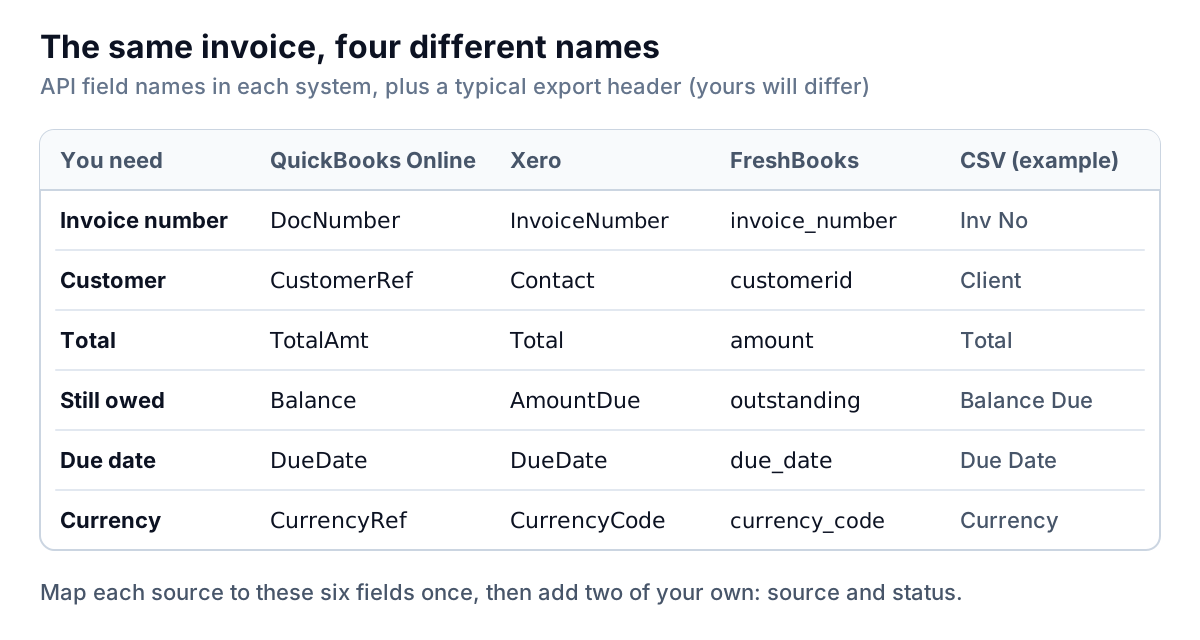
Three details trip people up:
- Total versus still owed. Always chase the amount still owed (QuickBooks calls it Balance, Xero AmountDue, FreshBooks outstanding), not the original total. A customer who paid half and gets a reminder for the full amount will be rightly annoyed.
- Dates in exports. A CSV from a US system writes 03/04/2026 as March 4; a UK or Australian one means 3 April. Check one invoice you know before trusting a whole file.
- Invoice numbers that collide. Two systems can both have an invoice 1042. Your list should treat source plus number as the identity, not number alone.
Save the mapping for each export, so next week's file goes in the same way without a rethink.
Step 3: Merge customers and catch duplicates
Two kinds of duplicate cause most of the trouble.
Duplicate customers
"Northwind Studio" in QuickBooks and "Northwind Studio LLC" in the job app are the same customer. If you don't merge them, the list shows two smaller balances and you miss that this customer owes you more than anyone. Match customers by email address first, since names vary and emails rarely do. Then check the leftovers by eye.
Duplicate invoices
The same invoice can arrive twice: drafted as a PDF, then re-entered in QuickBooks; or exported from the job app after it already synced to your books. Run every new row through two questions before it counts.
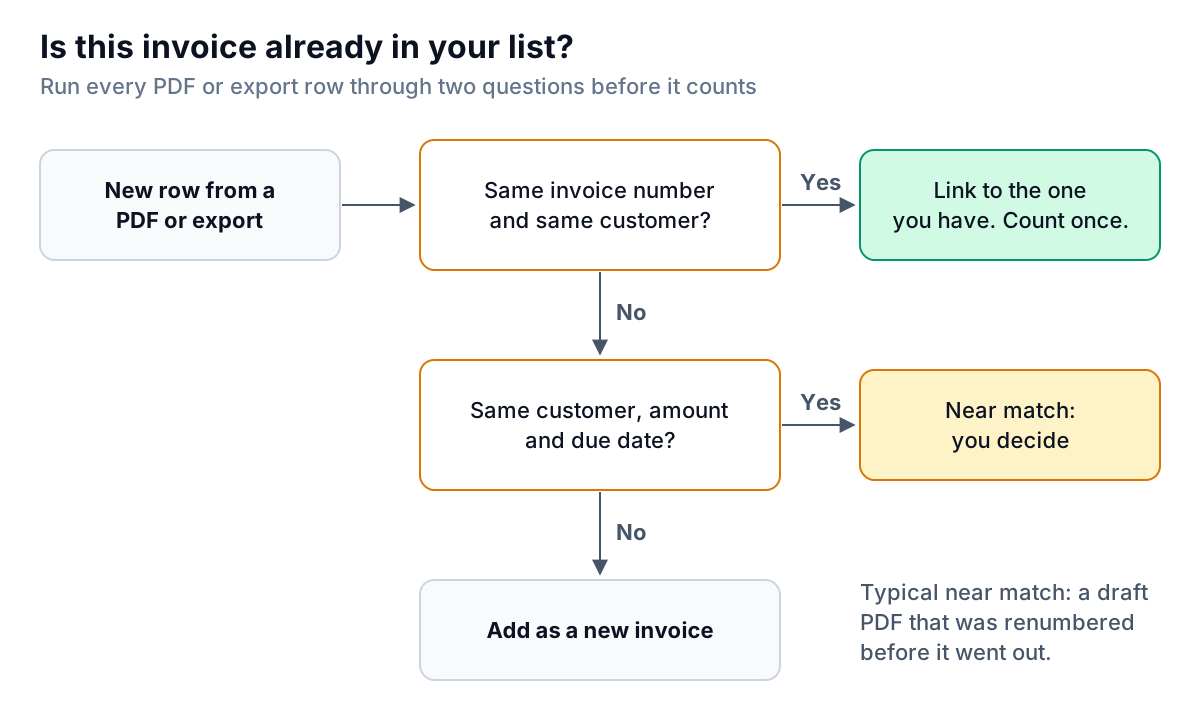
Near matches deserve a human. Two invoices to the same customer for the same amount and due date might be one invoice renumbered, or two genuine monthly retainers. Only you know which.
Step 4: Decide who says "paid", then check every Friday
Each invoice should have exactly one place that is allowed to say it's paid: the system it came from. For PDFs with no system behind them, that's you, from your bank statement. Never mark an invoice paid in the combined list without marking it in its source too, or the two will disagree next week.
Then, once a week, compare totals. For each source, the amount it says is owed should equal what your list says for that source.
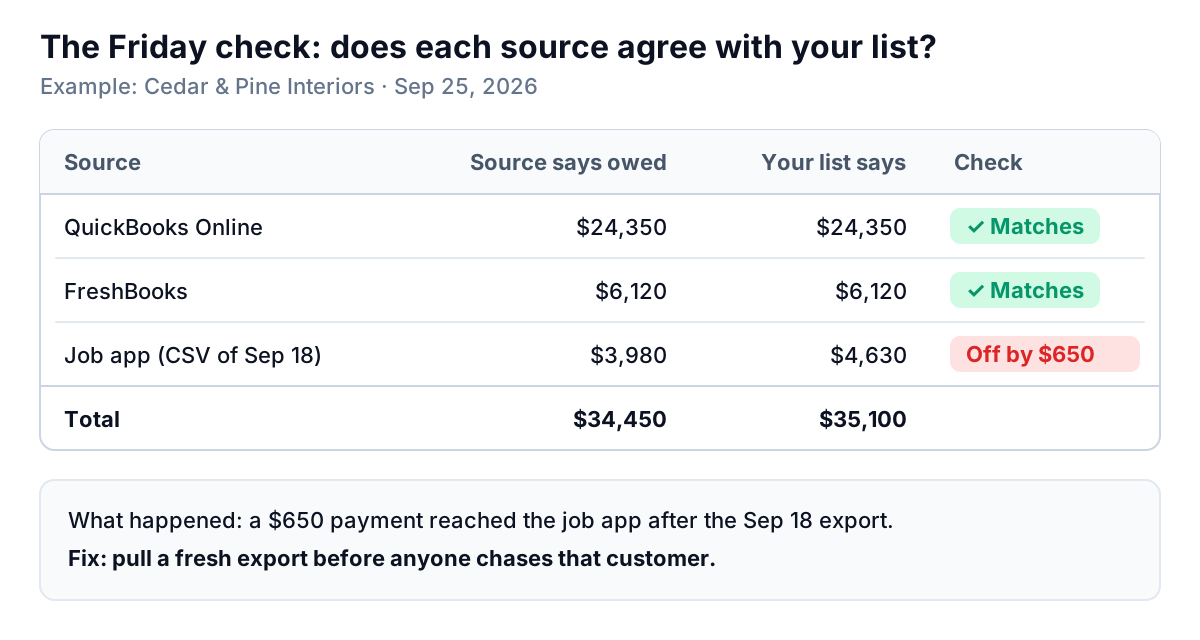
In the example, QuickBooks and FreshBooks match to the dollar. The job app is $650 out, because a customer paid after the week-old export was taken. That's the most common cause of a mismatch, and the fix is simple: take a fresh export before anyone sends a reminder from that source. The rule worth adopting is that a source that doesn't reconcile doesn't get chased until it does.
This check takes five minutes when the list is right and saves an awkward apology when it isn't. Do it on Friday so Monday's chasing starts from clean numbers; our six Monday receivables questions pick up from there.
Five mistakes that make a combined list lie
Most combined lists don't fail on day one. They fail a month in, through small habits. Watch for these:
- Creating invoices in the combined list. The moment you raise a new invoice there instead of in a source system, the list has become a fifth source with no one checking it. The list reads from sources; it never replaces them.
- Chasing from a stale export. An export is a photo, not a live feed. Write the export date next to every imported batch, and treat anything older than a week as out of date.
- Marking paid in one place only. If a check for a job-app invoice is recorded in QuickBooks but not in the job app, that invoice will reappear as overdue in next week's export. Record the payment where the invoice lives.
- Forgetting credits and refunds. A credit note in one system can reduce what a customer owes on an invoice from another. Check credits before you total a customer's balance.
- Adding up different currencies. $1,000 plus £1,000 is not 2,000 of anything. Total each currency separately.
A good test of any system for invoice management for small business, whether it's a spreadsheet or software, is whether it makes these mistakes hard or easy. A list that shows each invoice's source and export date makes the stale export obvious. One that won't let you type an invoice in removes the fifth-source problem entirely.
Invoice management for small business: spreadsheet or software?
You can run all of this in a spreadsheet: one tab per source for raw exports, one combined tab built from them, and a summary tab with the ageing buckets. For a handful of invoices a month, that's fine. This comparison of spreadsheets and software sets out where the line usually falls, and invoices from several systems is one of the clearest signs you're near it, because every source multiplies the copying.
Whatever you use, invoice management for small business across several systems comes down to the same four habits: know your sources, map them once, catch duplicates, and reconcile before you chase. Once the list is right, an aging report built from it tells you where to spend your time.
This is the exact problem we built Parity's dashboard around. It connects to QuickBooks Online, Xero and FreshBooks and stays current through their webhooks plus an hourly sync. For anything else, you drop in PDF invoices or a CSV or Excel export: PDF fields are read for you and shown for review with a confidence mark, and export columns are mapped once and remembered. Uploaded invoices are matched against synced ones by invoice number and customer, then by amount, due date and customer, and near matches are shown for you to decide. Every invoice shows its source, and if the totals don't match a provider's own totals, the dashboard shows a warning instead of a number. Overdue invoices get a friendly reminder drafted in your voice, which you approve before anything is sent.
Parity launches in late November 2026, with early access open now. Get early access to Parity's invoice chaser