If you invoice in FreshBooks, have fewer than twenty clients and almost none of them need special handling, you probably don't need another tool to chase payments. FreshBooks payment reminders and its late fee setting will cover you. This post explains exactly what they do, so you can tell whether you're in that group or have outgrown it.
The details below come from FreshBooks' support articles as they read in September 2026. Where we describe a dedicated chaser, we use our own product, Parity, as the example, and we say so. You can weigh the comparison with that in mind.
What FreshBooks payment reminders do
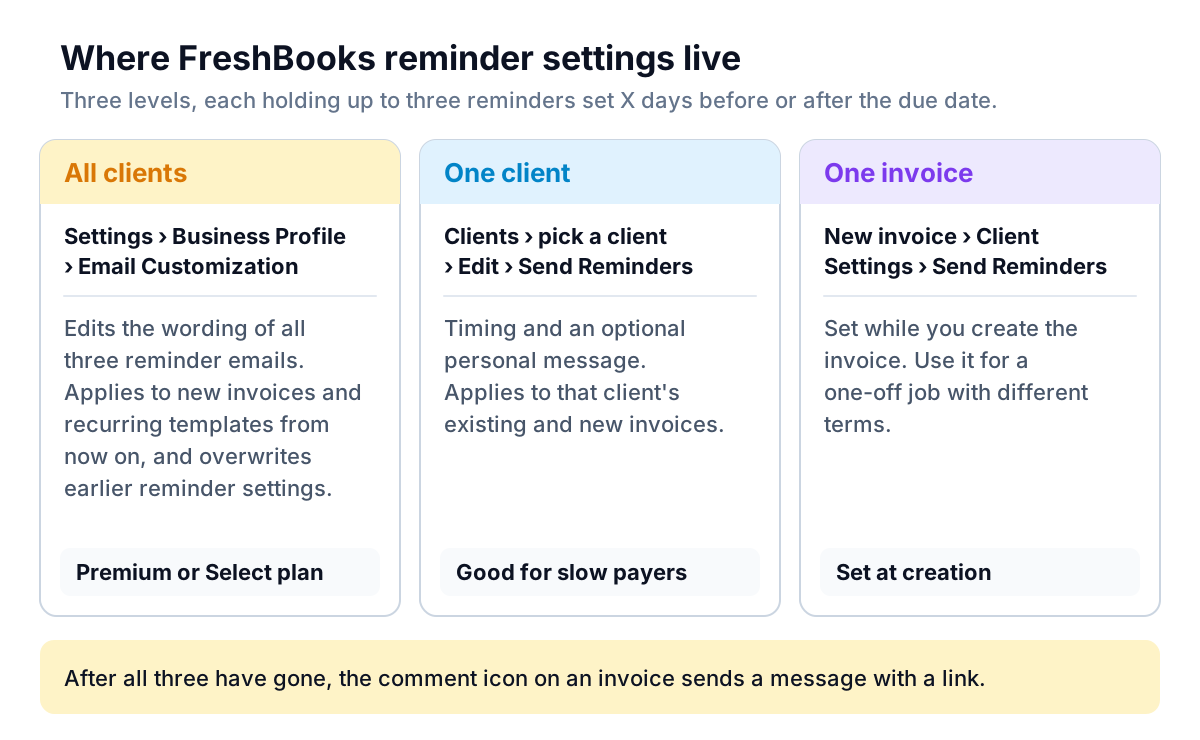
FreshBooks can send up to three reminder emails per invoice. Each one goes a set number of days before or after the due date. Per FreshBooks' article on payment reminders and late fees, you can set them at three levels.
Setting reminders for a client or an invoice
- From the client profile (select the client, then Edit) or from a new invoice under Client Settings, select Send Reminders.
- Tick Automatically send payment reminders for this client's invoices.
- For Reminder #1, enter a number of days and choose before or after.
- To add a personal message, select the slider icon and type in Enter a Personal Message.
- Select + Add Another Reminder for a second and third, then Done.
Switching reminders on for a client applies to that client's existing and new invoices. Reminders go to whoever the invoice was first sent to, including secondary contacts. After all three have gone, you can still message the client from the invoice: select the comment icon at the top and type in Send a message…. FreshBooks emails that message with a link to the invoice.
Changing the wording for everyone
The account-wide version lives under Settings › Business Profile › Email Customization, in the Payment Reminder template. FreshBooks' email customization article adds some limits worth knowing before you plan around it:
- Plan: email customization and dynamic fields are on the Premium and Select plans only. On Lite or Plus, the default templates are used.
- Scope: edits apply to all clients' new invoices and recurring templates from then on, and overwrite earlier reminder settings.
- Length: subject lines up to 100 characters, email bodies up to 4,096.
- Dynamic fields include amount outstanding, before/after due date, client first name, client company name, invoice due date and invoice number. On a partly paid invoice, the invoice amount field shows the outstanding balance instead.
- Sender line: the subject always shows as "[Business] via FreshBooks", even on Select with FreshBooks branding removed.
- Replies go either to whoever sent the invoice or to one address you choose.
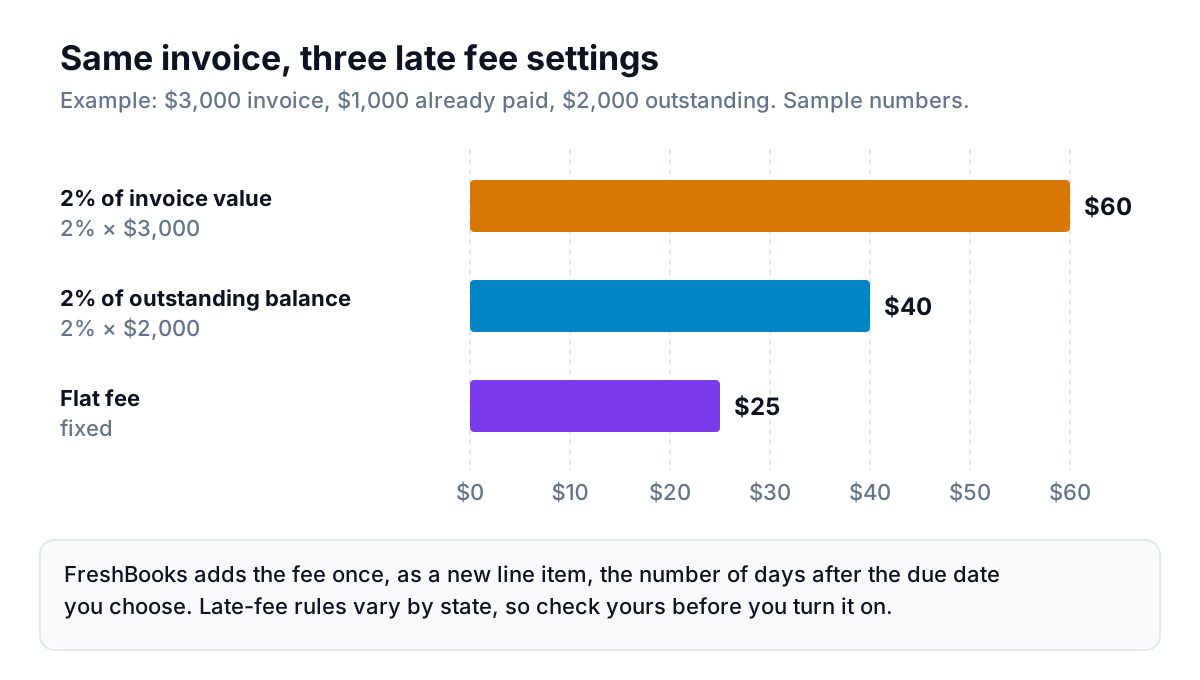
That partly paid detail is a good one. A client who paid $1,000 of $3,000 gets a reminder for $2,000, not the original total.
If you're on Premium or Select, it's worth replacing the default wording. FreshBooks payment reminders all use the one Payment Reminder template, so write it for your most valued client, not your slowest payer. Something like this reads well whether the invoice is due soon or a little late:
The bracketed names stand for FreshBooks' dynamic fields. Insert them with the lightning bolt icon, or type :: in the editor. That last line matters more than it looks. It invites a client with a problem to tell you, instead of quietly not paying.
Late fees, and what they add up to
The same panel has Charge Late Fees. Tick Automatically add late fees to this invoice if it goes unpaid for too long, then pick one of three types: a percentage of the invoice value, a percentage of the outstanding balance, or a flat fee. You can add up to two sales taxes to the fee, and you set the number of days after the due date when it applies.
FreshBooks adds the fee once, as a new line item. It is not a monthly interest charge. Late fees apply to new invoices only, and once set on an invoice they also apply to that client's future new invoices. On a partly paid invoice, the type you choose makes a real difference:
Two cautions. First, late-fee rules vary by state. Check your state's rules (or your country's, if you're in the UK or Australia), and put the fee in your written terms before you switch it on. Second, a surprise fee on a good client's invoice can cost more goodwill than it earns. Many service businesses set the fee up but waive it for clients who reply and give a date.
FreshBooks payment reminders vs a dedicated chaser
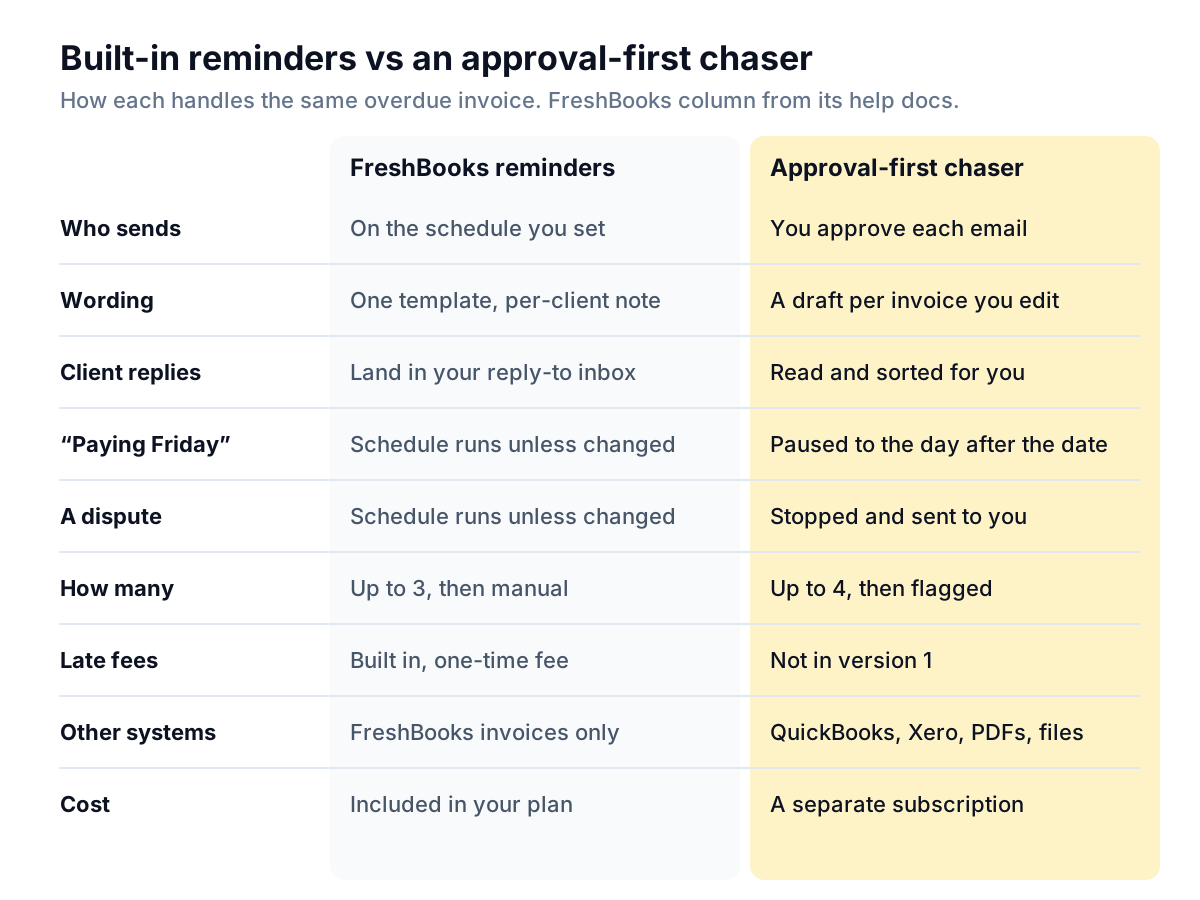
Here's how the two approaches handle the same overdue invoice. The FreshBooks column comes from its help docs. The right-hand column describes Parity, which launches in late November 2026. Other chasers work differently, and our comparison of AI invoice chasing tools covers several of them.
A few points behind the rows:
- Who presses send. FreshBooks sends on schedule. That's the point of it: no work from you. An approval-first chaser trades a little of your time (a morning digest you approve in a minute or two) for never sending something you'd regret.
- What happens after a reply. This is the biggest real difference. In FreshBooks, a client's "paying Friday" lands in your inbox, and the remaining reminders still go unless you change that invoice's settings. A chaser that reads replies can pause on its own.
- Late fees. FreshBooks wins here. Parity's version 1 doesn't add fees and doesn't take payments. It includes FreshBooks' own pay link in each reminder.
- Cost. FreshBooks reminders cost nothing extra. A chaser is another subscription, so it has to save you real time or real money.
Stay with FreshBooks alone if most of these are true
- You send fewer than about 30 invoices a month.
- Fewer than one in five overdue invoices has a conversation attached: a promise, a plan, a question or a dispute.
- One reminder wording suits nearly all your clients.
- All your invoices live in FreshBooks.
- You read your reply inbox daily and can switch off a client's reminders when needed.
If that's you, spend twenty minutes tuning the setup instead of buying anything:
- Set Reminder #1 to 3 days before the due date, #2 to 3 days after, and #3 to 14 days after.
- If you're on Premium or Select, rewrite the Payment Reminder template in your own words. Use the client first name and amount outstanding fields.
- Set the reply-to address to an inbox you actually read.
- Turn reminders off for the two or three clients you'd rather chase personally.
- Once a week, open Reports › Accounts Aging (under Payments Reports), group by Overdue, and look at the 31–60 and 61–90 columns. FreshBooks' Accounts Aging article explains the filters. Anything there gets a personal email or call. Our overdue invoice email examples give you wording for it.
When a dedicated chaser earns its place
Three patterns usually mean you've outgrown the built-in reminders.
Example: the promises pile up. A fictional design studio, Lantern & Co, has 45 active clients. In a typical month eight overdue invoices come with a reply: three promised dates, two "who do I send this to" questions, one query about hours billed and two out-of-office replies. Each needs a decision about whether the next FreshBooks reminder should still go. That's eight things to track by hand, every month, on top of the actual replies.
Example: invoices live in more than one place. A fictional consultancy invoices retainers from FreshBooks but bills one enterprise client through a portal that produces PDFs. FreshBooks only sees its own invoices, so the PDF ones get chased from a spreadsheet, or not at all.
Example: tone matters per client. When half your revenue comes from five clients, you may not want any of them to get a template. You want a draft you can glance at and tweak.
In each case the fix isn't more automatic emails. It's a draft per invoice, approved by you, that knows what the client last said. That's the case for an approval step, which we argue in more detail in why an AI should never send a payment reminder without your approval.
Adding a chaser without double-chasing anyone
If you do add a chaser, make sure each client hears from one system, not two. FreshBooks reminders are set per client and per invoice, so you can keep them for small one-off clients and switch them off for clients the chaser handles. Or switch them off everywhere in Email Customization and the client settings.
Parity connects to FreshBooks and reads your invoices, clients and payments. If FreshBooks' automatic reminders are on, its connection screen tells you and asks you to keep one of the two. From there it suggests a reminder only when an invoice is past due by the grace period (three days by default), unpaid, not disputed and not exempt. Each reminder is a single friendly email in your voice, sent under your business name with you as reply-to. The amount, due date and invoice number are checked against FreshBooks before you can send it. Nothing goes without your approval, reminders stay at least seven days apart, and after four the invoice comes back to you. Replies are sorted: a promise pauses chasing until the day after the date, and a dispute stops suggestions and goes to you.
It won't do everything FreshBooks does. There are no late fees, no payment collection and no SMS in version 1. What it adds is judgment between reminders, with you making the final call.
Parity drafts each reminder from your FreshBooks data, waits for your approval, and pauses when a client names a date. Get early access to Parity's invoice chaser