Seven, fourteen, twenty-one. Those are the days after the due date on which Xero emails your customers once you tick one box. Most people who use invoice reminders in Xero never change them, never add a reminder before the due date, and find out about the 4am send window only when a reminder they expected doesn't arrive.
This guide covers the setup, the timing rules, how to read the reminder status on each invoice, and the jobs the feature leaves to you. Everything here comes from Xero Central, Xero's help site, as it read in September 2026. Xero is used more in the UK, Australia and New Zealand than in the US, so you'll see its spelling ("organisation", "customise") in the menu names quoted below.
Setting up invoice reminders in Xero
Before you switch them on
Xero's set-up article lists three requirements, and each one is a common reason reminders silently don't go:
- Every customer needs a current email address on their contact record.
- Invoices must be marked as sent. If you create an invoice and send it some other way, mark it as sent in Xero or it won't get reminders.
- You need the administrator or standard user role.
There's a fourth detail worth knowing before you start. Replies to reminders go to the login email of whoever first turned reminders on. If that's your bookkeeper, your customers' replies will land in their inbox, not yours. You can change this later under Send replies to.
The steps
- In the Sales menu, select Invoices.
- Click Invoice Reminders: Off.
- Tick Email customers when an invoice is. Xero's three default reminders are now active for overdue invoices.
- Optionally tick Include button to online invoice and detail summary, which adds the online invoice link, amount due, due date and invoice ID to the top of every reminder.
- Optionally tick Include a link to the invoice PDF.
- Optionally tick Don't send reminders for amounts owing on an invoice under and enter an amount.
- Click Save.
Xero's on/off article gives a second route to the same screen: Sales › Sales settings › Invoice settings › Invoice Reminders. Use whichever you see.
Adding reminders
You can have up to five reminders for the whole organisation. To add one, click Add reminder on the same screen. For a reminder before the due date, choose due in; for one after, choose overdue by. Then enter the number of days. A reminder on the due date itself is due in with 0 days. You can edit each template and use Insert placeholder to pull in invoice details.
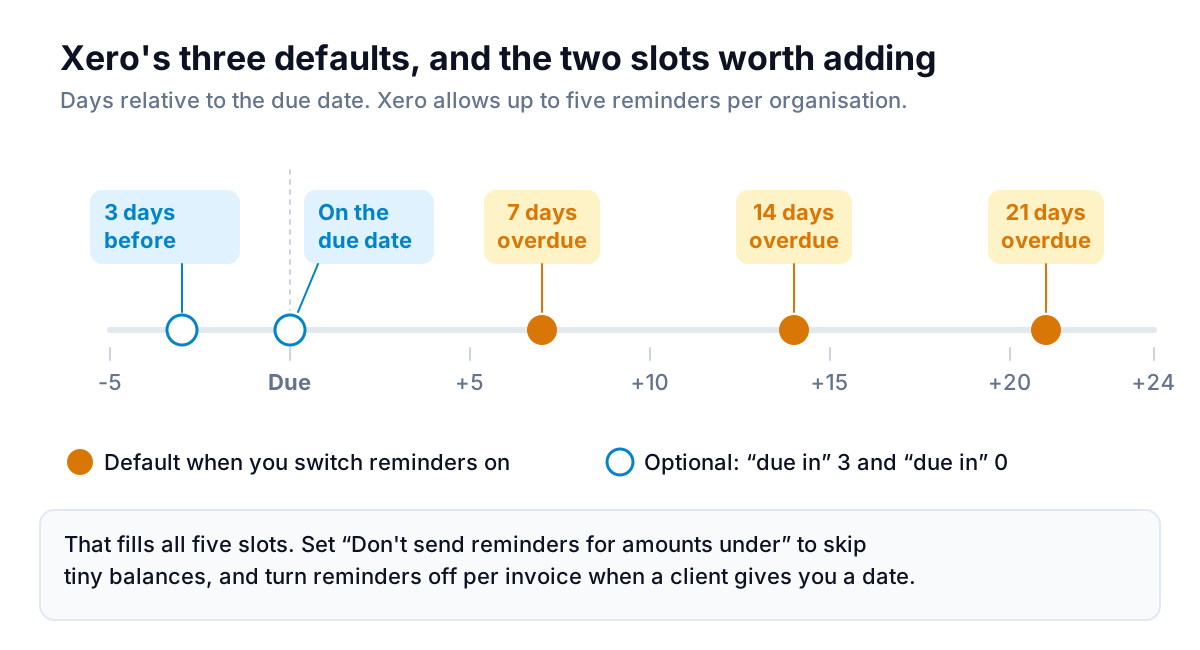
Why add the two before the due date? A reminder three days before catches invoices that went to the wrong person or got buried, while the client can still pay on time. It's the least awkward email you'll ever send about money, because nothing is late yet. The due-date reminder does the same job for clients who pay on the day. If you'd rather keep a slot free, drop the due-date one.
Write the pre-due template so it reads as service, not pressure. For example:
The bracketed fields stand for the details you'd insert with Xero's placeholder button. The exact placeholder names are in the template editor.
The timing rules that cause missed reminders
Xero doesn't send reminders the moment an invoice crosses a threshold. It sends them once a day, between 4am and 8am in your organisation's time zone. When you switch reminders on or off relative to that window changes what goes out.
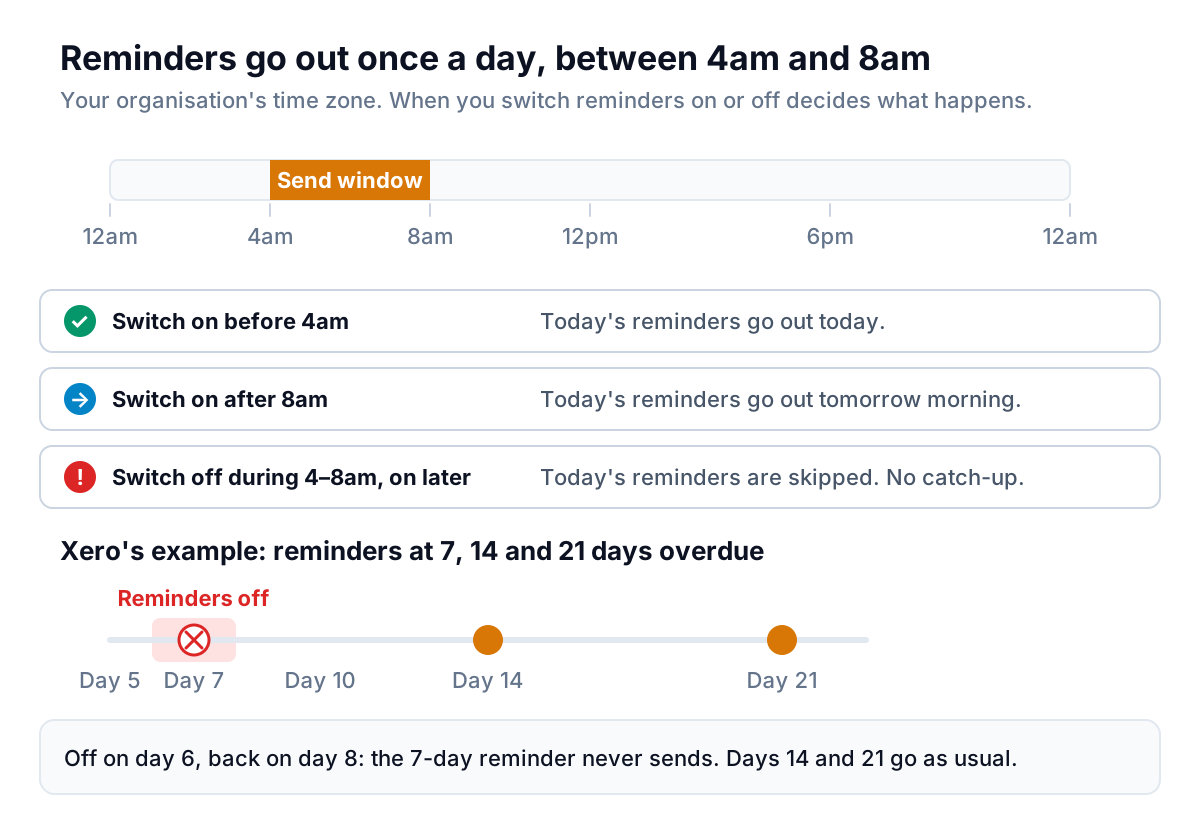
The no-catch-up rule is the one that bites. If reminders are off when an invoice passes a reminder date, that reminder is skipped for good. Changing the due date afterwards doesn't bring it back. Xero's status article lists the usual reasons a scheduled reminder didn't send:
- you turned reminders on the same day it was due to go
- you turned reminders on after the invoice passed its reminder date
- the invoice was accidentally recorded as paid
- you changed the due date and the reminder date had already passed
Practical upshot: if you pause reminders for a customer while you sort something out, the reminders scheduled during the pause won't be sent later. When you switch them back on, check the invoice and send a manual follow-up if one is now overdue.
Reading the Reminders column
Under Sales › Invoices › Awaiting Payment, Xero adds a Reminders column once it has tried to send at least one reminder, or once any customer has reminders turned off. Each status tells you something different.
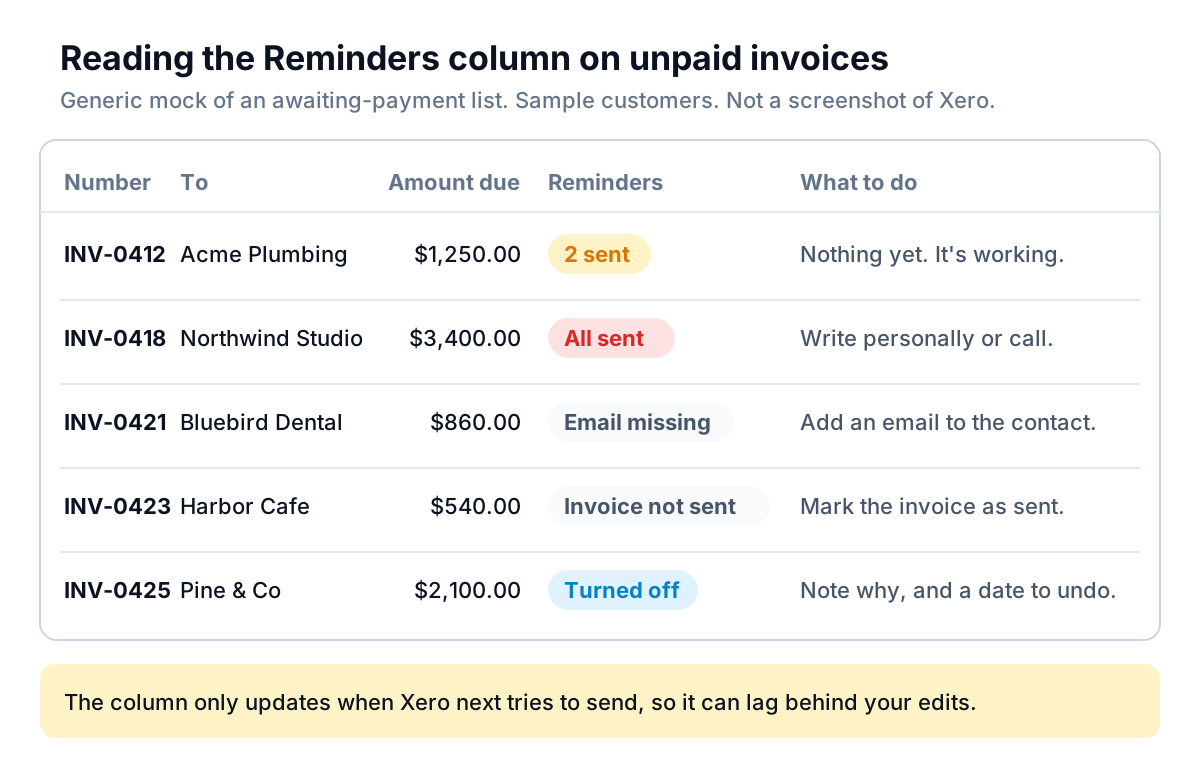
| Status | What it means | Your move |
|---|---|---|
| [Number] sent | Some reminders have gone, more are scheduled | Nothing, unless the client has replied |
| All sent | Every scheduled reminder has gone | Personal email or a call. More of the same won't help |
| Email missing | No email on the contact | Add one. That reminder wasn't sent |
| Invoice not sent | The invoice isn't marked as sent | Mark it as sent |
| Turned off | Reminders were off for the customer or invoice when Xero last tried | Confirm that's still intended |
Two cautions. The column only updates when Xero next tries to send, so it can lag behind an edit you just made. For the full record on one invoice, open it and click Show History under History & Notes, which shows when each reminder was scheduled or sent.
The gaps you'll need to cover
Invoice reminders in Xero are well built for what they are: a reliable schedule with a few switches. The gaps all come from the same place. The schedule doesn't know what your customer has said.
Replies don't change the schedule
A customer who writes back "we'll pay on the 30th" still gets the next reminder on its date unless you act. Xero's overview suggests stopping reminders for invoices "you've already spoken to a customer about", which you do per invoice: open it, click the menu icon, and choose Turn invoice reminders off. To do several at once, tick them on the Awaiting Payment tab, then More › Turn reminders off. For a whole customer, open their contact record and use the menu icon.
The catch is that turning reminders off has no end date. Nothing turns them back on the day after the promised date. You have to remember, and because of the no-catch-up rule, anything scheduled while they were off won't be sent later. If the promised date passes, our guide to what to do when a client promises to pay and doesn't covers the next email.
One set of templates for everyone
All five reminders, and the settings that sit across them, apply to the whole organisation. A long-standing client on 60-day terms who always pays on day 58 gets the same wording as a first-time customer. If tone matters to you, read our notes on friendly payment reminder messages and write templates that suit your most sensitive client, not your slowest.
Partly paid invoices
Xero's overview gives partly paid invoices as an example of when to stop reminders. A client who paid half and agreed a date for the rest will otherwise get a template asking for the balance as if nothing had happened.
Replies go to one inbox
You can choose where replies go, but it's one address for all reminders. If that inbox isn't watched daily, a dispute can sit for a week while reminders keep going out.
A setup checklist that covers most of it
Here's how to set up invoice reminders in Xero so the schedule does as much as it can, and you only handle the exceptions.
- Confirm every active customer has an email address, and that the right people have Include in emails ticked on the contact record. Reminders go to the primary person plus anyone with that option ticked.
- Set Send replies to an inbox you read every day.
- Add a reminder at due in 3 days. Add due in 0 if you want the fifth slot used.
- Rewrite the three defaults in your own voice. Keep the 21-day one polite. It's the last thing the schedule will say before you take over.
- Set a small-balance threshold, such as $25, so a rounding difference doesn't trigger three emails.
- Each Monday, check the Reminders column for "Email missing", "Invoice not sent" and "All sent". Then run the Aged Receivables Summary to see who owes what by age. Our explainer on the accounts receivable aging report shows how to read it.
- Keep a short list of invoices you've turned reminders off for, with the date to turn them back on.
What to add when the checklist isn't enough
The checklist works until the list of "reminders off, turn back on later" invoices gets long. That's the job we built Parity's invoice chaser for. It launches in late November 2026, and Xero is one of the three systems it connects to, alongside QuickBooks Online and FreshBooks.
Parity reads your Xero invoices, contacts and payments. When an invoice is a few days overdue (the grace period is three days by default), unpaid, not disputed and not exempt, it drafts one friendly reminder in your voice, with the amount, due date, invoice number and the invoice's online payment link when it has one. Those figures are checked against Xero before the email can be sent. You approve, edit, skip or snooze each draft. It never sends on its own.
The part that fills Xero's gap is what happens after. Parity reads replies and sorts them into paid, a promise with a date, a dispute, a question, a bounce or an out-of-office. A promise pauses chasing until the day after the promised date, with no switch for you to remember. A dispute stops suggestions and comes to you. Reminders stay at least seven days apart, and after four the invoice is flagged for you to decide. If Xero's own reminders are on when you connect, Parity tells you and asks you to keep one or the other, so nobody gets chased twice.
Parity drafts each Xero reminder for your approval and pauses on its own when a client promises a date. Get early access to Parity's invoice chaser