You turn on automatic reminders on a Monday. By Friday the system has emailed eleven clients, and one of them is the studio owner who rang you on Wednesday to say the check goes out on the 31st. She now has a "friendly reminder" in her inbox that reads as if the call never happened. Nothing broke. The feature did what it was built to do.
This guide covers how invoice reminders in QuickBooks Online actually work: the exact settings, the limits Intuit documents, and the gaps you'll need to cover yourself. Settings and menu names below come from Intuit's own help pages as they read in September 2026. QuickBooks changes its screens often, so if a label differs slightly in your account, look for the nearest match.
How invoice reminders in QuickBooks Online work
QuickBooks has two kinds of reminder: automatic ones that go out on a schedule, and manual ones you send from an invoice. Intuit's article Send invoice reminders automatically or manually in QuickBooks Online lays out the steps.
Automatic reminders
- Go to Settings and select Account and settings.
- Open the Sales tab. In the Reminders section, select Edit.
- Turn on Automatic invoice reminders.
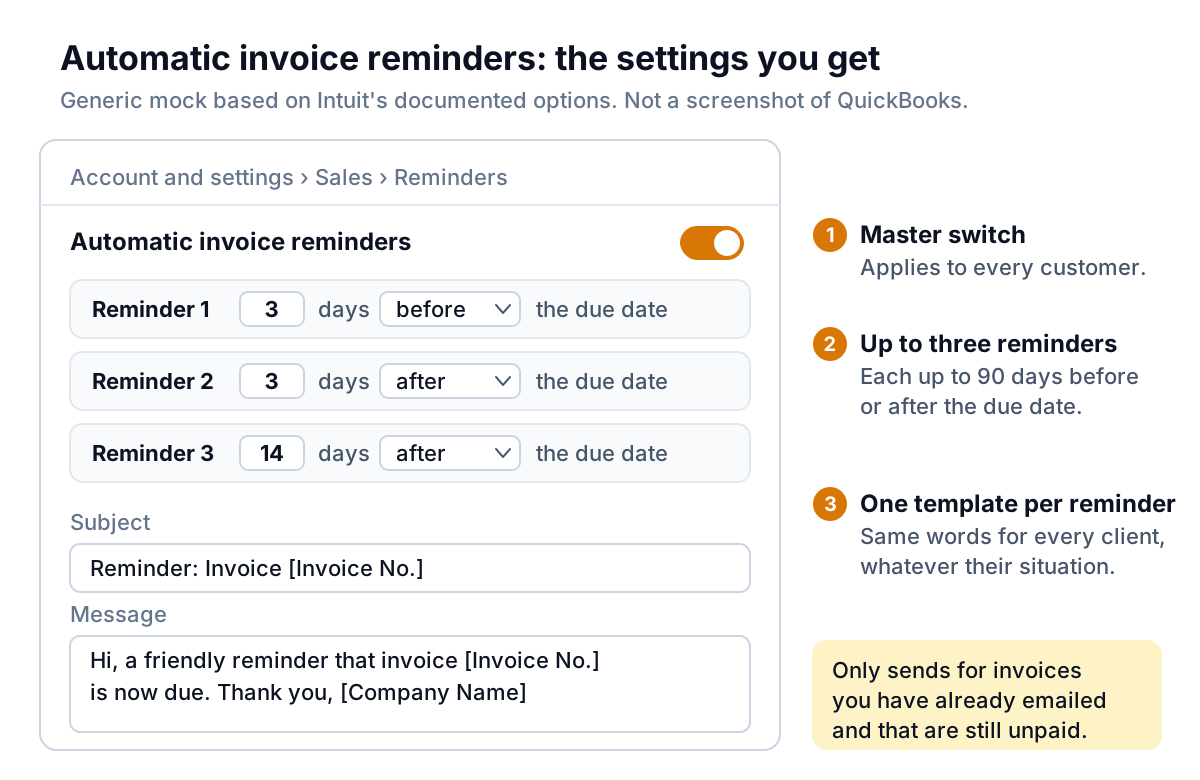
- Open Reminder 1, switch it on, and choose a number of days and before or after the due date.
- Add a second and third reminder if you want them.
- Edit the subject line and message for each reminder, then select Save and Done.
A few rules come with it. You get up to three reminders. Each one can be set up to 90 days before or after the due date. Intuit suggests keeping the word "reminder" in the subject, and you can drop in variables such as invoice number and company name. You can also attach a PDF copy of the invoice to every reminder by ticking PDF Attached under Online delivery on the same Sales tab.
The rule that matters most: QuickBooks only sends an automatic reminder for an invoice that is unpaid and that you have already emailed from QuickBooks. If you print invoices, export them to PDF and send them yourself, or deliver them through a client portal, automatic reminders will never fire for those invoices.
Manual reminders
For a one-off nudge, go to All apps, then Sales & Get Paid, then Invoices, find the invoice, and choose Send reminder from the Receive payment dropdown. You can edit the message before it goes. This is the version to use when the client's situation is unusual, because you see the email first.
Intuit lists the feature on Simple Start, Essentials, Plus, Solopreneur, Lite and Free plans. Advanced users can also build reminders with workflows.
A starting schedule for a service business
Most owners turn the feature on and accept whatever the defaults are. Spend five minutes setting it deliberately instead. Here is a schedule that suits agencies, consultants and trades on 14- or 30-day terms.
| Reminder | Timing | Job it does |
|---|---|---|
| Reminder 1 | 3 days before due | Catches invoices stuck in someone's inbox while there is still time to pay on time |
| Reminder 2 | 3 days after due | A light "in case this slipped" note. Most late invoices are forgotten, not refused |
| Reminder 3 | 14 days after due | The last automatic touch. After this, a person should take over |
Why stop at 14 days? Because by then the reason for non-payment is usually something a template can't fix: a missing purchase order number, a new accounts payable contact, a disagreement about scope, or a cash problem on their side.
For wording, keep each template short and specific. The variables do the heavy lifting. A version of reminder 2 that works for most clients:
Avoid anything in an automatic template that would sound wrong to a client who has a good reason to be late. "Your account is now overdue and may be referred" will reach your best client one day. Keep firmer wording for emails you send by hand. If you want more phrasing options, see our invoice reminder email templates.
Where the built-in reminders stop
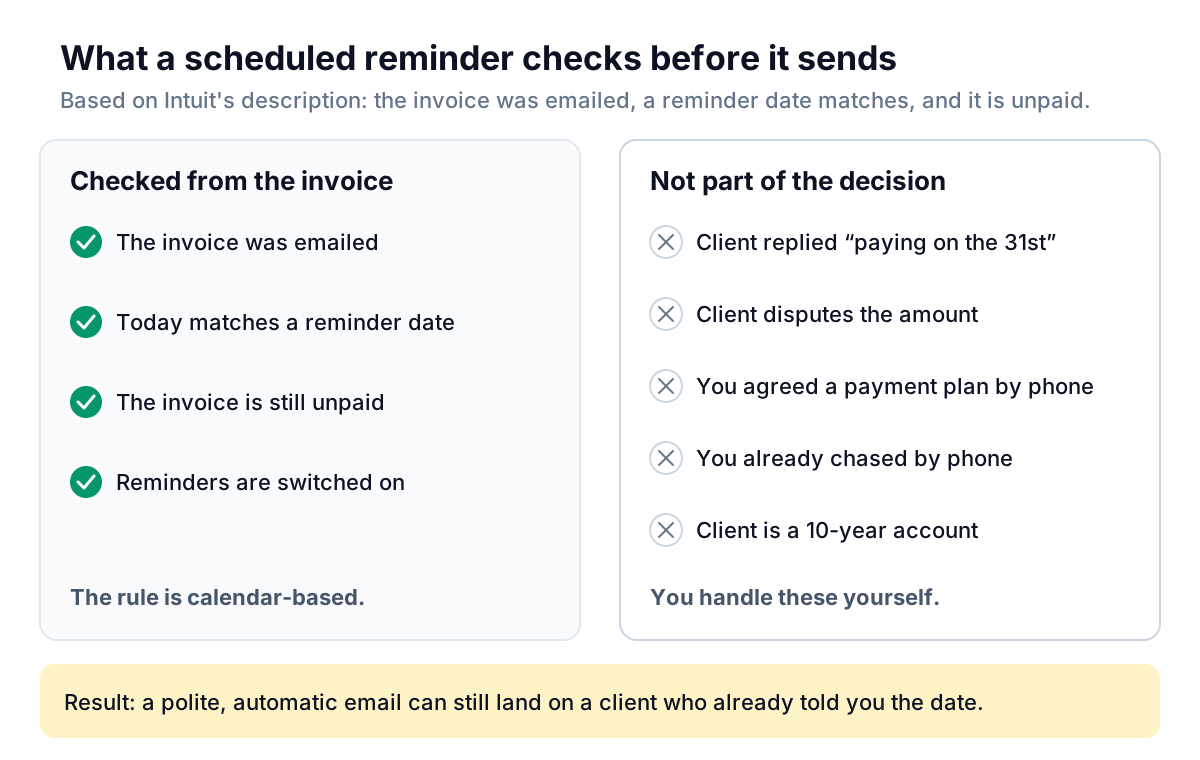
Automatic invoice reminders in QuickBooks Online are a calendar rule. On each reminder date it checks that the invoice was emailed and is still unpaid, then sends the template. That is useful, and it is also the whole of it.
Here's what that means in practice:
- Replies don't change anything. When a client answers "paying on the 31st", the reply goes to your inbox. The next scheduled reminder still goes out on its date.
- Disputes don't pause it. If the client says the invoice is wrong, the schedule keeps running until you fix the invoice, record a payment or change your settings. A reminder that lands mid-dispute reads as if nobody listened. Our post on what to do when a client disputes an invoice explains why you should stop chasing at that point.
- One template per reminder, for everyone. The ten-year client and the new one-off customer get identical words. Intuit describes your templates as the standard template for all invoice reminders, so there's no per-client wording.
- No per-customer switch is described. Intuit's help article only describes the company-wide settings. In a 2020 community thread a QuickBooks representative said you couldn't limit automatic reminders to selected customers and suggested sending manual reminders instead. Check your own account, because this may have changed. If it hasn't, your choices are on for everyone or off for everyone.
- Late fees ride on reminders. If you use automatic late fees, Intuit's late fee article notes that the customer won't know about the fee unless a reminder goes out or you send one manually. Fees also only start applying the day after you switch the setting on. Late-fee rules vary by state, so check yours before you charge one.
The example below shows the most common collision: a reminder that goes out after the client has already given you a date.
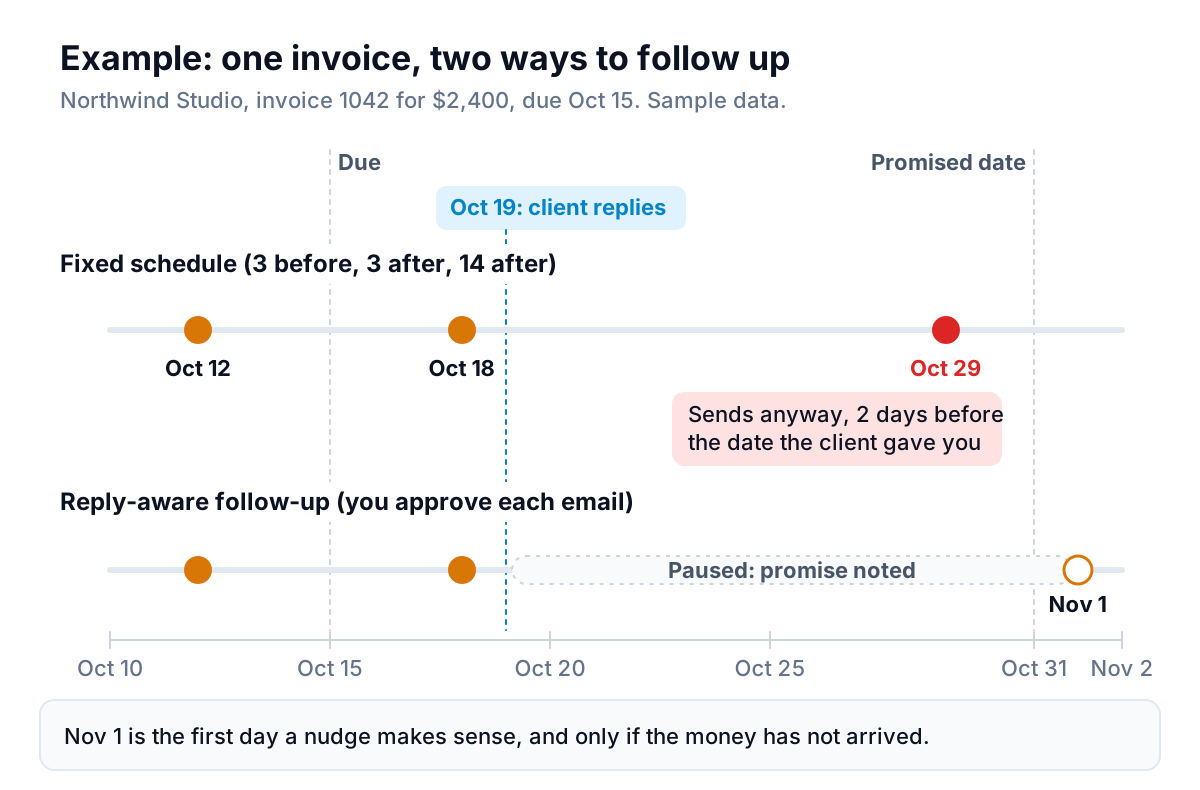
None of this makes the feature bad. For a business with a dozen invoices a month and no special arrangements, it works fine. The trouble grows with the number of clients who have context: a payment plan, a promise, a query, or a relationship you don't want to risk.
Covering the gaps by hand: a 15-minute weekly routine
If you keep invoice reminders in QuickBooks Online switched on, pair them with a short weekly check so the schedule never runs into a conversation you're already having.
- Pull the overdue list. Open the Invoices list and filter to overdue, or run the A/R aging detail report. Our walkthrough of the QuickBooks overdue invoices report shows which report answers which question.
- Search your inbox for each overdue client. Look for promises, questions and complaints since last week.
- Act on what you find. Use the table below.
- Write down promised dates somewhere you'll see them, such as the invoice memo or your calendar, and check them the day after.
- Flag anything over 30 days for a personal email or call. Automatic reminders have done their part by then.
| What you found | What to do in QuickBooks |
|---|---|
| Client promised a date before the next reminder | Nothing, unless the next reminder lands before that date. If it does, and you have several such clients, consider switching to manual reminders. |
| Client disputes the amount | Fix or credit the invoice, or record the agreed figure. Reply personally before any reminder can go out. |
| Client asked for a copy or a PO number | Edit the invoice and resend it. Resending also gives you a fresh, correct email. |
| No reply at all after reminder 3 | Send a manual reminder with your own words, then call. See how to chase unpaid invoices. |
Intuit's newer options, briefly
Intuit has been adding smarter tools on top of the basic schedule, and they're worth knowing about.
Custom automations with Intuit Intelligence. According to Intuit's article on automating invoices with Intuit Intelligence, you can ask it in plain language to create an automation such as "remind me to follow up on invoices that are more than 5 days overdue". When it runs, it flags matching invoices in a Needs attention section on the homepage. You review them, select the ones you want, and choose Send reminders. This is closer to an approval step, because you pick which invoices get an email. The email itself still uses your standard reminder template from company settings.
Workflows in Advanced. QuickBooks Online Advanced lets you build reminders with workflows, and Intuit's cash flow reports guide mentions AI-enhanced reminders in workflows based on past payment patterns. If you're already on Advanced, explore these before adding another tool.
What none of these options do, as Intuit currently documents them, is read the client's reply and change course. Each invoice still gets your standard template, not a draft written for that client, and a promise or a dispute in your inbox doesn't pause anything on its own.
When a dedicated chaser makes sense
A separate tool earns its place when the weekly routine above starts taking an hour, or when you've had one awkward moment too many with a good client. That's the gap we're building Parity's invoice chaser to fill. It launches in late November 2026.
Parity connects to QuickBooks Online and reads your invoices, customers and payments. When an invoice is past due by a grace period (three days by default), unpaid, not disputed and not marked exempt, it drafts one friendly reminder in your own voice. The draft includes the invoice number, amount, due date and QuickBooks' own pay link, and each of those figures is checked against your QuickBooks data before the email can go. You approve, edit, skip or snooze it. Nothing is sent without your approval.
Replies are where it differs most from a schedule. Parity sorts each reply into paid, a promise with a date, a dispute, a question, a bounce or an out-of-office. A promise pauses chasing until the day after the promised date. A dispute stops suggestions and goes to you. Reminders stay at least seven days apart, and after four the invoice is flagged for you to decide. There's no SMS, no escalating "final notice" steps and no auto-send in version 1.
One practical note: if QuickBooks' automatic reminders are switched on when you connect, Parity's connection screen says so and asks you to keep one of the two. A client should never get a reminder from both.
Parity drafts each QuickBooks reminder for your approval and pauses when a client promises a date. Get early access to Parity's invoice chaser
Quick reference
- Path: Settings › Account and settings › Sales › Reminders › Edit.
- Limit: three automatic reminders, each up to 90 days before or after the due date.
- Applies to: unpaid invoices you've already emailed from QuickBooks.
- Wording: one template per reminder, with variables such as invoice number and company name.
- Manual send: Invoices list › Receive payment dropdown › Send reminder.
- Doesn't handle: replies, promises, disputes or per-client wording. Cover those with a weekly check or a tool that reads replies.