Your accountant emails on a Tuesday: "What's over 60 days, and who's the biggest problem?" You open QuickBooks and find a reports page with a section called Who owes you, several reports in it, and none called "overdue invoices". Fifteen minutes later you have three tabs open and two different answers.
There is no single QuickBooks overdue invoices report. There's a list and a handful of reports, and each answers a different question well. This guide matches them up, walks through a worked example, and covers the one setting that quietly changes your numbers. Menu names come from Intuit's help articles as they read in September 2026. QuickBooks Online has a classic view and a newer "enhanced" report experience, so your screens may differ a little.
Which QuickBooks overdue invoices report to run
Start from the question, not the report list.
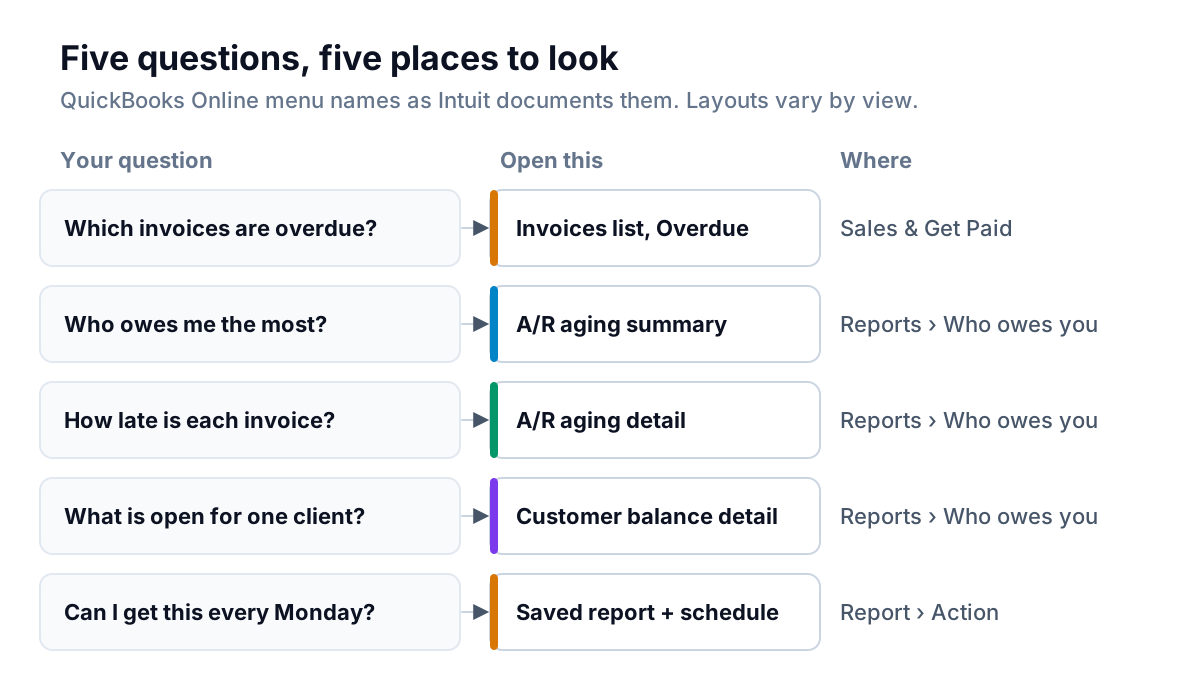
| Question | Best view | Why this one |
|---|---|---|
| Which invoices are overdue right now? | Invoices list, filtered to Overdue | Fastest, and you can act on each invoice from the same screen |
| Who owes me the most, and how late is it? | A/R aging summary | One row per customer, split into age buckets, with totals |
| Exactly which invoices make up that balance? | A/R aging detail | One row per invoice, grouped by age |
| What's open with one client, with due dates? | Customer balance detail, or Open invoices | Shows each open item with its due date |
The quick look: the Invoices list
For a daily glance, skip reports altogether. Go to Sales & Get Paid › Invoices and filter or click the Overdue status. You get every unpaid invoice past its due date, with amounts, and you can send a reminder or record a payment from the same row.
What the list doesn't give you is a subtotal by customer or by age. It's built for working invoice by invoice, not for answering "how much is past 60 days". In a July 2025 community answer, a QuickBooks team member also noted that the newer invoice screen lacked a sent-date column for overdue invoices. In the older interface you could add a Last Delivery column. If you want to see when you last emailed each overdue invoice, check which columns your view offers.
Who owes you the most: the A/R aging summary
Per Intuit's article on running an accounts receivable aging report:
- Go to Reports, then Standard reports.
- In the Who owes you section, select Accounts receivable aging summary.
- Select General options to set the number format, aging and header, then Save as if you want to keep the layout.
The report gives one row per customer, with columns for Current (not yet due), 1–30, 31–60, 61–90 and 91 and over days past due, and a Total. Here's what one looks like for a fictional business with six clients:
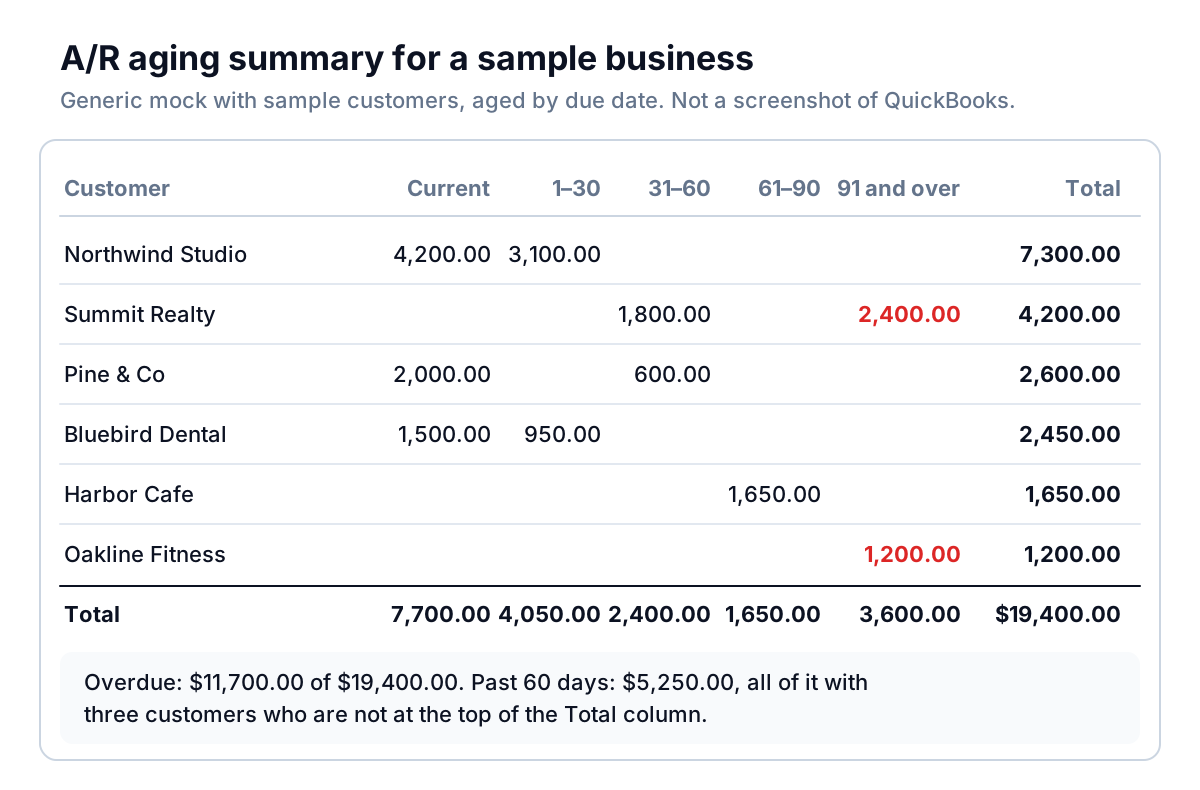
Read it right to left. The Total column tells you who owes the most. The 61–90 and 91-and-over columns tell you who you're most likely not to be paid by. Those are often different customers.
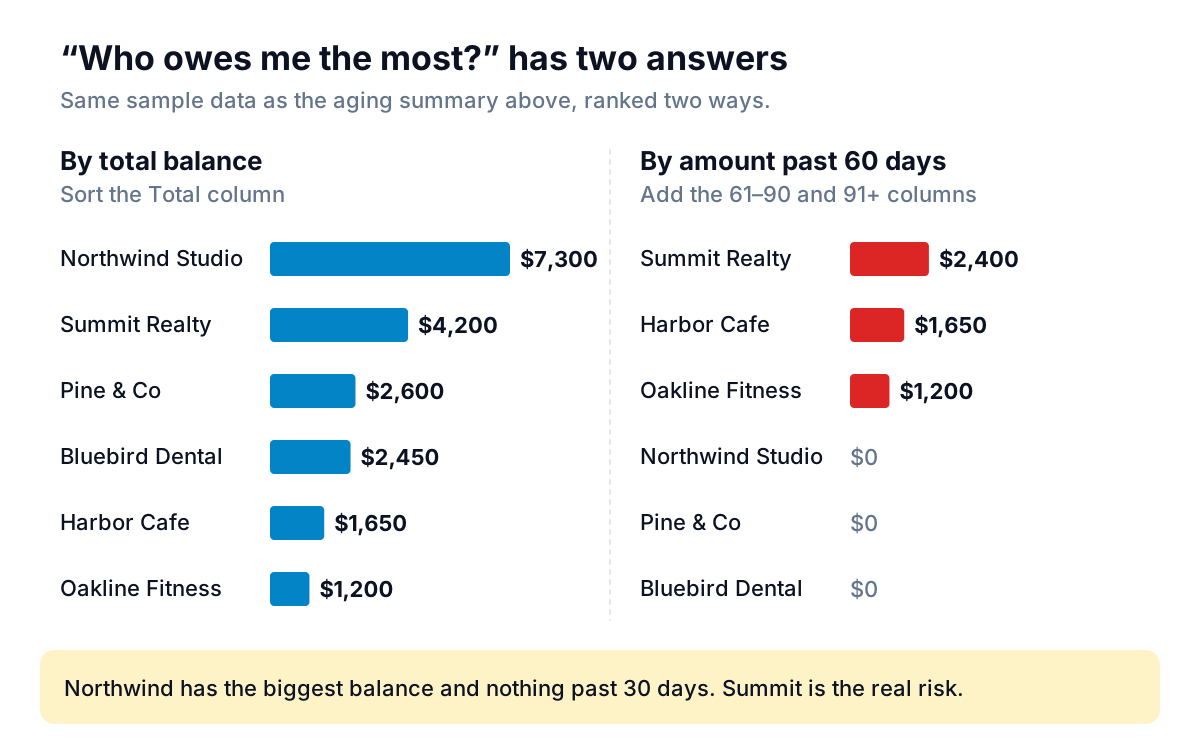
In this example, Northwind Studio owes $7,300, but $4,200 of that isn't due yet and the rest is less than 30 days late. A friendly reminder handles it. Summit Realty owes less overall, but $2,400 of it is more than 90 days old. That's a phone call this week. If you only sort by Total, you spend your attention on the wrong client.
Turning the summary into a to-do list
A report only helps if it ends in actions. Here's how the sample summary above turns into this week's list. Work from the oldest money first, and match the tone to the age, not the size.
| Customer (sample) | What the row says | This week |
|---|---|---|
| Summit Realty | $2,400 over 90 days, $1,800 at 31–60 | Call. Ask if anything is blocking the older invoice before you mention the newer one |
| Harbor Cafe | $1,650 at 61–90 | Personal email asking for a payment date |
| Oakline Fitness | $1,200 over 90 days | Check the inbox for a dispute or a bounce, then call |
| Pine & Co | $600 at 31–60, $2,000 current | Friendly reminder for the $600 only |
| Bluebird Dental | $950 at 1–30 | Friendly reminder if none has gone yet |
| Northwind Studio | $3,100 at 1–30, $4,200 current | Friendly reminder for the overdue $3,100. No pressure on the rest |
Two calls and four short emails cover $11,700 of overdue money. That's a better use of a Monday morning than reminding everyone about everything. For wording at each stage, see how to chase unpaid invoices without losing the client.
Changing the buckets
The standard buckets are 30 days wide. You can change that. In a 2021 community answer, a QuickBooks moderator explained the Days per aging period and Number of periods settings on the A/R aging summary. For example, two periods of 74 days isolates everything 75 or more days late. If your terms are 14 days, 15-day periods give you a sharper picture than 30-day ones.
Which invoices, exactly: aging detail and customer balance detail
The summary tells you where to look. The detail reports tell you what to say.
A/R aging detail is in the same Who owes you section. It lists each open invoice under its age bucket, so you can see that Summit's $4,200 is really two invoices: $1,800 that's 31–60 days old and $2,400 that's over 90. Those may need different emails. The newer one might just need a nudge, while the older one might hide a dispute nobody followed up.
Customer balance detail lists each customer's open items with due dates. Intuit's cash flow reports guide suggests sorting it by due date to find the customers with the most overdue invoices. The same guide points to the Open Invoices report, which lists all unpaid invoices and statement charges with customer totals, as a way to see who owes you the most.
The setting that changes your numbers: aging method
Under Customize › General options › Aging, QuickBooks offers two aging methods. Intuit's article on getting aging reports to match says the aging report defaults to Current, and recommends switching to Report date when you need it to agree with your balance sheet.
In practice, "Current" ages each invoice to today's date, while "Report date" ages it to the end of the report period you picked. If you run last month's report today, the two give different answers:
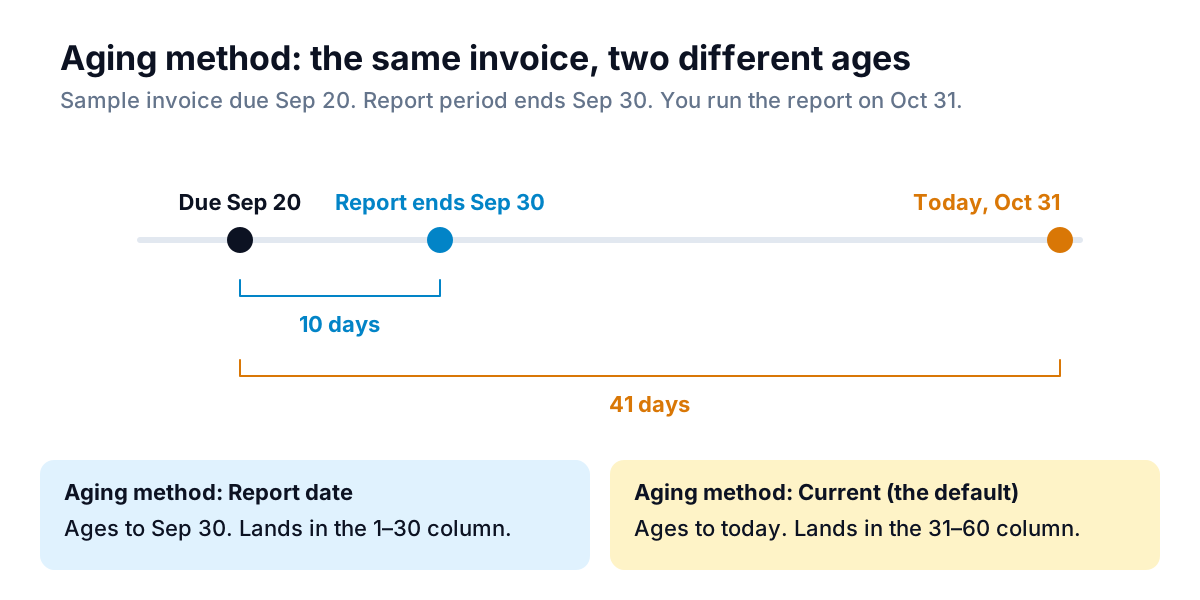
A simple rule: for chasing, use Current with the report period set to today, because you care how late things are now. For month-end reporting to your accountant or lender, use Report date, and run the balance sheet on an accrual basis so the totals agree, as Intuit advises.
If two reports still disagree after that, Intuit's article lists the usual suspects: different date ranges, comparing the wrong lines, opening balances, and timing. A payment recorded today may not show up on reports right away. Check those before you assume a customer's balance is wrong, and certainly before you email them about it.
Make it a Monday habit
Running a QuickBooks overdue invoices report once is easy. Running them every week is what moves cash. QuickBooks can email a saved report on a schedule. From Intuit's article on customized reports with scheduled email:
- Open the A/R aging summary (or detail), set the report period, and choose Save as. Give it a name like "Monday receivables".
- Find the saved report and, from the Action dropdown, select Create a schedule.
- Name the workflow, set a start date and how often it repeats (weekly, on Monday), enter your email address, subject and message.
- Select Save and turn on.
Intuit lists scheduled reports for Simple Start, Essentials, Plus, Advanced and Solopreneur Plus. When the email arrives, spend ten minutes on it:
- What's the total in 61–90 and 91 and over, and is it bigger than last week?
- Who moved into 31–60 this week? They need a personal note, not another template.
- Which overdue invoices have had no reminder at all?
- Has anyone promised a date that's now passed?
We expand this into a full routine in six questions to ask about your receivables every Monday. For the theory behind the buckets, see accounts receivable aging report, explained for owners.
Every QuickBooks overdue invoices report has the same blind spot: they know balances and dates, but not conversations. The aging detail can't tell you that Summit's 91-day invoice is waiting on a revised PO, or that Harbor Cafe promised payment Friday. You hold that in your head or your inbox. If you also use automatic reminders, read our guide to QuickBooks Online invoice reminders so the schedule doesn't trip over those conversations.
Asking the question instead of building the report
The reports above are free and they work. What they cost is the clicking, and the step where you work out the second ranking yourself. That's part of why we're building Parity's invoice chaser, which launches in late November 2026.
Parity connects to QuickBooks Online and pulls your invoices, customers and payments into one dashboard. It uses the same age buckets (current, 1–30, 31–60, 61–90, 90+), shows each customer's balance, oldest open invoice and last payment, and shows a warning instead of a number if its totals stop matching QuickBooks. A chat panel answers questions like "who owes me the most?" and "what's past 60 days, and how much is it in total?" from the data, with the figures cited so you can check them. It can also tell you which overdue invoices haven't had a reminder yet, and draft one for you to approve. It never sends on its own. A Monday summary arrives with the totals already worked out.
Parity reads your QuickBooks invoices and answers receivables questions with the figures cited. Get early access to Parity's invoice chaser