Here's one workflow: when an invoice is paid, find the customer in your CRM, log a row in a spreadsheet, post in Slack and draft a thank-you note. Run it 400 times a month. Zapier counts that as 1,600 tasks. Make counts 2,000 credits. n8n counts 400 executions. Power Automate doesn't count steps at all, because you pay per user. Same work, four meters, four different bills. That's the first thing to understand when you compare the top AI automation software. The price on the plan card only means something once you know what's being counted.
This comparison covers the four platforms most small businesses shortlist: Zapier, Make, n8n and Microsoft Power Automate. It explains how each one meters usage, what the AI features actually do, where each one is the wrong choice, and how to test one in two weeks. Prices and plan details were checked on each vendor's own site in September 2026. They change often, so confirm before you buy.
The top AI automation software, side by side
| Zapier | Make | n8n | Power Automate | |
|---|---|---|---|---|
| Free option | 100 tasks a month, two-step Zaps only | Up to 1,000 credits a month, 2 active scenarios, runs every 15 min at most | Community Edition, free if you host it yourself | Standard connectors included with eligible Microsoft 365 plans |
| Entry paid plan | Professional from $19.99/mo billed yearly ($29.99 monthly), 750 tasks | Core $9/mo billed monthly, 10,000 credits | Starter €20/mo billed yearly, 2,500 executions (cloud) | Premium $15 per user/mo, paid yearly |
| What's metered | Each successful action step | Each module run, trigger included | Each full workflow run | Users (plus bots for unattended desktop automation) |
| AI building help | Copilot builds Zaps from a description | Maia builds scenarios through conversation | AI Agent node; templates for many model providers | Copilot creates and edits flows from plain language |
| Best for | Fast setup across many apps | Complex, branching workflows on a budget | Technical teams, self-hosting, high volume | Teams that live in Microsoft 365 |
Sources: Zapier pricing, Make pricing, n8n pricing, Power Automate pricing.
How each platform counts your usage
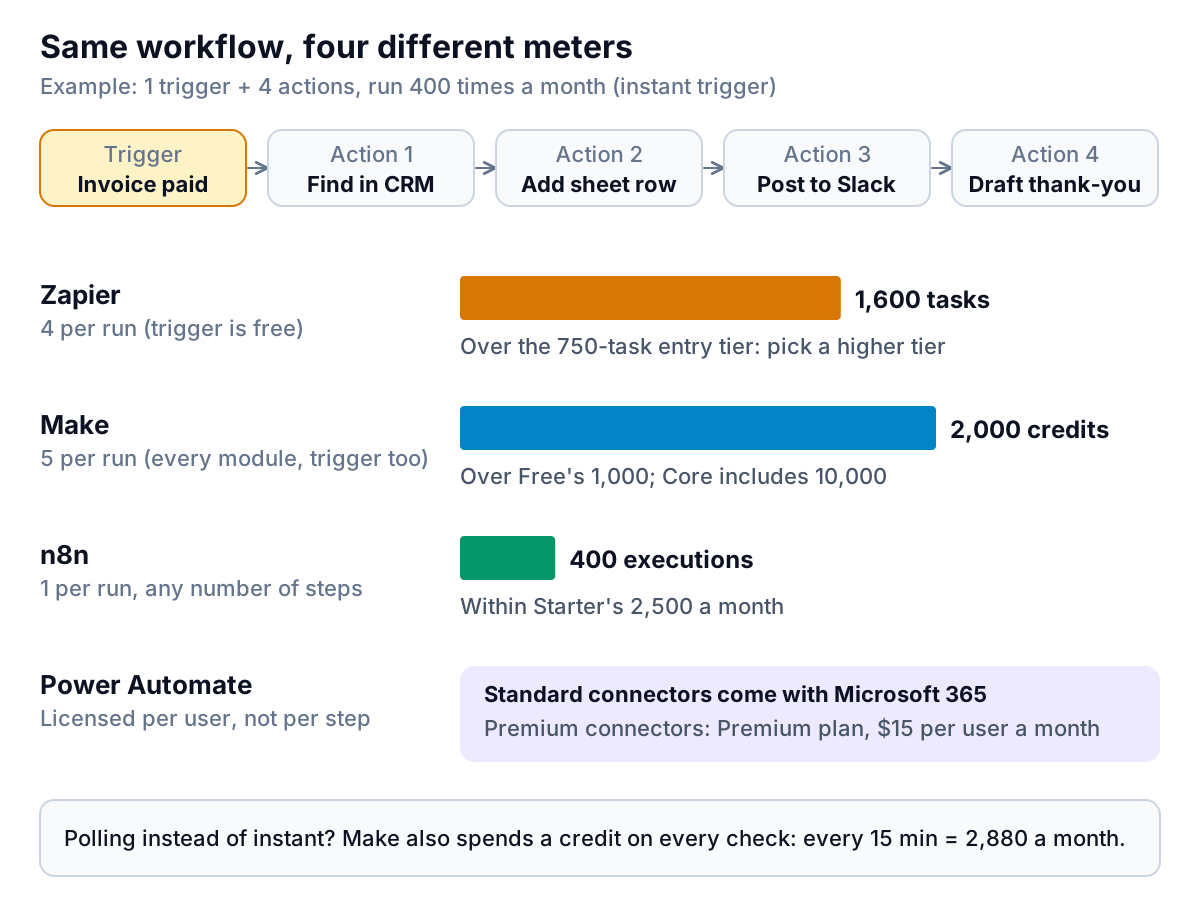
Zapier counts tasks. Zapier's help center says triggers never use tasks, and neither do Filter, Paths or Formatter steps. Each successful action does. Four actions × 400 runs = 1,600 tasks, which is over the 750-task entry tier. Zapier now also says AI steps and code are charged in tasks, at rates that vary with the model and runtime. A heavy AI step can cost more than one task.
Make counts credits. Make's own training material says each module that runs uses a credit, and the trigger uses one every time it checks, even when it finds nothing. With an instant (webhook) trigger, our example is 5 × 400 = 2,000 credits. With a trigger that polls every 15 minutes, add about 2,880 checks a month (96 a day × 30). AI toolkit modules use credits based on the amount of text processed. Even so, Core's 10,000 credits for $9 a month goes a long way.
n8n counts executions. One run of the whole workflow is one execution, however many steps it has. That makes long workflows cheap on n8n Cloud, and self-hosting the free Community Edition removes the meter entirely. You pay instead with your own time running a server.
Power Automate is licensed per user. If your apps are on Microsoft's standard connectors, your Microsoft 365 licence may already cover you. Premium connectors (many third-party apps, custom APIs, desktop automation) need the Premium plan at $15 per user per month. Unattended bots are $150 a month each.
What the "AI" actually does
"AI automation" covers three different things, and it helps to keep them apart.
- AI that builds the workflow. You describe what you want and a copilot assembles the trigger and steps. Microsoft's documentation for Copilot in cloud flows suggests prompts in a "When X happens, do Y" format and says Copilot is optimised for English. Zapier's Copilot and Make's Maia do similar jobs. These save setup time, but you still need to test what they build.
- AI as a step inside the workflow. A model reads an email and pulls out the order number. It classifies a support request, summarises a call transcript, or drafts a reply. This is where most of the value is for small teams, because it handles messy text that rules can't.
- Agents. An AI is given a goal and a set of tools and decides which steps to take. All four vendors now offer some form of agent. Agents are useful for research and triage. They're the riskiest choice for anything a customer sees, because the path isn't fixed in advance.
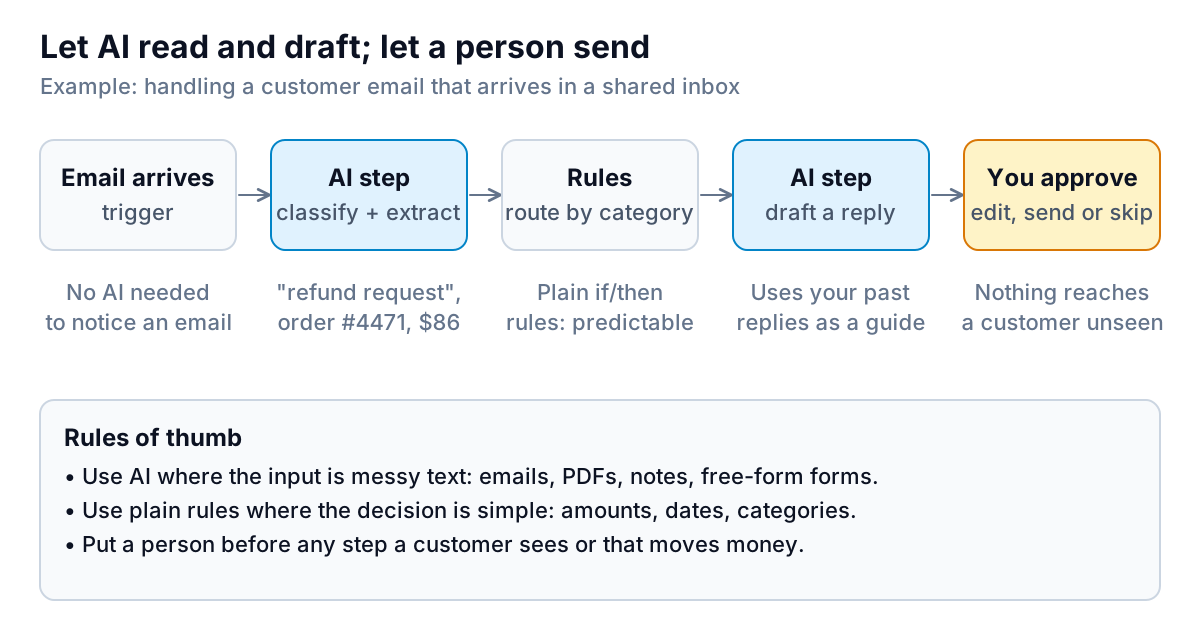
The pattern in the figure works on all four platforms. Zapier's Human in the Loop pauses a Zap until someone approves, and it's available on paid plans. n8n describes human-in-the-loop checks in front of any AI agent tool. Power Automate has an approvals step. Make lists a Human in the Loop app for Enterprise customers. On lower plans, you can route drafts to a shared sheet or inbox for review instead. We explain why the approval step matters so much for anything involving money in why an AI should never send a payment reminder without approval.
Choosing one: strengths and honest weaknesses
Zapier
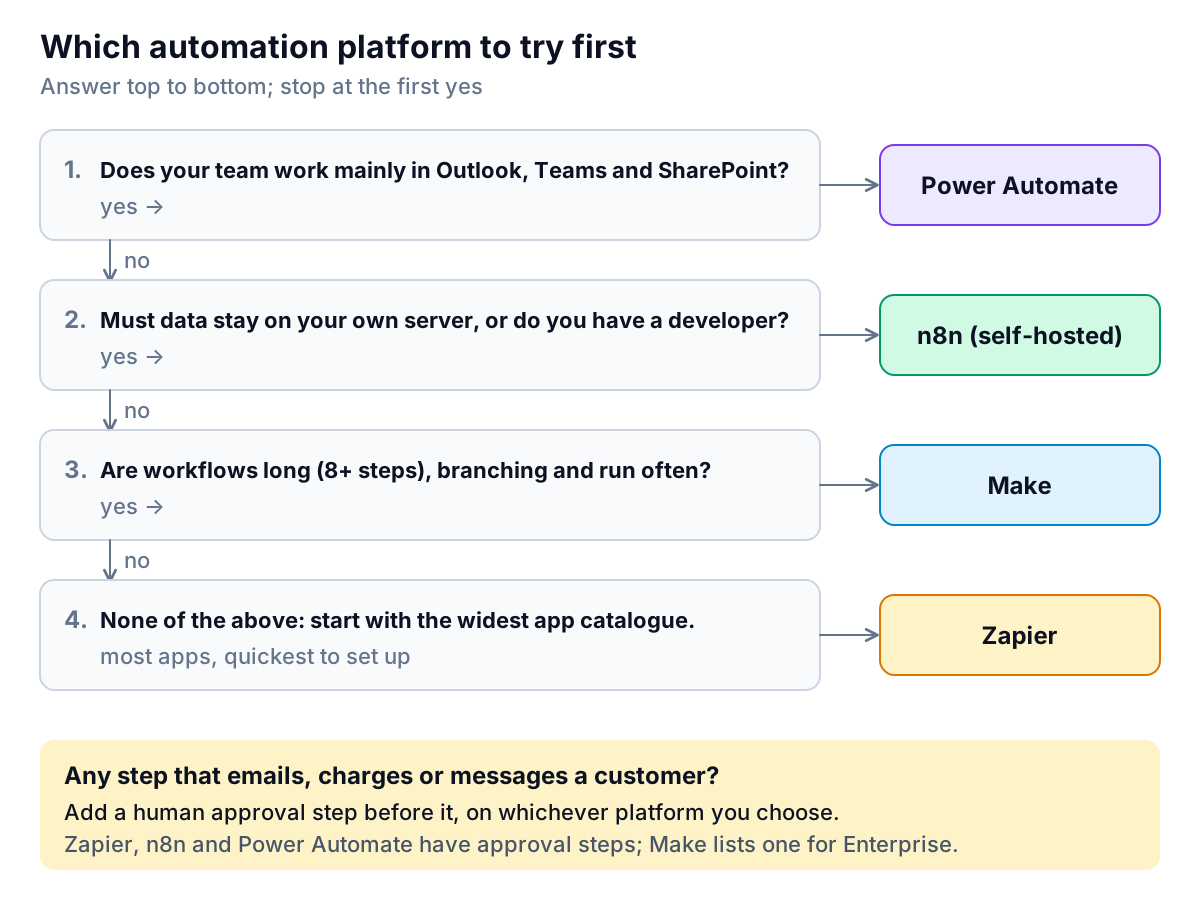
Zapier is the easiest to start with and connects to the most apps. Its pricing page cites more than 9,000. Builders are linear and readable, which helps when a non-technical colleague has to fix a Zap at 5pm. The weaknesses: the free plan only allows two-step Zaps, and task costs climb with long workflows and heavy AI steps. If you're building ten-step workflows that run thousands of times a month, compare the cost with Make or n8n.
Make
Make's visual canvas suits workflows with branches, loops and error routes, and its credit pricing is low per unit. The trade-off is a steeper learning curve, and the trigger-check rule means a polling scenario uses credits even in quiet months. Set triggers to instant where the app supports it, and schedule the rest sensibly.
n8n
n8n is the strongest choice if someone on your team is comfortable with JSON and an occasional line of code, or if data has to stay on your own infrastructure. Self-hosted, there's no per-run meter, and you can call local AI models as well as cloud ones. The cost is responsibility: updates, backups, security and uptime are yours. Our guide to cloud vs local AI covers that trade-off in more detail.
Power Automate
If your business runs on Outlook, Teams, SharePoint and Excel, Power Automate is often already paid for, and it handles Microsoft's own apps more deeply than anyone else. It's less pleasant outside that world. Premium connectors add a per-user cost, and some features need a Microsoft-friendly admin.
Mistakes people make when comparing the top AI automation software
- Comparing plan prices instead of meters. A $9 plan and a $19.99 plan aren't comparable until you've converted your workflows into credits, tasks or executions.
- Forgetting the polling cost. A trigger that checks every minute on Make spends credits all month, even when nothing happens.
- Letting one person own every workflow. Name each workflow plainly, add a one-line note on what it does, and make sure a second person can switch it off.
- Skipping error alerts. All four platforms can notify you when a run fails. Turn that on before the first workflow goes live, not after a week of silent failures.
- Trusting the copilot's first draft. Generated workflows often pick the wrong account, field or date format. Run three test records through and check each output by hand.
What to automate first, and what to handle with care
Good first automations are frequent, boring and low-risk. Each one saves a few minutes a day and can't embarrass you if it misfires:
- New web form submission → CRM contact + Slack or Teams alert.
- Paid invoice → spreadsheet log + thank-you note drafted for review.
- Incoming supplier PDF → AI extracts invoice number, amount and due date into a sheet for checking.
- New calendar booking → prep notes compiled from the client's history.
- Weekly export → summary emailed to you on Monday morning.
Handle with care: anything that sends a message to a customer about money. Late-payment reminders are the classic case. They're easy to build as a Zap ("when an invoice is 7 days overdue, send email"), and easy to get wrong. The invoice may have been paid yesterday, may be under dispute, or the customer may have promised payment on Friday. If you build one, add an approval step and a check against your accounting system's live status before every send. Our guide to chasing unpaid invoices covers the timing and wording.
That gap is why we're building Parity's invoice chaser as a dedicated tool rather than a recipe. It connects to QuickBooks Online, Xero and FreshBooks, or takes PDF and CSV exports. It drafts one friendly reminder per overdue invoice in your own voice, checks every amount, date and invoice number against the source data, and sends nothing until you approve it. When a customer replies with a promise or a dispute, chasing pauses on its own. It launches in late November 2026 and is open for early access now.
A two-week trial plan for any platform
- Days 1–2: list five workflows you do by hand every week. Count runs per month and steps per run.
- Days 3–5: build the simplest one on the free plan or trial. Use the copilot, then read every step it created.
- Days 6–10: run it on real data with a human check at the end. Note every failure and why it happened.
- Days 11–14: check the usage meter against your estimate. Multiply by the full set of workflows and pick the plan.
Whichever you choose, the top AI automation software is the one your team will still understand and maintain in six months. A slightly cheaper meter rarely makes up for a workflow nobody dares touch. For a broader view of where AI fits in a small business beyond automation, see our guide to AI based tools for small business.
Parity drafts each overdue-invoice reminder from your live accounting data and waits for your approval before anything is sent. Get early access to Parity's invoice chaser