Zephyr Air Duct Cleaning's September numbers put days sales outstanding at 24. Zephyr is an invented business used for the example, and on 30-day terms, 24 days sounds like customers paying early. Over the same twelve months, the money its commercial customers owed more than 60 days past due went from $4,100 to $14,600. Both facts came from the same books.
The 24 was calculated the usual way, on all sales, and most of Zephyr's sales are homeowners who pay by card when the van leaves. Those never become receivables. Counted only on the work it invoices, Zephyr's customers took 54 days to pay. A good accounts receivable aging chart shows that kind of drift months before it shows up as a cash squeeze, and it takes three charts, not one, to see it clearly. This guide shows which three, how to build them from an aging report export, and the versions that look reassuring when they shouldn't.
Three questions to ask of your receivables
An aging report is a table of who owes what, split by how late. Our guide to reading an accounts receivable aging report walks through one line by line. A single report is a snapshot, though, and the questions an owner actually asks are about direction:
- Is the late money growing? The aging buckets, stacked, one bar per month end.
- Are customers paying more slowly? Days sales outstanding (DSO) as a line, measured against your payment terms.
- Who is holding it? The biggest balances as sorted bars, each split by age.
Each chart answers one of those and is poor at the other two. Put them side by side and they explain each other: the stack shows that old debt is rising, the DSO line confirms it's a payment-speed problem rather than a sales boom, and the customer bars show whose money it is.
The accounts receivable aging chart, month by month
Take the bucket totals from the bottom row of each month-end aging report and stack them. Here are Zephyr's twelve month ends, commercial customers only, since nobody else gets an invoice.
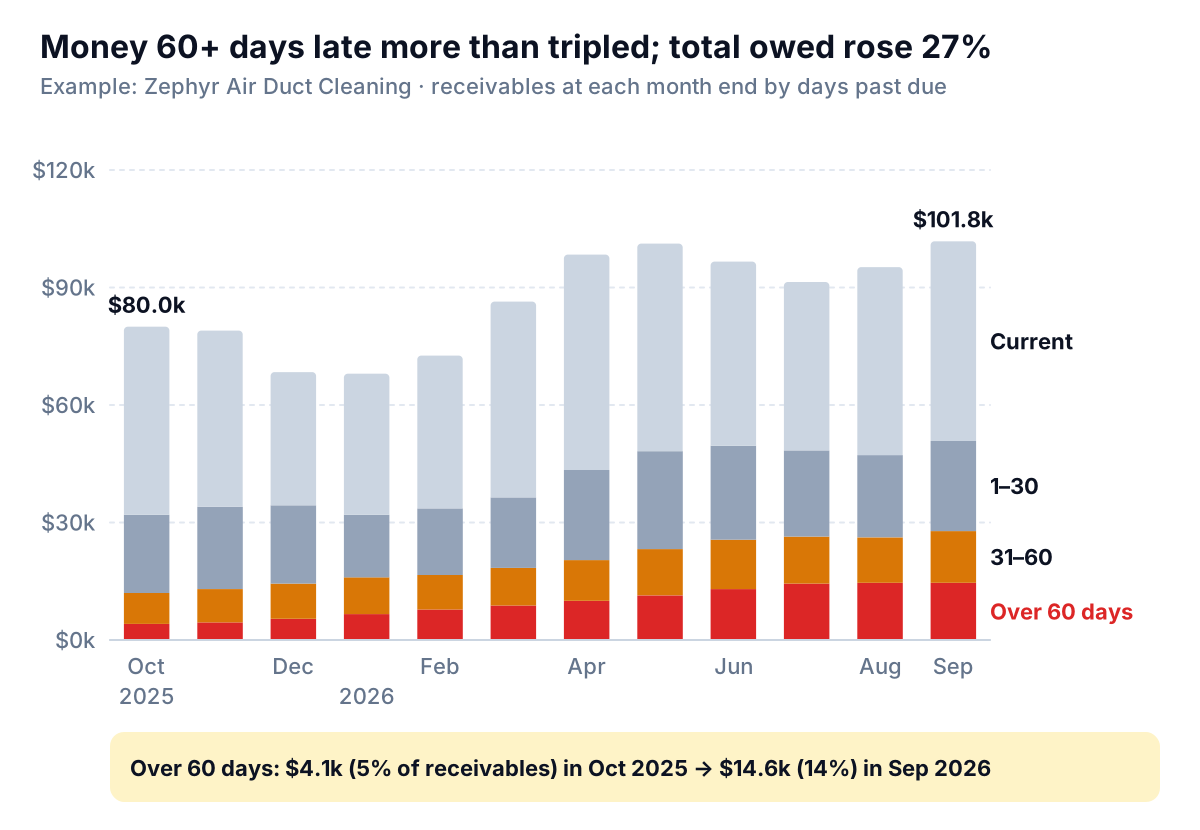
Read it from the bottom up. The red segment, more than 60 days past due, climbs steadily from $4,100 to $14,600, from 5% of what Zephyr is owed to 14%. The amber 31-to-60 band thickens too. The pale top segment, invoices not yet due, moves up and down with the season: Zephyr invoices more property managers in spring, so April and May bars are taller. That seasonal swing is why a line of total receivables is the wrong chart here. Total owed rose 27% over the year. On its own, that could be growth. The stack shows it isn't only growth: half of everything owed in September was past due, against 40% a year earlier.
Three design choices make an accounts receivable aging chart like this work:
- Oldest bucket on the baseline. Only the bottom segment of a stacked bar sits on a common, straight edge, so it's the only one whose change you can read precisely. Put the bucket that needs action there. With current invoices at the bottom, the red segment would float at a different height every month.
- Four segments at most. The Financial Times' Visual Vocabulary notes that stacked columns get hard to read with more than a few components. QuickBooks gives you five aging columns; merge 61–90 and 91+ into "over 60" for the trend chart and keep the split for the table.
- Color by urgency, not by series order. Red only for the oldest money, amber for the next band, grays for the rest. A rainbow makes every bucket look equally urgent.
The DSO line: count it on the sales you invoice
The aging stack shows how old the money is. DSO turns that into one number you can trend: roughly how many days of invoiced sales are sitting unpaid. The usual formula is receivables ÷ credit sales × days in the period. Corporate Finance Institute's DSO guide is explicit that only net credit sales belong underneath, because cash sales effectively have a DSO of zero.
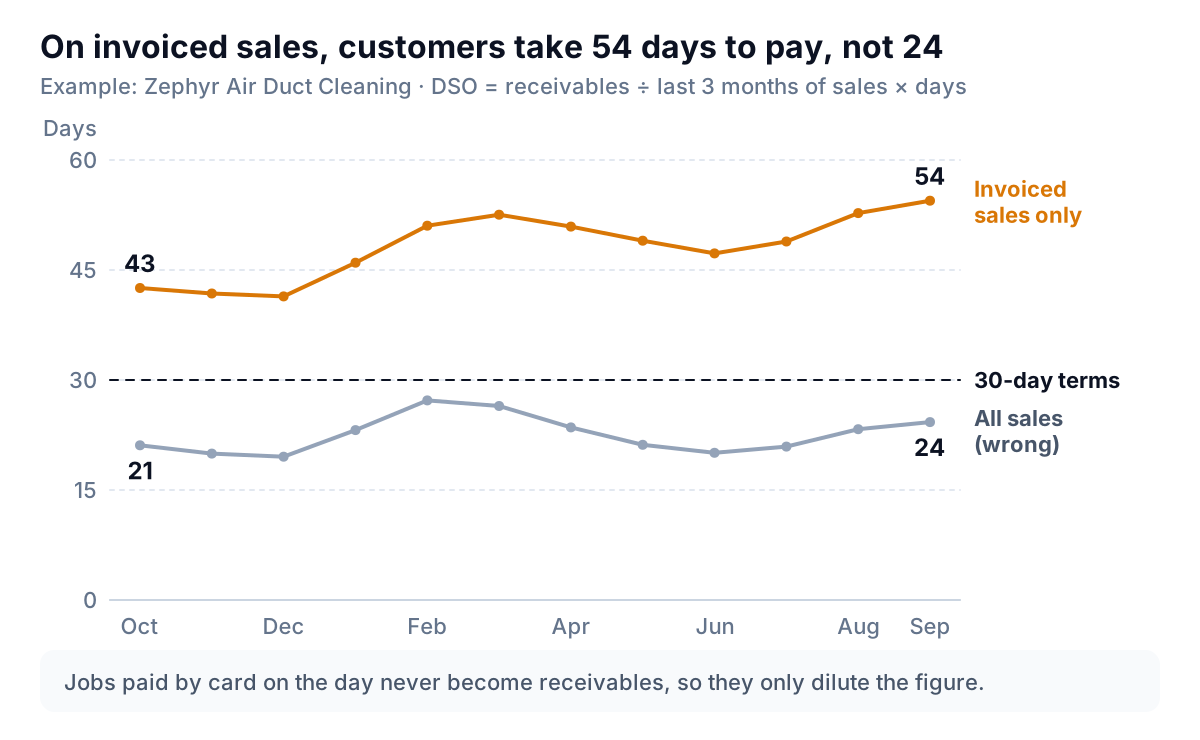
Zephyr's September: $101,800 owed, and $172,000 of commercial work invoiced in July, August and September, which together have 92 days. $101,800 ÷ $172,000 × 92 = 54 days. Add the $214,000 of homeowner jobs paid on the day and the same receivables divide by $386,000, giving 24 days. The gray line isn't measuring anything real. It rises and falls with how busy the residential side is.
How to read the amber line:
- Against your terms. Draw your payment terms as a flat dashed line. If every customer paid exactly on the due date, DSO would sit near it. The gap between the two lines is roughly how late the average dollar is: about 24 days at Zephyr.
- By direction, not by month. A three-month window smooths one big invoice, but DSO still wobbles. Zephyr's eased from March to June as the busy spring invoices were paid, then climbed again. Judge the trend over a quarter.
- Next to the stack. If DSO rises while the red base stays flat, you invoiced a lot recently and it isn't due yet. If both rise, as here, customers are paying more slowly.
If your sales are very lumpy, the simple formula overreacts to a single big month. The countback method fixes this by working backwards from today's receivables through each month's sales until they're used up; Upflow's DSO documentation has a worked example. Whichever method you choose, keep it the same every month and write it under the chart.
Who is holding the money
The third chart switches from months to customers. Take the latest aging report, sort by total owed, keep the biggest six and add the rest together as one bar.
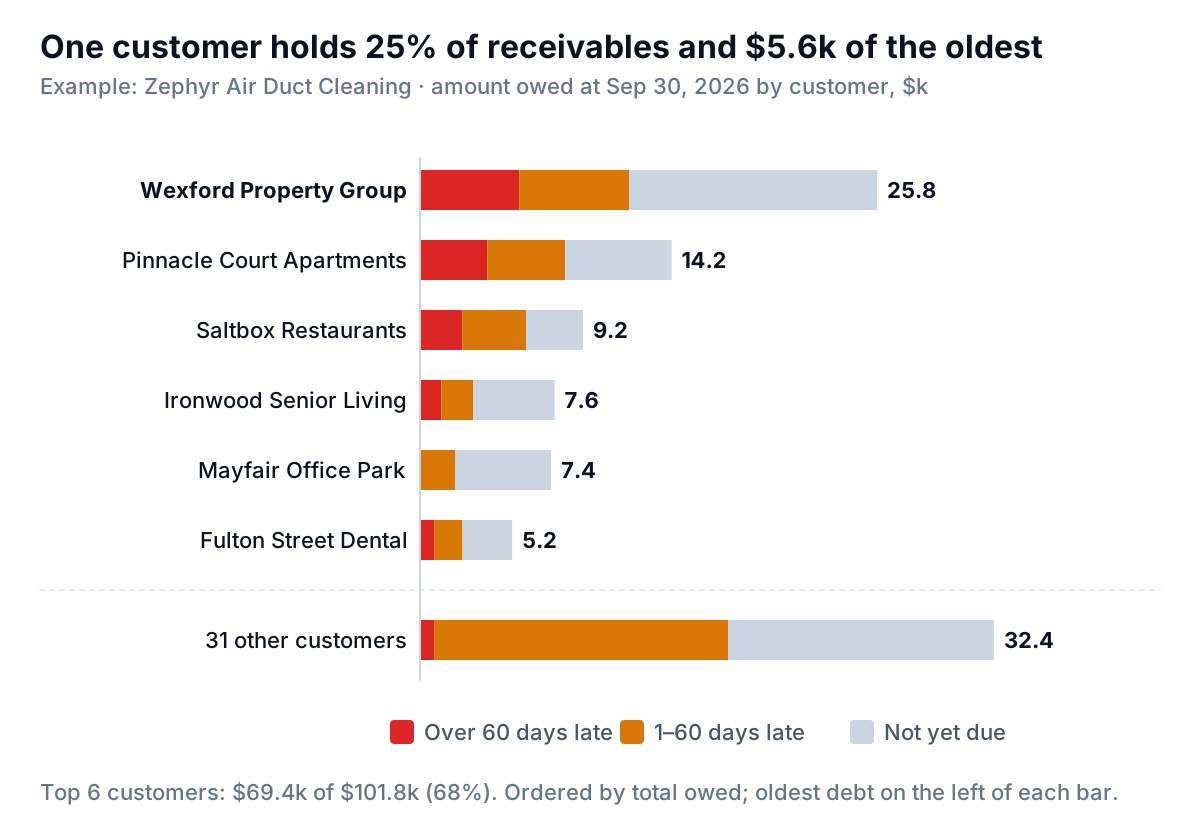
Wexford Property Group, a property manager with a dozen buildings on Zephyr's books, owes $25,800: a quarter of everything, including $5,600 more than 60 days late. Wexford and Pinnacle Court together hold $9,400 of the $14,600 over 60 days. The 31 smaller customers owe $32,400 between them, almost all of it either not yet due or less than 60 days late. Zephyr's problem isn't its customer base paying slowly. It's two accounts.
That changes the response. A business-wide fix, like tightening terms for everyone, would irritate 31 customers who pay fine. The chart points to two conversations and a decision about how much more work to take on for each account before the old balance is settled.
Design rules for this one:
- Horizontal bars, sorted by total. Customer names are long; a sorted list reads like a ranking.
- Oldest money at the left end. Every bar starts from the same edge, so the red segments line up and compare directly.
- An "everyone else" bar, set apart. It shows whether the problem is concentrated or spread out. A dashed rule above it shows it's a group, not one customer.
- Name the share. "Top 6 customers: 68% of receivables" in the note answers the concentration question without a pie chart.
Building the three charts from an aging report export
The accounts receivable aging chart and its two companions all come from data you already have. In QuickBooks Online, Intuit's help page on running an accounts receivable aging report gives the path: Reports, then Standard reports, then "Accounts receivable aging summary" under Who owes you. Set the report date to each month end you want, export to Excel, and copy the bottom total row. Other accounting tools have an equivalent aged receivables summary; our QuickBooks reports guide covers the rest of what's there.
Shape the data
Make one sheet with one row per month end and these columns:
| Column | What goes in it | Zephyr, Sep 2026 |
|---|---|---|
| A: Month end | Date of the report | Sep 30, 2026 |
| B: Over 60 | 61–90 plus 91 and over, added | $14,600 |
| C: 31–60 | From the total row | $13,200 |
| D: 1–30 | From the total row | $23,000 |
| E: Current | From the total row | $51,000 |
| F: Total | =SUM(B2:E2) | $101,800 |
| G: Credit sales in the month | Invoiced sales only, from your sales by customer or income report | $62,000 |
| H: Days in the month | =DAY(A2) when A holds the month-end date | 30 |
| I: DSO | =F4/SUM(G2:G4)*SUM(H2:H4), starting on the third row | 54 |
| J: Terms | 30 on every row, so it draws as a line | 30 |
The column order is deliberate: Excel stacks the first series at the bottom, so putting "Over 60" first puts the oldest money on the baseline.
Insert the charts
- Aging stack: select A1:E13 and insert a stacked column chart. Microsoft's chart walkthrough covers Insert > Recommended Charts and the All Charts tab, where stacked column is listed under Column. In Google Sheets, select the same range, choose Insert > Chart, and pick the stacked column chart under Setup; Google's column chart help notes that a stacked chart needs at least two series and reads labels from the first column. Recolor the segments by hand and delete the legend once you've labeled the last bar.
- DSO line: select the month, DSO and Terms columns and insert a line chart. Make the terms line dark and dashed and the DSO line your accent color. Start the vertical axis at zero, so a rise from 43 to 54 looks like what it is, a quarter longer, rather than a cliff.
- Top customers: paste the latest aging summary on its own sheet, sort by Total, largest first, and add a row under the top six with
=SUM()of everyone else for each bucket. Insert a stacked bar chart with the oldest bucket as the first series. Excel draws bar charts from the bottom up, so either sort the sheet smallest first or reverse the category order in the axis options.
Receivables charts that reassure when they shouldn't
- DSO on all sales. Any business with a mix of card-on-the-day and invoiced customers gets a flattering number. Zephyr's fell from 54 days to 24.
- A pie of this month's buckets. It's an accounts receivable aging chart many dashboard tools offer, and it shows one month, so it can't show the red slice growing. Pies also make five similar slices hard to compare.
- Total receivables as a line. Rising receivables can mean more sales or slower payment. Without the buckets you can't tell which.
- Bucket totals without customers. A growing over-60 band could be thirty customers or one. The answer decides what you do next.
- Aging from invoice date. Some tools let you age from the invoice date rather than the due date. Customers on longer terms then look late when they aren't. Pick due date, say so under the chart, and don't switch.
- Averaging monthly DSO into a yearly figure. A year's DSO is year-end receivables against the year's credit sales, or the average of month-end receivables against them. An average of twelve monthly ratios weights quiet months as heavily as busy ones.
DSO is one leg of the cash conversion cycle, so if the amber line is rising, check what it does to the other two before deciding how worried to be.
A receivables chart pack that updates itself
Rebuilding these by hand means twelve month-end exports for the first version and one new export, a paste and a re-sort every month after. Parity can build them from your data instead. Connect QuickBooks Online, or upload an aging report or invoice list exported from any other system as CSV or Excel, and describe what you want: "aging buckets by month end with over-60 at the bottom, DSO on invoiced sales against 30-day terms, and the top six customers by balance split by age". It builds a receivables dashboard showing who owes what, how late, and who pays slowest, with charts, what explains them and a table of what needs attention. Every number and chart is checked against queries on the full dataset before you see it. Ask, and it writes the month-end receivables report from the same data.
Connect QuickBooks Online and get checked receivables charts: aging by month, DSO on invoiced sales and your biggest balances. Build a report from your data free
Zephyr's owner keeps the three charts on one page now. In September they said: old money is up, customers are paying slower, and two property managers account for most of it. The 24-day DSO figure has been retired.