Most small-business dashboards die within a month. Someone spends a weekend building twelve charts, shares the link, and by week three nobody opens it. The problem is rarely the software. It's that nobody decided what questions the dashboard was supposed to answer.
An AI dashboard builder makes the building part fast. You describe what you want in plain English and get charts in minutes rather than days, with no code. That speed makes the deciding part more important, not less, because it is now very easy to build a dashboard full of charts that don't help anyone. This guide starts with what to put on the page, then helps you pick a tool based on where your data lives, then shows how to build and refine it.
Start with four questions, not twelve charts
A dashboard you will actually open answers a small number of questions you ask every week. For most owner-run businesses, those are the same four:
- Are we on track this month? A few headline numbers against a target or last month.
- Which way is it heading? One trend line over 12 months, so a bad week doesn't look like a crisis.
- Where is it coming from? A breakdown by the thing you can act on: service, location, salesperson, technician or channel.
- What needs action today? A short list of exceptions: unbilled jobs, overdue invoices, stock below reorder level, leads not followed up.
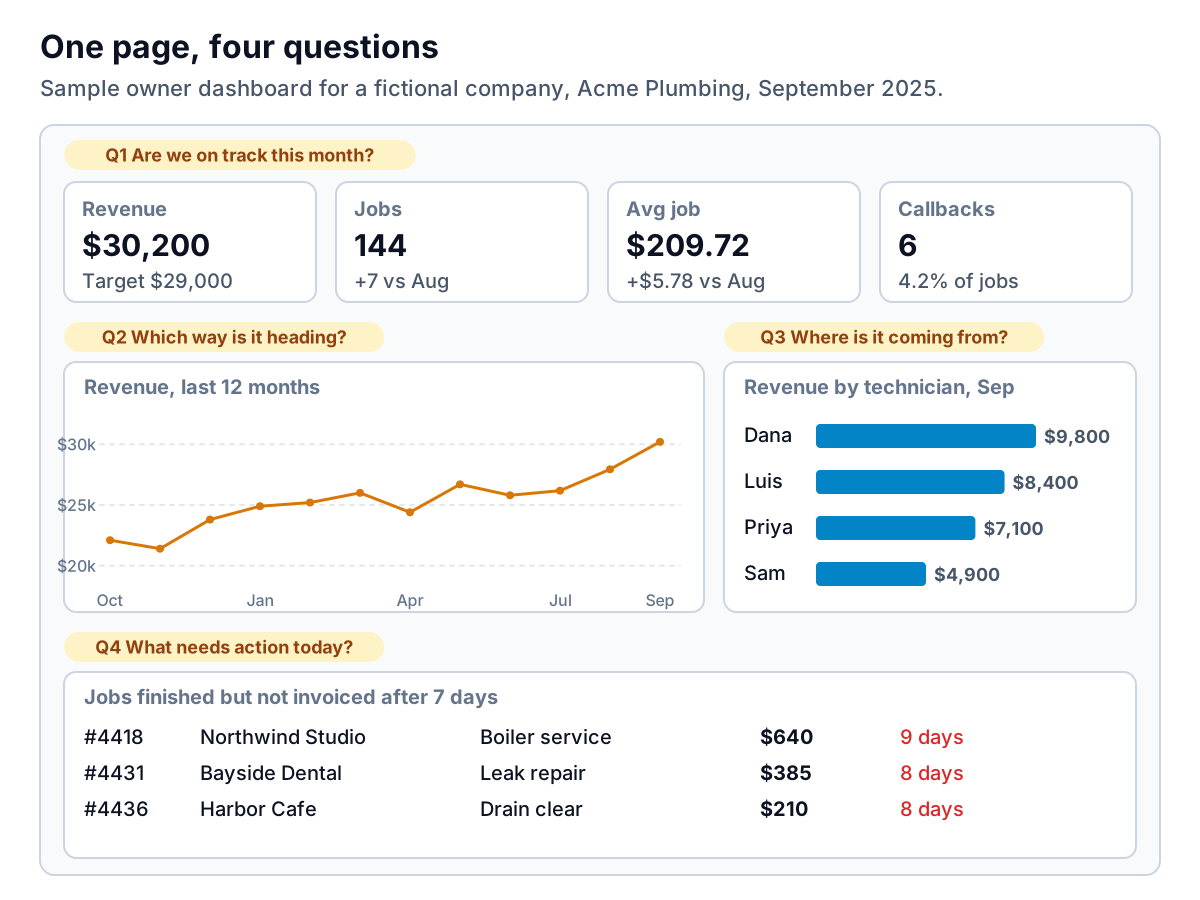
Notice what is missing. No pie chart of 14 services. No "website sessions" tile unless the website actually drives jobs. No gauge. Every block either tells you whether things are fine or points at something to do. The exceptions list at the bottom is often the most useful part, and it's the one most dashboards leave out.
Before you open any tool, write your four questions down and, next to each, the column in your data that answers it. If you can't name the column, you have found a data problem, not a dashboard problem. Fix that first.
The questions stay the same across businesses; the columns change. For a fictional yoga studio, "on track" might be class bookings against capacity, "where from" might be class type or instructor, and "action today" might be members whose pass expires this week with no renewal. For a small agency, "where from" is usually client or retainer, and "action today" is hours logged over budget. Same four blocks, different data.
Which AI dashboard builder fits your data
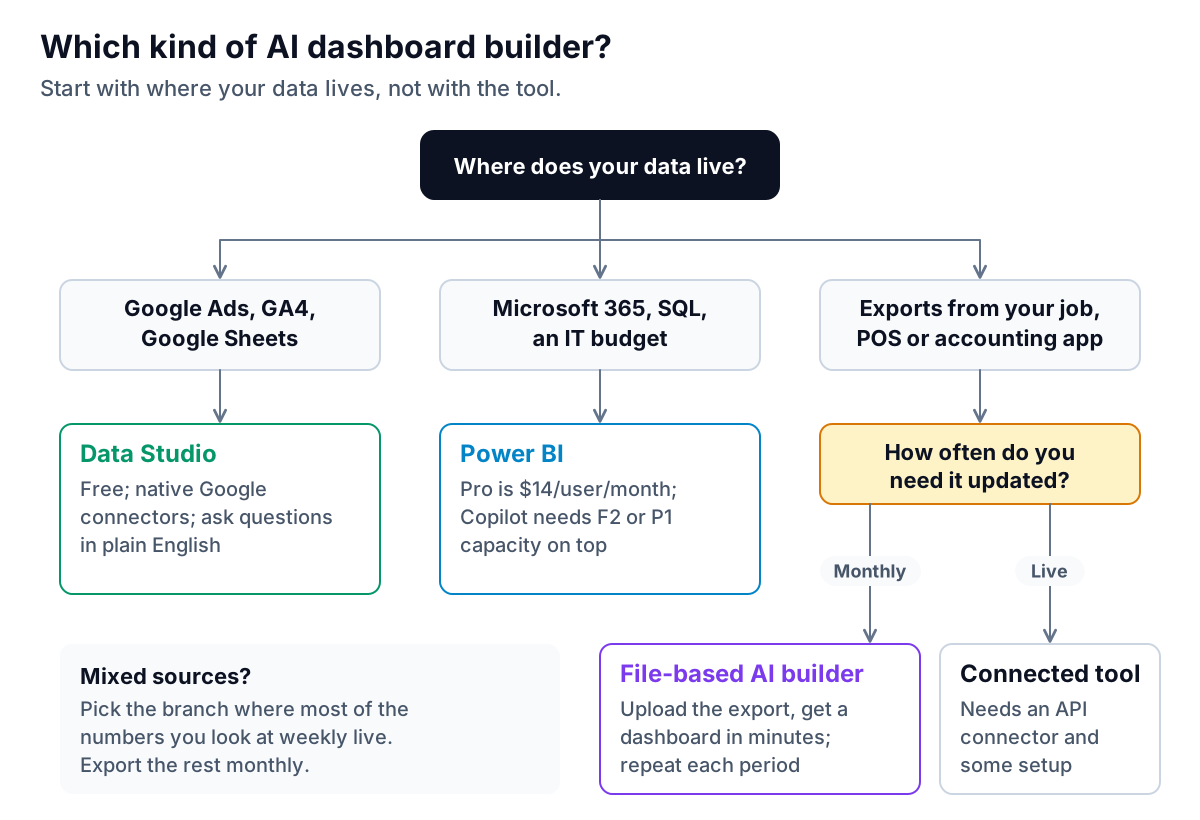
The tool question is mostly a data question. Where your numbers live decides which builder will be easy and which will be a project.
Your data is mostly in Google products
Google's free dashboard tool is now called Data Studio again; Google renamed it from Looker Studio in April 2026, according to its release notes. It connects natively to Google Ads, Analytics and Sheets, and the same notes say its conversational analytics, where you ask questions in plain English, became generally available in July 2026. For a marketing-heavy business, this is the obvious first stop. The trade-off is that non-Google sources often need a paid third-party connector.
You run on Microsoft and have some IT help
Power BI is the most capable option here. Power BI Desktop is a free download, and Pro is $14 per user per month paid yearly. Be careful with the AI part, though. Microsoft's documentation says Copilot in Power BI needs paid Fabric capacity (F2 or higher) or Power BI Premium (P1 or higher), and that a Pro or Premium Per User license alone isn't enough. It also says Copilot works best on a prepared data model and can otherwise "misinterpret the data." Power BI is powerful, but it isn't the no-code afternoon some ads suggest.
Your data comes as exports
This is the most common case for service businesses, shops and agencies: job management software, a POS system, an accounting package, each with an "Export to CSV" button and no live connection worth paying for. You have two choices. If you need numbers that refresh every hour, look for a dashboard tool with a ready-made connector for your specific app, and expect some setup. If a weekly or monthly view is enough, a file-based AI dashboard builder is far simpler: upload the export, describe the dashboard, done. Repeat next month with the new file.
Be honest about how often you look. Most owners who think they need a live dashboard check it on Monday morning. A Monday export covers that.
Your data already lives in a spreadsheet
If you only need a dashboard tab inside an existing workbook, Copilot in Excel or Gemini in Google Sheets can build the charts and pivots in place. Our guide to AI tools for Excel reports covers that route, including how to lay out the sheet so the AI reads it correctly.
Build it by describing it, then refine by asking
Whichever AI dashboard builder you use, the first prompt should carry your four questions. A vague prompt ("make me a sales dashboard") produces generic charts. A specific prompt produces your dashboard. For example:
Build a one-page dashboard for September 2025 from this job export. Top row: revenue against a $29,000 target, number of jobs, average job value and callbacks as a share of jobs, each compared with August. Then a 12-month revenue line, revenue by technician as a bar chart, and a table of jobs marked complete with no invoice number after 7 days.
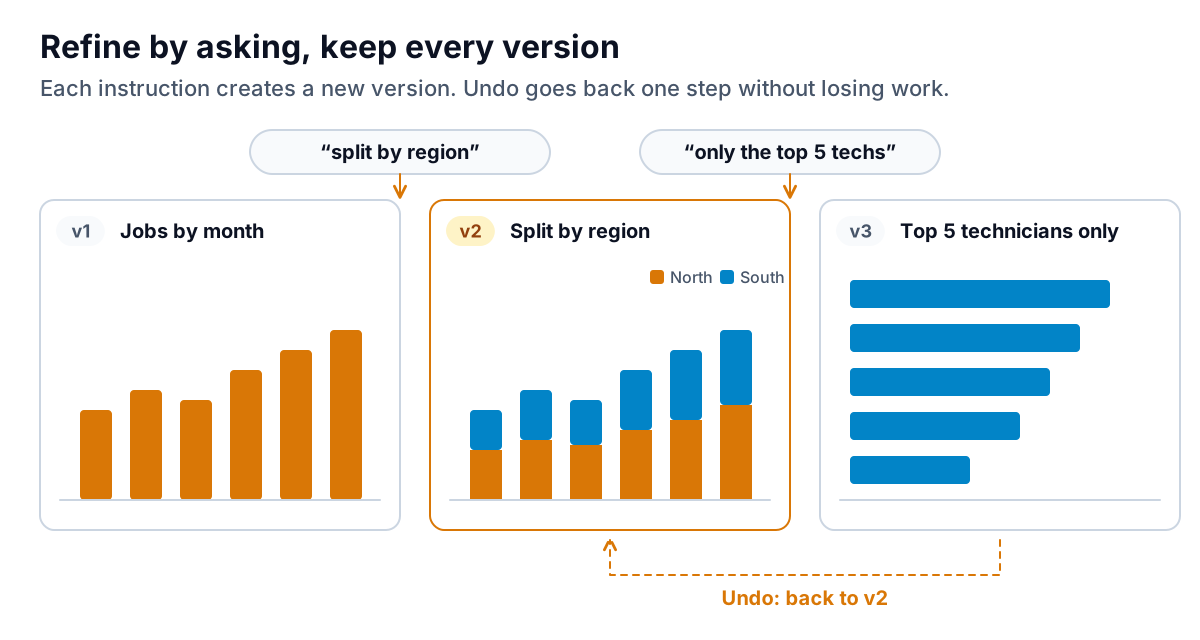
Then refine one instruction at a time. "Split the trend by region." "Show only the top five technicians." "Exclude internal test jobs." Good tools keep each step as a version, so you can go back when a change makes things worse.
Three habits keep this from going wrong:
- Check one number per chart against your source system the first time. If revenue by technician doesn't add up to total revenue, something was filtered out.
- Name the exclusions on the dashboard itself: "refunds excluded", "internal jobs excluded". Otherwise the dashboard and your accounts will disagree, and people will stop trusting both.
- Put targets in. $30,200 means little on its own. $30,200 against a $29,000 target tells you something.
Our post on AI tools for data analysis goes further on checking AI-produced numbers, including a five-question test worth running before you trust any tool.
A realistic first week, and what it costs
Here is how the first week tends to go for an owner with no data background, building a dashboard from exports. Your times will vary, but the shape is typical.
| When | What you do | Time |
|---|---|---|
| Day 1 | Write the four questions and the column that answers each. Export three months of data. | 30 minutes |
| Day 2 | Tidy the export: one header row, real dates, no subtotal rows, personal details removed. | 20 to 40 minutes |
| Day 3 | First prompt, then three or four refinements. Check one number per chart against your source system. | 45 minutes |
| Day 5 | Show it to whoever will use it. Ask what they would do differently based on each block. Cut what nobody would act on. | 20 minutes |
| Following Monday | Repeat with a fresh export. If it takes more than 15 minutes, simplify. | 15 minutes |
On cost, the range is wide. Data Studio is free. Power BI Pro is $14 per user per month before any capacity for Copilot. File-based builders and spreadsheet copilots sit in between, and several have free tiers you can test with real data before paying. Whatever the subscription, the bigger cost is your time in the first week, which is why it pays to start small: one page, four questions, one data source. Add a second source only when the first page is something you open without being reminded.
Mistakes that make dashboards go unused
- Too many charts on page one. If it doesn't fit on one screen without scrolling, cut it. Put the rest on a second page for the curious.
- Vanity metrics. Followers, page views and "total customers ever" go up and to the right and rarely change a decision.
- No owner. Every dashboard needs one person who looks at it on a set day. Put it in the calendar.
- Different definitions. If the dashboard counts a job when it's booked and your accounts count it when it's invoiced, the numbers will never match. Pick one and write it on the page.
- Building for the tool, not the reader. A client dashboard should answer the client's questions, not show off the data you have. If you build dashboards for clients, our guide to AI dashboards for service businesses covers what they tend to care about.
- Uploading more than you need. Strip client names, emails and phone numbers from exports unless the dashboard needs them, and read each tool's data policy before you upload anything.
Where Parity fits
Parity is a file-based AI dashboard builder, the branch for businesses whose data comes as exports. You upload a CSV or Excel file and describe what you want. An agent analyzes every row and builds a dashboard or report with KPI tiles, charts, pivot and summary tables, an executive summary and a takeaway for each chart. Before you see anything, every number and chart is checked against queries on the full dataset, so a chart that silently dropped rows doesn't reach you.
You refine it by chat, with versions and undo as in the figure above, and export a PDF if you need to send it. Saved dashboards are private to your account. Files are sent encrypted, stored privately with the dashboard until you delete it, and never used to train AI models. It doesn't connect live to your apps, so if you need hourly refreshes, a connected BI tool is the better fit. You can see examples on the AI dashboard generator page.
Upload a CSV or Excel file, describe your four questions, and get a dashboard where every number has been checked against the full file. Build a report from your data free
The building part is now the easy part. Spend your first half hour on the four questions and the columns that answer them, and whichever AI dashboard builder you pick will give you something you actually open on Monday.