A cafe owner has two piles of PDFs on her desk. One is a 24-page lease that renews next spring, and she wants to know how much notice she has to give. The other is a quarter's worth of supplier statements, 40 of them, and she wants to know which suppliers' prices went up. Both are "analyze this PDF" jobs. They need different tools, and they go wrong in different ways.
Any AI tool to analyze PDF files can give you a fast, fluent answer. The useful question is how you know the answer is right. This guide covers the three jobs people usually mean, how to tell what kind of PDF you are dealing with, which tools fit each job, and two simple checks that catch most mistakes before they cost you anything.
The three jobs behind "analyze a PDF"
- Ask questions and summarize. "What's the notice period?" "Summarize the key risks in this report." The output is words, and the risk is a confident answer that misses something.
- Pull numbers out. Turn statements, price lists or invoices into rows you can sort, total and chart. The output is data, and the risk is a misread digit you never notice.
- Compare documents. "What changed between last year's contract and this one?" "Which of these five quotes includes delivery?" The output is a list of differences, and the risk is a difference the tool didn't report.
Most disappointment with PDF tools comes from using a tool built for job 1 to do job 2. A chat assistant that summarizes a lease beautifully may be shaky at pulling 412 line items from 40 statements accurately, and it won't tell you which three it got wrong.
Know which kind of PDF you have
A PDF is a container, and what's inside it varies. Before choosing a tool, spend ten seconds finding out which kind you have.
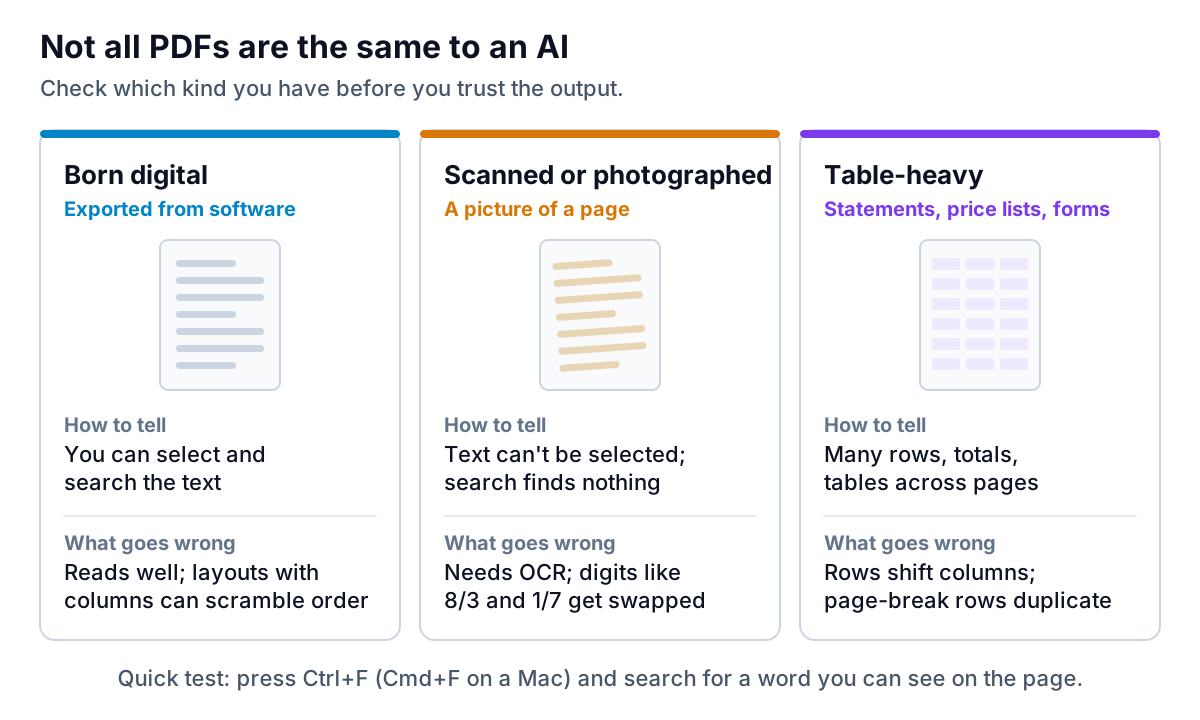
Born-digital PDFs, exported from accounting software, a word processor or a web page, contain real text. AI tools read them well. Google's documentation for its Gemini models, for example, says text natively embedded in the PDF is extracted and provided to the model, and supports files up to 50MB or 1,000 pages. The weak spots are layouts with columns, sidebars and footnotes, where the reading order can get scrambled.
Scanned or photographed PDFs are pictures of pages. The tool has to recognize the characters first (OCR), and that is where digits get swapped: 8 for 3, 1 for 7, a decimal point lost in a fold. Modern AI is much better at this than old OCR, but not perfect, and errors in numbers look exactly as confident as correct ones.
Table-heavy PDFs, like statements, price lists and forms, are the hardest for data extraction even when they are born digital. Rows that run across a page break can be read twice or dropped. A blank cell can shift every value after it one column to the left.
Picking an AI tool to analyze PDF files
Match the tool to the job, not the other way round. Here are the main options and what they are good at. Prices change, so check each vendor's page.
| Tool type | Examples | Best for | Worth knowing |
|---|---|---|---|
| Chat assistants | ChatGPT, Claude, Gemini | Questions, summaries, small comparisons | ChatGPT accepts PDFs alongside spreadsheets for data analysis; ask for page references |
| PDF software with AI | Adobe Acrobat AI Assistant | Working inside the PDF you already have | Adobe says it gives cited responses; it's included in Acrobat Studio, listed at $24.99 a month on an annual plan when we checked |
| Research notebooks | Google NotebookLM (now Gemini Notebook in Google's help pages) | Asking questions across many documents at once | Answers link back to passages in your sources; up to 500,000 words per source |
| Document extraction services | Azure Document Intelligence, Google Document AI | Pulling tables and fields from many files | Microsoft's layout model returns table cells with row and column positions; usually needs some technical setup |
For a handful of documents and plain-English questions, a chat assistant or Acrobat is enough. For dozens of documents you want to question together, a notebook-style tool is better. For hundreds of statements or forms every month, a dedicated extraction service, or a product built on one, pays for its setup. If the PDFs are invoices you need to chase, see our guide to reading PDF invoices with AI, which covers the fields that matter for collections.
Pulling numbers out: the totals check
When the job is turning PDFs into data, you don't need to check every row. You need one check that a misread is almost certain to fail. For statements, invoices and price lists, that check is already printed on the page: the total.
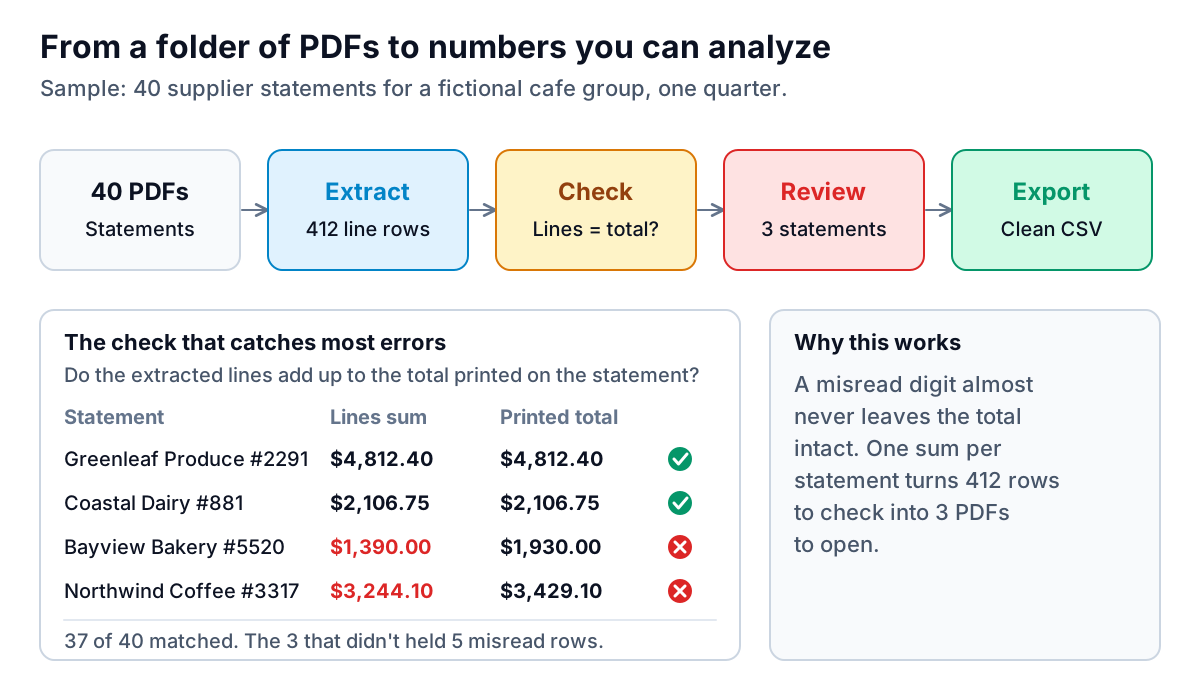
Here's the routine:
- Extract two things from each PDF: the line items and the printed total. Ask for both explicitly, with the file name on every row.
- Sum the lines per document and compare with the printed total. Do this in a spreadsheet, not by asking the AI whether they match.
- Open only the mismatches. In the sample, Bayview's $1,390.00 against $1,930.00 is a transposed digit. Northwind's $185 gap is a row lost at a page break.
- Spot-check one matched document by eye, in case the tool misread the total and a line in the same way. It's rare, but a 30-second look is cheap.
- Keep the file name and page on each row, so anyone can trace a number back to its source.
Once the data is clean, analysis is the easy part: spend by supplier, price per unit over time, which items rose fastest. Our guide to AI tools for data analysis covers that step, including a test for trusting the answers.
Reading contracts and reports: check the citation, then check for changes
For questions and summaries, the equivalent of the totals check is the citation. Ask every tool to quote the sentence it relied on and give the page. Then look. Most tools now offer this, and it catches invented answers immediately.
But a correct citation isn't a complete answer. Long documents amend themselves: schedules, side letters, amendments signed later, definitions on page 2 that change the meaning of a clause on page 15.
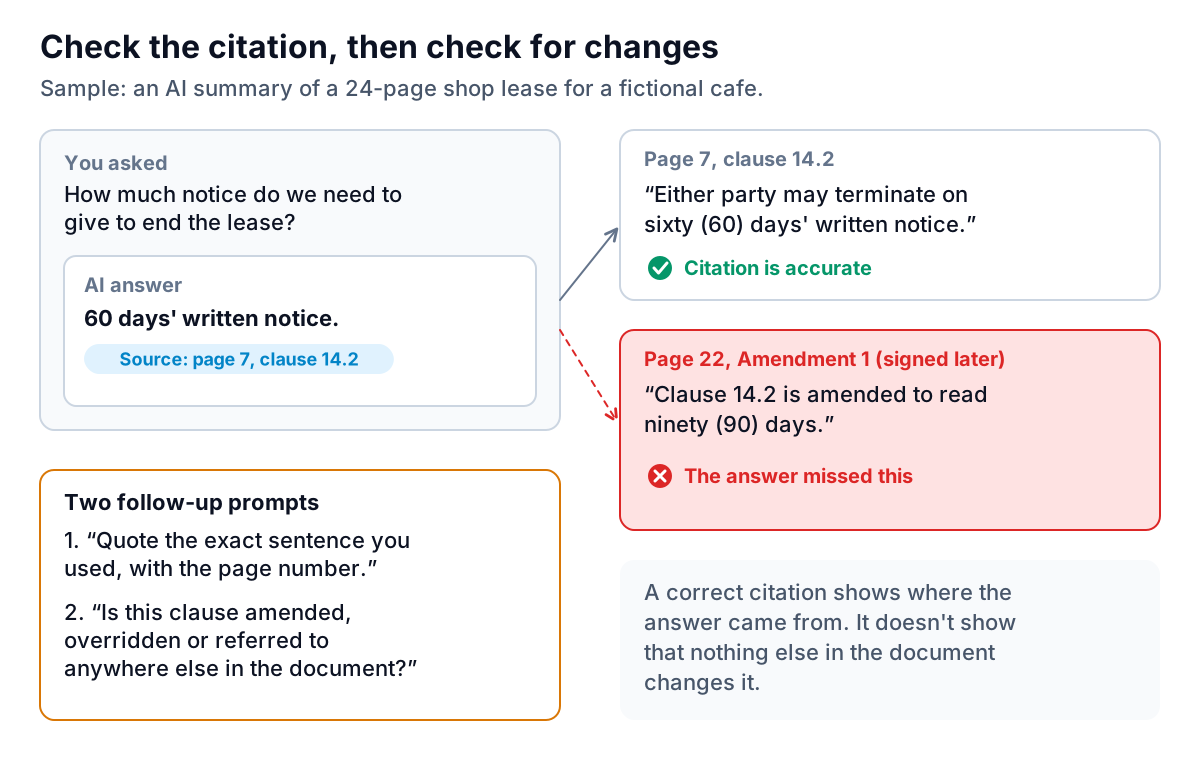
Two follow-up prompts close most of that gap:
- "Quote the exact sentence you used, with the page number."
- "Is this clause amended, overridden, defined or referred to anywhere else in the document? List every place."
For anything with legal or financial consequences, treat the AI's reading as preparation, not the final word. It's a fast way to find the clauses that matter and to arrive at your lawyer or accountant with better questions. It isn't a substitute for their advice.
Comparing two versions or several quotes
Comparison is the third job, and the one where a tool's silence is most dangerous: if it doesn't mention a difference, you will assume there isn't one. A few habits help when you use an AI tool to analyze PDF documents side by side:
- Give it a checklist, not an open question. "Compare these five quotes on price, delivery charge, payment terms, warranty and start date, as a table" beats "which quote is best?". You decide what matters; the tool fills in the grid.
- Ask for "not stated" explicitly. Tell it to write "not stated" when a document doesn't cover a point, rather than leaving the cell blank or guessing. Missing terms are often the most important finding.
- For two versions of a contract, use a real diff first. Word's Compare feature, or Acrobat's own compare tool, shows every changed word mechanically. Then ask the AI to explain what the changes mean. The mechanical step finds the changes; the AI helps you read them.
- Spot-check one cell per document against the page it came from, the same way you would check one bar per chart.
Privacy, and instructions hidden in documents
Two risks are specific to PDFs.
Confidential content. Contracts, statements and HR documents often contain other people's information. Before uploading, check the tool's data controls: whether files are kept, for how long, and whether they are used for training. Business plans from the major vendors usually offer stronger terms than free consumer plans. Your agreements with clients or suppliers may also limit where their documents can go.
Hidden instructions. A PDF can contain text you can't see, such as white text on a white background, that an AI will still read. The OWASP project lists this as indirect prompt injection, and one of its example scenarios is a resume with hidden instructions that push an AI screening tool towards a positive recommendation. If you use AI to assess documents from outsiders, such as resumes, bids or supplier proposals, don't let it make the decision. Use it to summarize, and read the parts that matter yourself.
Where Parity fits
Parity's reporting tool works from CSV and Excel files, not PDFs directly. So it fits after the extraction step: once your statements or price lists are a clean CSV, you upload it and describe the report you need. An agent analyzes every row and builds a report or dashboard with KPI tiles, charts, summary tables and a short executive summary, and every number and chart is checked against queries on the full dataset before you see it. Files are sent encrypted, deleted after the report is built and never used for training.
If your PDFs are unpaid invoices, Parity's invoice chaser, launching in late November 2026, reads PDF invoices directly and holds uncertain fields for review before anything is used. For internal documents your team asks about every day, a different setup works better; our guide to AI chatbots for internal data explains why.
Upload the CSV, describe what you need to see, and get a report where every figure is verified against the full file. Build a report from your data free
Whichever AI tool to analyze PDF files you settle on, the habits are the same: know which kind of PDF you have, match the tool to the job, check totals for numbers and citations for words, and ask whether anything else in the document changes the answer.