In August, the owner of Brindle Dog Daycare, an example business, spent an afternoon comparing booking systems to save $1,200 a year. Her accountant's expense breakdown chart, a pie with fourteen slices, made every slice look worth a look. Meanwhile, revenue had grown 9.2% over the year and profit had gone down, from $99,000 to $98,000, because staff costs had grown $45,000. The pie showed wages as the biggest slice. It couldn't show that they had grown faster than the business.
For most small businesses, the best expense breakdown chart is a horizontal bar chart sorted from largest to smallest, with small lines grouped into one "everything else" bar. Use a pie only for three or four groups, a treemap when you want groups and the lines inside them in one picture, and a line chart of expenses as a share of revenue when the question is "which cost is growing too fast?". This guide builds each from Brindle's year and shows how to pull the categories out of QuickBooks.
Which expense breakdown chart answers which question
Start from what you're trying to decide. An expense breakdown has to answer one of four questions, and each has a chart that answers it best.
| Question | Best chart | Avoid |
|---|---|---|
| Where does the money go, line by line? | Sorted horizontal bars, with an "everything else" bar | A pie with more than four or five slices |
| How is spending split between a few big groups? | A pie or a single stacked bar, three or four parts | Donuts with labels you can't read |
| What are the groups, and what's inside each? | A treemap | Two pies side by side |
| Which cost is growing faster than the business? | Lines of each group as a % of revenue, by quarter | Stacked columns of dollars by month |
The first three answer "what is the mix?" for one period. Only the fourth answers "what changed?", and for Brindle it's the one that mattered.
Why a sorted bar chart beats a pie for expense categories
Here are Brindle's fourteen expense lines for the twelve months to September 2026, $570,000 in total, as sorted bars.
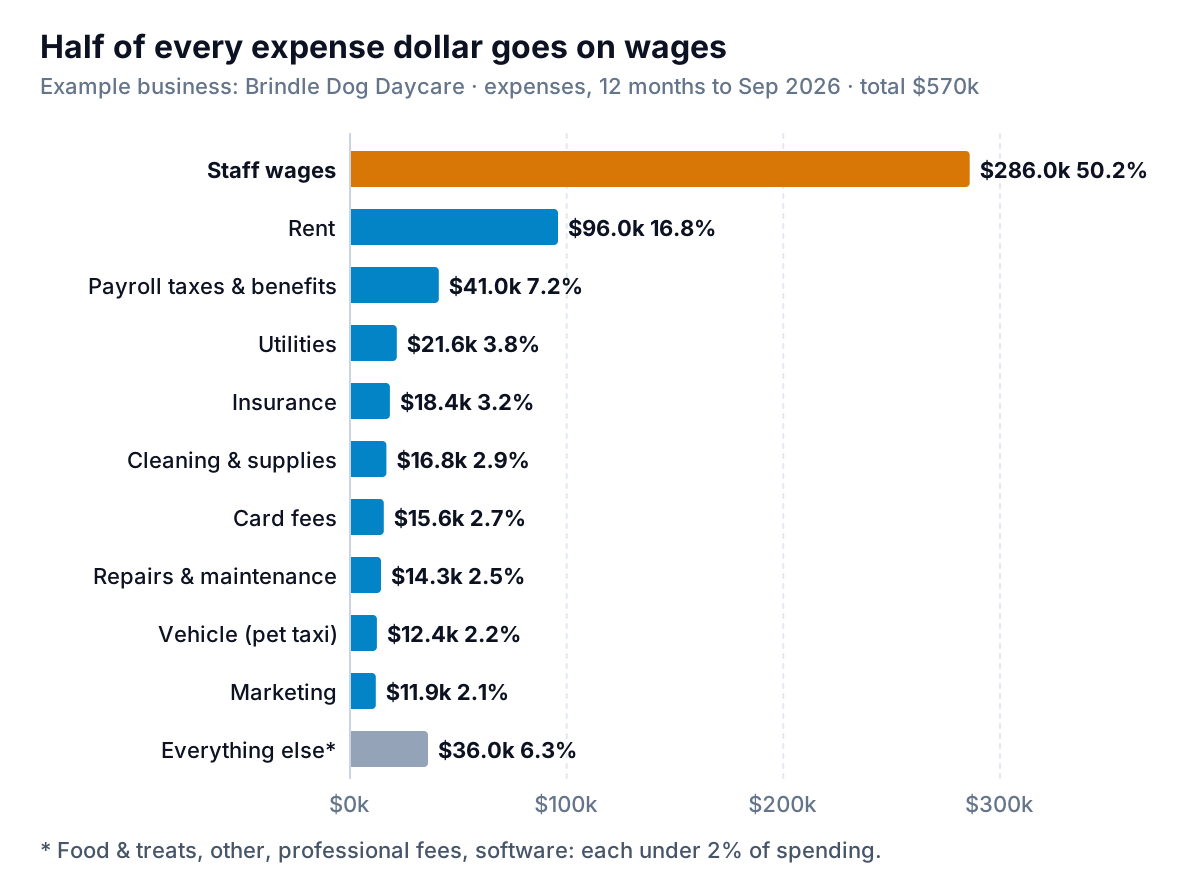
In a few seconds you can say that wages are half of all spending, rent is the second-largest cost at about a sixth, and nothing else is more than 7.2%. You can also rank the middle lines, which is where a pie fails. On the pie the accountant sent, utilities ($21,600), insurance ($18,400), cleaning ($16,800) and card fees ($15,600) were four thin wedges of almost the same angle, in four different colours, matched to a legend at the side.
That isn't just taste. In their 1984 study of graphical perception, William Cleveland and Robert McGill ranked the ways a chart can encode a number by how accurately people read them. Position along a common scale came first, ahead of length and angle, with area lower still, and in their experiments people judged values less accurately from pie charts than from bar charts. A sorted bar chart puts every value on one common scale; a pie asks you to compare angles and areas. Microsoft's own guidance on Excel chart types suggests a pie only when you have no more than seven categories that each represent part of the whole. Datawrapper's advice on when to use a pie is stricter: a few values, four at most.
How to make the bar chart work:
- Horizontal, not vertical. Expense names are long. Horizontal bars give them room to sit on one line, left of the bar.
- Sorted by size, largest at the top, with "everything else" at the bottom whatever its size.
- Dollar and percent labels on each bar, so no one needs the axis or a legend.
- One colour, with an accent only on the bar the title is about. Fourteen colours turn a ranking into a puzzle.
When a pie is fine
A pie works when there are only a few parts and the message is the size of one of them against the whole. Grouped into three, Brindle's spending is a reasonable pie.
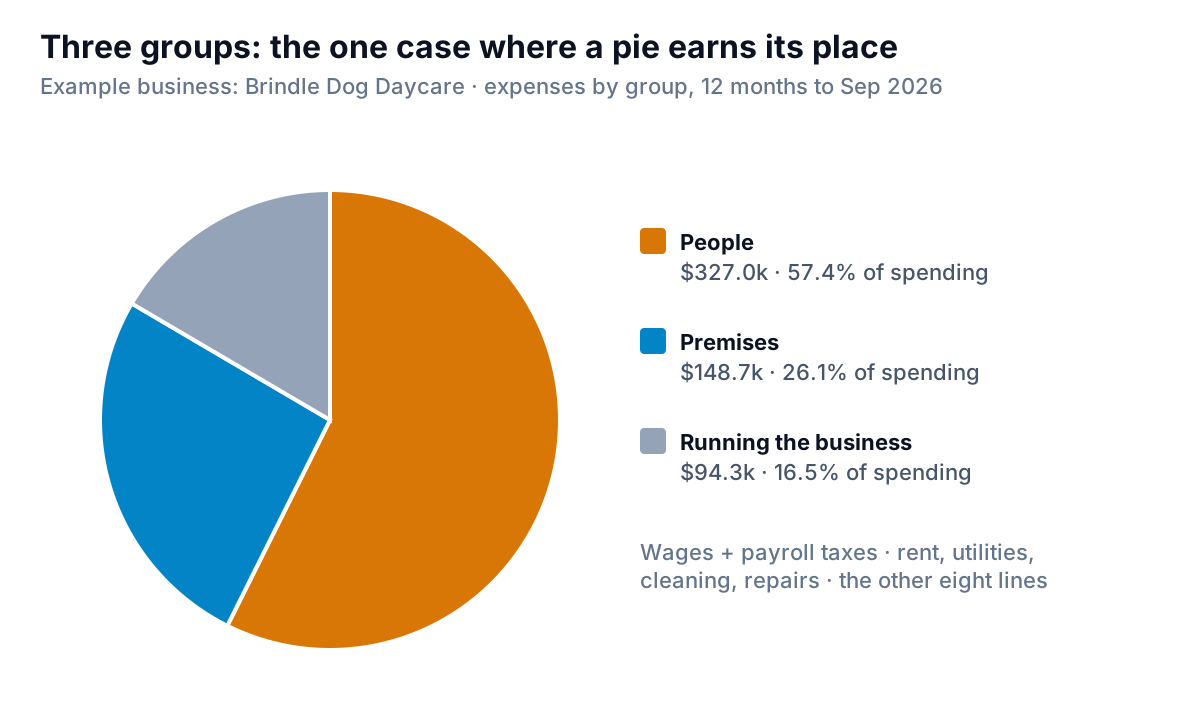
People costs (wages plus payroll taxes and benefits) are 57.4%, a little over half, which a pie shows well. Premises (rent, utilities, cleaning, repairs) is about a quarter. The eight running costs together are 16.5%. Beyond four parts, or when two parts are close in size, switch back to bars.
The "everything else" bucket: rules for what goes in it
Grouping small lines makes any expense breakdown chart easier to read, but the bucket can also hide things. Brindle's chart uses four rules:
- Group lines under 2% of total spending. For Brindle that's anything under $11,400: food and treats, other, professional fees and software, $36,000 together. Pick a threshold that leaves eight to twelve named bars.
- Keep the bucket under about 10% of the total. Brindle's is 6.3%. If the bucket grows past a tenth of spending, you've grouped too much, or your books need more specific accounts.
- Never bury a line you're managing. If you're watching marketing this year, it gets its own bar even when it's small.
- Put the bucket last and say what's in it. A footnote listing the lines stops anyone wondering what "Other" hides.
Watch for an account in your books already called "Other" or "Miscellaneous". Brindle's is $10,800, nearly as much as marketing. If yours is one of your larger expense lines, the problem is in the bookkeeping, not the chart. Reclassify its transactions before you draw anything.
A treemap: the groups and the lines inside them
The bar chart shows lines; the pie shows groups. A treemap shows both: each group is a block sized by its share, and the lines inside it are smaller blocks.
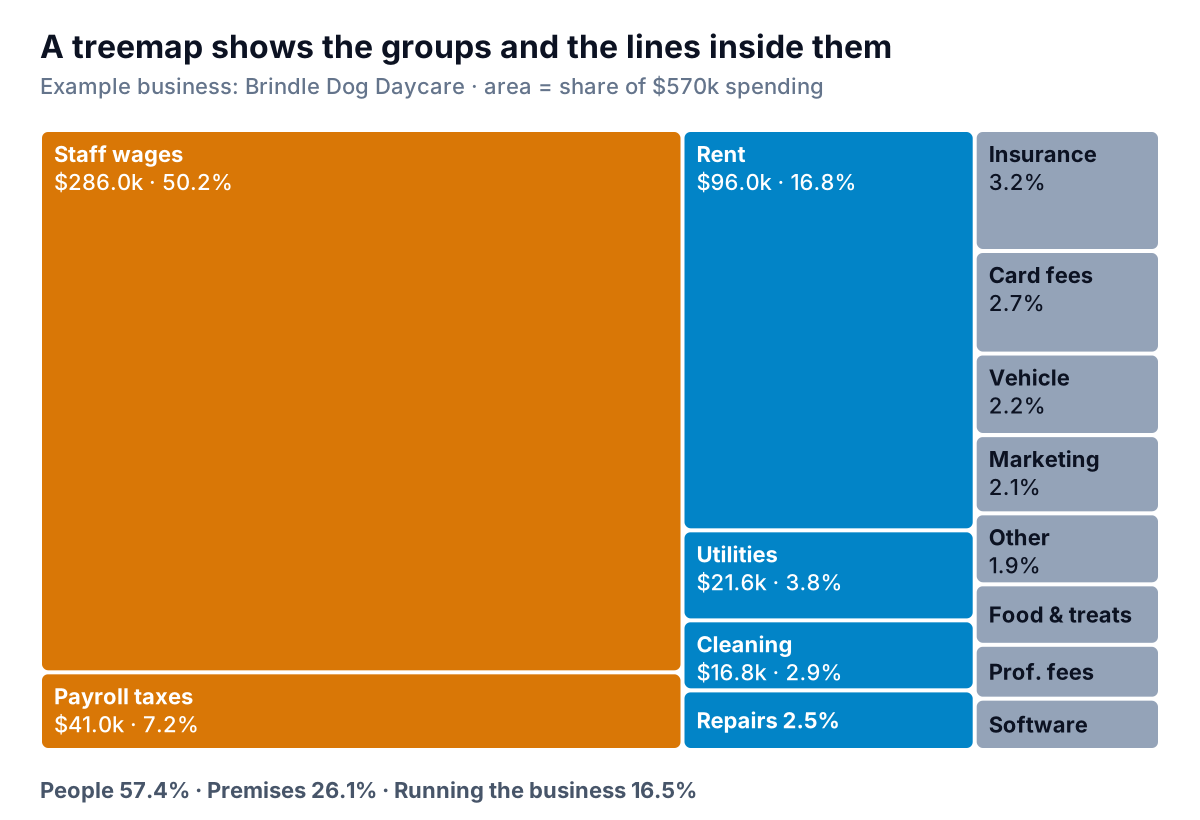
A treemap is good for a first look at a large chart of accounts, or for showing a partner how the groups break down. It's weaker for ranking, for the same reason a pie is: comparing the areas of the small rectangles on the right is hard. Use it alongside the sorted bars, not instead of them.
In Excel: treemaps are built into Excel for Microsoft 365, 2021 and 2024. Put the group in column A, the line in column B and the amount in column C, select the table, and choose Insert, then Insert Hierarchy Chart, then Treemap, as Microsoft's treemap instructions describe. Excel colours each top-level group differently on its own.
In Google Sheets: the tree map chart wants a different shape: column 1 is each item's name, column 2 its parent, column 3 its size. The parents must appear as items too, so add a row for each group (parent: "All expenses") and one top row for "All expenses" with no parent, with totals in column 3 as Google's help describes. Then choose Insert, then Chart, and pick Tree map.
Expenses as a share of revenue: the chart that shows what changed
Every chart so far describes one year. None of them would have stopped Brindle's owner from shopping for cheaper software, because the problem was a change, not a size. Wages were half of spending last year as well.
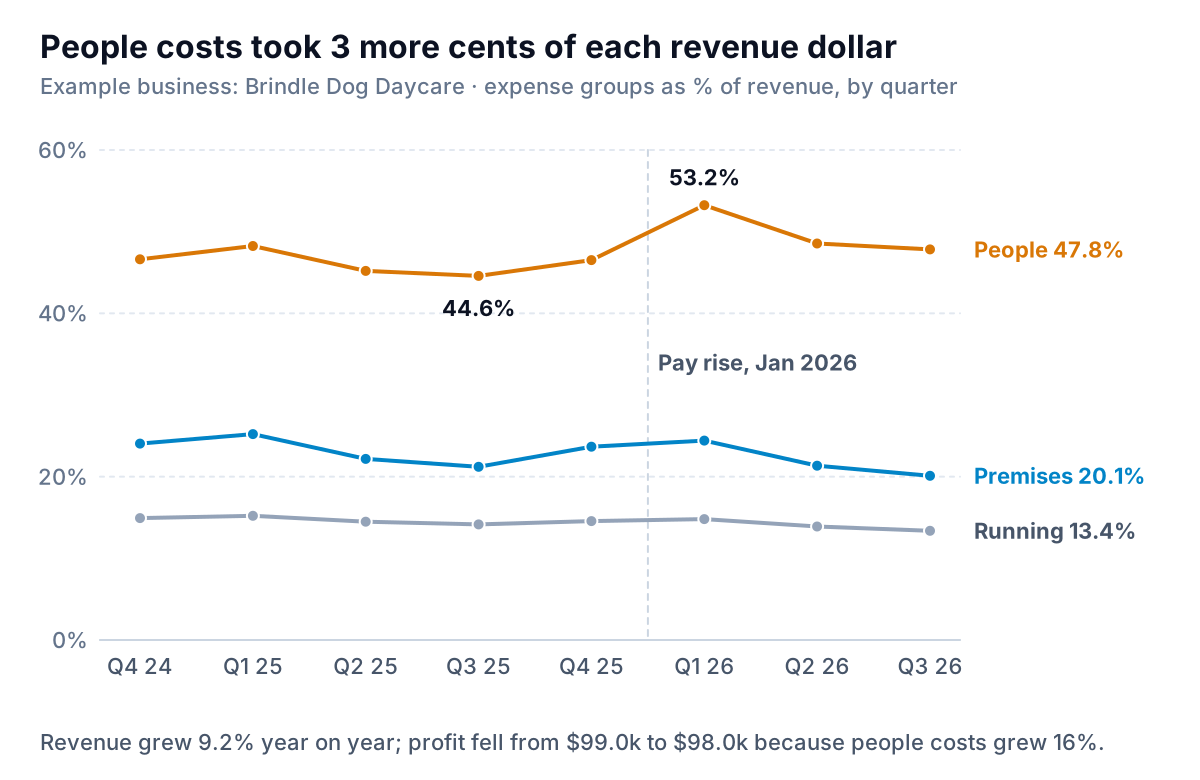
Divide each group by the quarter's revenue and the story is plain. Premises and running costs drifted down as a share of revenue, which is what fixed and semi-fixed costs do when a business grows. People costs went the other way. In the four quarters to September 2025 they were 46.1% of revenue; in the four quarters to September 2026, 49.0%. Brindle raised attendants' pay in January 2026 to keep staff, and the first quarter after the rise hit 53.2%. Comparing the same quarter a year apart, Q3 went from 44.6% to 47.8%.
Three points of revenue on $668,000 is about $20,000 a year, about sixteen times the software saving. The decisions it points to are about pricing (daycare rates hadn't moved since 2025) and staffing ratios on quiet days. Our P&L chart guide uses the same method for cost of goods, and the common-size income statement is the table version.
Getting expense categories out of QuickBooks
The categories in your chart come from your chart of accounts. Three QuickBooks Online reports give you what you need, and Intuit's list of reports by plan shows which subscriptions include each:
- Profit and Loss (or Profit and Loss by Month): every expense account and its total. Intuit's report customization guide shows how to set Display columns by to months, collapse sub-accounts into their parent and export to Excel. Use the Total column for the breakdown and the month columns for the trend.
- Profit and Loss by % of Total Income: each line as a share of revenue for one period. Handy for checking your own percentages.
- Expenses by Vendor Summary: spending by who you paid rather than what for. Useful for a different question ("which suppliers take the most?"), but don't mix it with the account view on one chart.
Then map accounts to chart lines. Add a two-column table (QuickBooks account, chart line) and use SUMIFS to total the export by chart line, as in our SUMIFS guide. Add a third column for the group (people, premises, running) if you want the pie, the treemap or the share-of-revenue lines. Keep the mapping fixed from year to year: if an account moves between lines, last year's chart stops being comparable. And check the total. The sum of your chart lines should equal Total Expenses on the report, to the dollar.
A note on scope: decide whether cost of goods belongs in the breakdown. For a service business like Brindle, there's little cost of goods, so the chart covers all expenses. For a shop or a manufacturer, chart cost of goods separately or the breakdown becomes one giant bar.
Parity can connect to QuickBooks Online, or take an expense export as CSV or Excel, and build the dashboard for you: spending by category, the trend as a share of revenue, what explains the change and which lines need attention, with every total checked against the full data. Ask it by chat to group the small lines or split people costs out, and share a read-only link with your accountant.
Connect QuickBooks or upload an expense export and get a checked breakdown, trend and the lines worth a closer look. Build a report from your data free
Brindle's owner kept the booking software. She now looks at two charts each quarter: the sorted bars, to see where the money goes, and the share-of-revenue lines, to see whether that's changing. The second chart is the one that changed her prices.