What is a chart in Excel and its types for operations and finance
Here is a folder most multi-location operators and accounting advisors recognise: a monthly revenue workbook with four tabs of pivot tables, a separate spreadsheet tracking seasonal stock, and a folder of vendor bills saved as PDFs. The revenue chart says margin rose in October, while the bank balance says otherwise.
Both numbers came from the same month's work. The workbook's summary chart was built on a static cell range that stopped before the last week of supplier invoices, and three freight bills were still sitting in an email folder waiting to be keyed in by hand.
An Excel chart is a visual layer tied to a specific range of cells or a PivotTable cache. As detailed in Microsoft's guide to available chart types in Office, each chart format serves a distinct analytical purpose: column charts compare discrete categories, line charts track trends over equal time intervals, and waterfall charts show the cumulative effect of positive and negative values.
For small business owners and retail operators, picking the wrong chart hides operational drift until cash runs tight. Before moving from static workbooks to a live dashboard, review the table below to match each financial or inventory metric to the chart format that shows it clearly—and see where each breaks when you paste in multi-tab exports.
When your reporting spans seasonal retail demand forecasting and monthly accounting closes, standard spreadsheet charts require constant manual maintenance. Every time a supplier adds a new SKU column or a bookkeeper inserts a subtotal row, the chart's underlying references shift.
How multi-tab workbooks distort standard charts
Most operational workbooks grow one tab at a time: one sheet for point-of-sale exports, a second for warehouse stock counts, and a third for overhead bills. Because standard Excel charts read a single contiguous range or summary block, operators end up building fragile intermediate summary sheets just to feed the visual layer.
When a store manager renames a category on the inventory tab or inserts an extra column for promotional discounts, the intermediate summary formulas lose alignment. The chart still renders cleanly on screen, making it easy to present an incomplete total during a monthly review without noticing the dropped rows.
| Chart Type | Best Operations or Finance Metric | What It Reveals Clearly | Where It Fails on Multi-Tab Exports |
|---|---|---|---|
| Clustered Column | Monthly revenue or store-by-store sales | Direct side-by-side comparison across discrete locations or periods | Becomes unreadable when new product categories or store locations multiply bars |
| Stacked Bar | Aging accounts payable and cost breakdown | How sub-components contribute to total expenses or overdue balances | Hides small but critical vendor overruns inside middle segments |
| Line Trend | Seasonal stock levels and weekly cash flow | Direction, velocity, and seasonal peaks across continuous time intervals | Drops new dates silently when rows are pasted below a fixed cell range |
| Waterfall | Net operating income bridge (gross to net) | Sequential impact of COGS, freight, discounts, and overhead on profit | Breaks if intermediate subtotal rows are inserted or reordered in the sheet |
| Pivot Chart | Multi-location SKU margin and category slices | Interactive filtering by store, vendor, or quarter from a summary cache | Shows stale numbers until the PivotTable cache is manually refreshed |
Why do Excel pivot charts break when new monthly rows are added?
A PivotChart does not read your worksheet grid directly; it reads an in-memory PivotTable cache created when the table was first built. As explained in Microsoft's documentation on refreshing PivotTable data, any changes you make to your underlying source data require refreshing the PivotTable before those updates appear in the summary view.
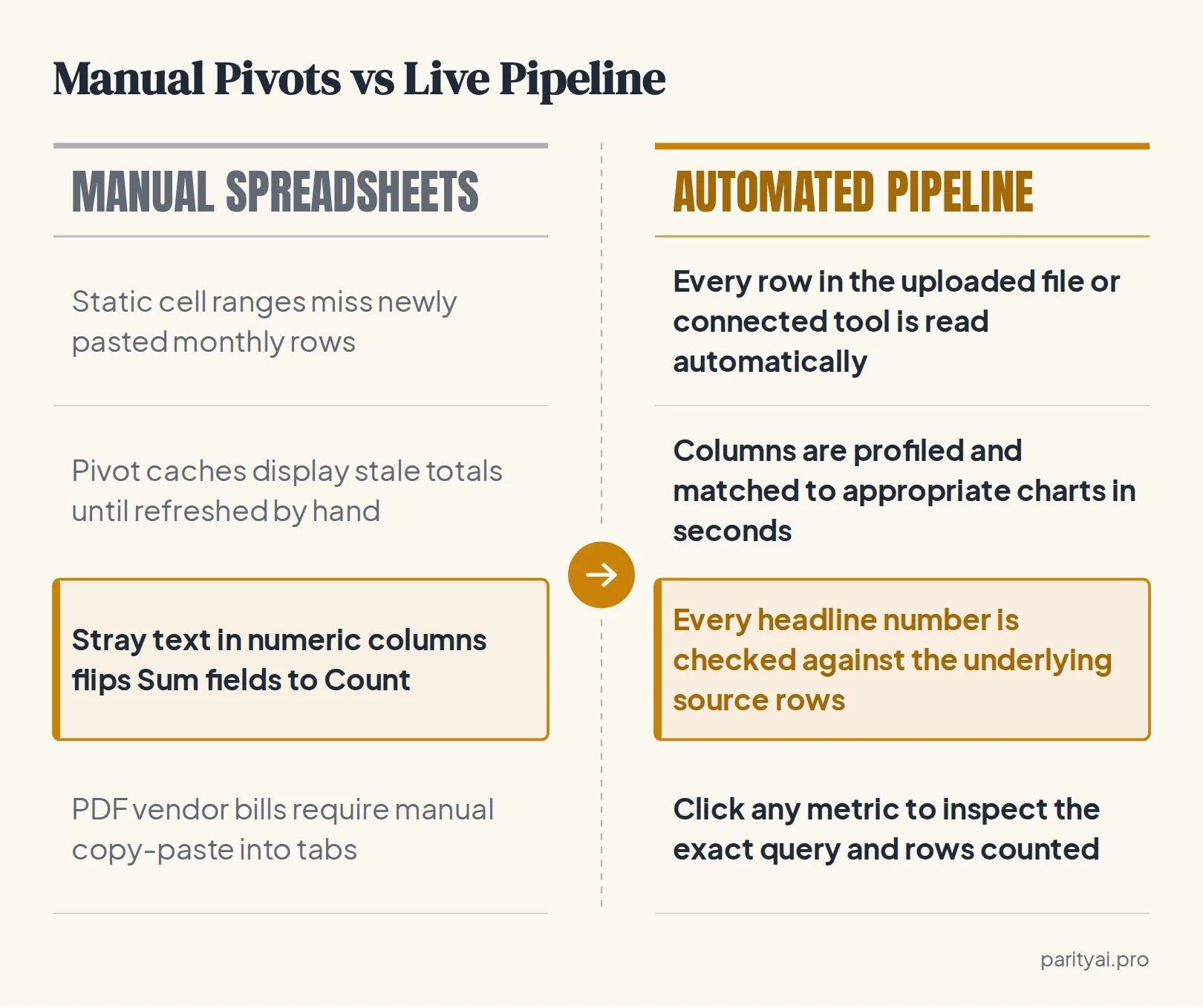
In practice, monthly reporting breaks down across four common failure points when new rows arrive from point-of-sale exports or accounting software:
- Fixed cell boundaries: Hardcoded source ranges ignore new rows pasted at the bottom of a sheet during the month-end close unless the data source range is manually expanded.
- Unrefreshed memory caches: Opening a workbook and exporting a PDF without refreshing every PivotTable leaves last month's totals inside this month's charts.
- Silent aggregation switches: When a single cell in a numeric column contains a text string or stray space from a messy export, Excel defaults that field from Sum to Count.
- Broken lookup links: VLOOKUP and XLOOKUP formulas pulling vendor terms from secondary tabs return errors whenever columns are reordered in the source export.
Watch out: When a single cell in a numeric column contains a text string or stray space from a messy export, Excel switches the PivotTable field calculation from Sum to Count, replacing your total dollar revenue with the count of transactions.
Formatting your raw data as a structured table helps avoid some formula maintenance. According to Microsoft's overview of Excel tables, a formula entered in one cell of a calculated column is automatically applied to all other cells in that column without requiring fill or copy commands. Even with calculated columns, however, reconciling separate inventory workbooks and invoice files still requires manual checks.
Why date grouping and blank rows corrupt monthly comparisons
Another frequent failure happens in the date column of a PivotTable. If a single appended row at the bottom of an export is blank or contains a text note like "Pending credit," Excel disables automatic date grouping for the entire field. Your clean monthly and quarterly columns collapse back into hundreds of individual daily timestamps.
When several staff members share the same workbook across retail locations, tracking down which row broke the grouping or which slicer was left filtered on a hidden tab can take longer than the close itself.
Extracting clean tables from PDF invoices and seasonal inventory sheets
Before you can compare vendor costs against store sales, the numbers locked inside PDF invoices have to become structured rows and columns. A PDF file stores page layout coordinates—where characters sit on a page—rather than relational table structures, which is why copying a table from a PDF into Excel often dumps an entire line item into a single cell.
For operations teams handling PDF invoice data extraction alongside seasonal stock counts like garden center inventory spreadsheets, preparing clean tabular inputs follows three practical steps:
- Standardize invoice line fields: Extract vendor name, invoice number, invoice date, due date, SKU or description, quantity, unit cost, and line total into flat columns.
- Flatten multi-header inventory sheets: Remove merged title banners and blank spacer rows so the very first row of your
.xlsxor.csvfile is a clean header row. - Verify header totals against line sums: Check that extracted line items add up to the invoice subtotal plus tax and freight before combining them with your inventory ledger.
Aligning dates and SKU codes across files
When your inventory lives in an Excel workbook and your purchasing costs come from extracted PDF bills or accounting exports, keep date formats consistent (such as YYYY-MM-DD) and ensure each row represents one transaction or SKU record. A tidy sheet with a single header row allows automated tools to profile columns without manual cleanup.
Pay special attention to unit-of-measure mismatches between supplier invoices and retail stock sheets. Wholesalers often bill by the case, pallet, or flat, whereas your point-of-sale sheet tracks individual units sold at the register. Adding a simple conversion multiplier column before comparing cost of goods sold against store revenue prevents distorted item margins.
Similarly, check for leading zeros on numeric SKU codes. Opening a CSV directly in a spreadsheet program frequently strips leading zeros from part numbers (turning 00482 into 482), which causes exact-match joins between your invoice extract and your master inventory list to fail silently.
How to combine PDF invoice totals and inventory spreadsheets into one verified dashboard?
Once your invoice tables are exported to CSV or synced through an accounting platform, you can skip manual VLOOKUP consolidation altogether. Parity AI connects directly to 54 supported tools or reads uploaded spreadsheets to build an interactive dashboard and check every number against the source data.
Instead of pasting exports into a master workbook, connect or upload your files directly:
- Accounting platforms: Connect QuickBooks, Xero, FreshBooks, Wave, Zoho Books, or Sage Accounting to pull invoices, customers, bills, contacts, and expenses—showing revenue, margin, what you are owed, and who pays late.
- Cloud and local spreadsheets: Connect Google Sheets (any sheet, every tab), CSV files and sheets in Google Drive, Excel workbooks on OneDrive, Airtable bases, tables and views, or upload one or several
.xlsx,.xls, and.csvfiles. - Commerce and payment tools: Connect Stripe, Shopify, and HubSpot alongside your spreadsheets so sales, subscriptions, and charges sit in the same workspace.
Parity AI reads every row in your dataset rather than taking a sample—for example, processing all 3,220 charges, 429 subscriptions, and 429 customers in a connected account—and checks every headline figure against the underlying data. Furthermore, users can click any headline number on the dashboard to inspect the underlying query and see the exact rows that were counted.
If your team stores operational data in an external SQL warehouse, note that direct database connections to Postgres, BigQuery, or Snowflake are not available yet; instead, start with a scheduled export or a Google Sheet that your systems keep up to date.
Turning an Excel file into a live AI dashboard and client-ready report in seconds
You do not need formulas, chart wizards, or data modeling skills to move past manual spreadsheets. Using the Excel to dashboard converter, you can go from raw .xlsx, .xls, or .csv files to a verified view in four steps:
- Upload your spreadsheet or connect a tool: Select your
.xlsx,.xls, or.csvfile, or pick a connected platform like QuickBooks or Shopify. - Describe what you want to see: State your focus in plain English, and Parity AI profiles the columns, picks appropriate charts, KPI cards, and tables, and writes the analysis in seconds.
- Refine the view by chatting: Prompt Parity AI in plain English to add charts, change breakdowns, or re-summarize, and the dashboard updates in place.
- Export to PDF in one click: When you need to share findings with stakeholders, use the AI report generator to produce a client-ready report with an executive summary, charts, tables, and written analysis, then export a pixel-perfect PDF with one click.
Tip: After your dashboard loads, review the automatic suggestions Parity AI surfaces for what to ask next, what to add, and which report to send based on what it found in your numbers.
Keeping recurring reports accurate across locations and accounting workflows
Once your first report is set up, monthly reporting no longer means rebuilding charts from scratch. You can re-run the report on the new period's data to keep a consistent layout across reporting cycles, taking seconds to generate and a couple of minutes to tweak before exporting a PDF.
Different teams use these workflows to eliminate manual spreadsheet admin:
- Advisory and CPA practices: Build custom AI workspaces for accounting firms that automate data entry, streamline tax prep, and manage client communications while CPAs review every output.
- Multi-location and SaaS operators: Embed customer-facing dashboards inside your product using a signed token so each customer sees only their own rows and can ask plain-English questions about their numbers.
- Flexible deployment options: Choose Cloud Hosted deployment for same-day setup on encrypted cloud infrastructure, or Local Mac Mini deployment to run on dedicated office hardware with remote management and priority support.
Data security stays strict across every workflow. Uploaded spreadsheets are sent over an encrypted connection, stored privately with your report so only your account can access them, and never used to train models; when you delete a report, the underlying file is deleted with it.
Upload an Excel or CSV file or connect QuickBooks and Xero to build a verified dashboard in seconds. Build your dashboard free