In September, the owner of Cardinal Physical Therapy took the six speedometer gauges off the screen in the staff room. Cardinal is an example six-therapist clinic we'll follow through this guide. Every needle had sat in the yellow for a month, nobody could say whether yellow meant "fine" or "worry", and the one number that had really changed, the share of booked visits lost to no-shows and late cancellations, was on the screen as a gauge that looked almost the same as the week before.
A KPI chart is the small picture that sits next to a key number and tells the reader, in a second, whether that number needs attention. The right one depends on the kind of KPI: a count against a target, a rate that should stay inside a range, or progress toward a monthly goal. This guide matches each kind to a chart, shows Cardinal's screen before and after, gives the rules for turning a KPI red, and walks through building each chart in Excel or Google Sheets.
Pick the KPI chart by the question, not the template
Choosing which numbers deserve to be KPIs is a separate job, and our guide to building a KPI dashboard covers the four tests for it. Once you have your five or six, ask of each one: what does the reader need to know about it this week?
| Kind of KPI | The reader's question | KPI chart | Cardinal's example |
|---|---|---|---|
| Count or amount against a target | Are we at target, and which way is it heading? | Big number, target, sparkline with a target line | Visits per week |
| Rate that should stay in a range | Is it outside normal, and for how long? | Line with a shaded target band | No-show and late-cancel rate |
| Progress toward a period goal | Are we on pace for the month? | Bullet graph against target pace | Visits, new evaluations and revenue month to date |
| Steady number with no target | Is this week normal? | Big number, recent average, sparkline with a normal band | Revenue per visit |
Notice what isn't in the table: gauges, pies and 3D anything. A KPI chart has to fit in a tile, be read in a glance, and survive being printed in black and white. Most decoration fails at least one of those.
The KPI tile: a number, a comparison, a sparkline and a word
Here is Cardinal's screen after the change, for the week ending October 16. Same four numbers as before, different charts.
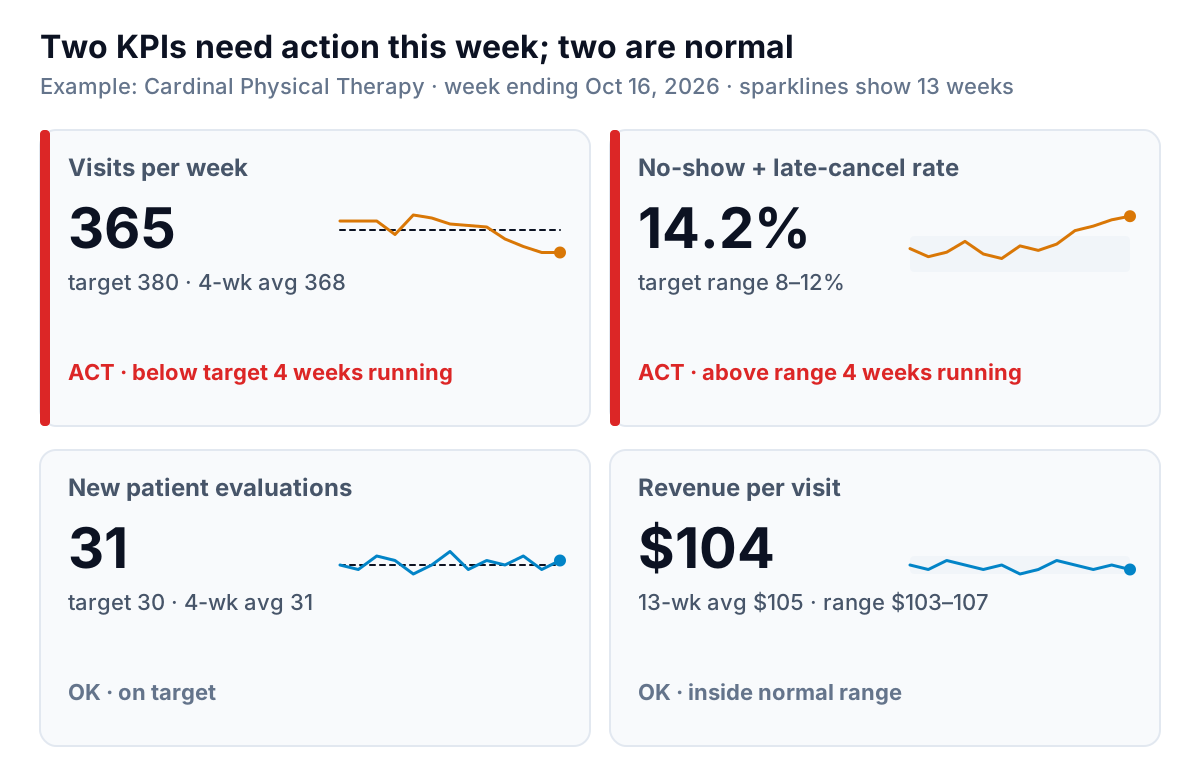
Every tile has the same four parts, in the same places:
- The number, large. This week's value, with its unit. 365 visits, not "365" floating alone.
- The comparison, in words. Target, a recent average or both. A number with nothing beside it can't be judged; 365 is fine for a clinic aiming at 300 and a problem for one aiming at 380.
- A sparkline. Thirteen weeks as a small line with no axes. Edward Tufte, who coined the term, describes sparklines as small, intense, word-sized graphics in his notebook post on sparkline theory and practice. On a tile, its job is to show direction: Cardinal's visits line has been sliding for four weeks.
- A status word. "ACT" or "OK", with the reason. Color backs the word up but never replaces it. The W3C's accessibility guideline on use of color says color shouldn't be the only way information is conveyed, and a red-green status dot fails readers with color-blindness and anyone with a black-and-white printer.
Two choices on this screen are easy to miss. First, only the tiles that need action get color: a red edge and red status text. The normal tiles stay gray. If every tile is colored, green included, the eye has nothing to find. Second, the sparkline's reference sits inside it: a dashed target line on visits and new evaluations, a shaded band on the two rates. A sparkline without a reference shows shape but not whether the shape matters.
Scale the sparkline on purpose
A sparkline stretches to fill its box. Left alone, Excel scales each sparkline to that row's own lowest and highest values, which turns a $3 wobble in revenue per visit into a dramatic zigzag. Microsoft's page on sparkline axes covers the three vertical axis settings: automatic for each sparkline, the same for all sparklines in a group, or a custom minimum and maximum. For KPI tiles, use custom values per KPI, set once to a range that holds normal variation with room on both sides. Cardinal's revenue-per-visit sparkline runs from $95 to $115, so a normal week looks flat and a real move would stand out.
Bullet graphs instead of gauges
For progress toward a monthly goal, the old screen used gauges. Here are the same three month-to-date numbers both ways: visits, new patient evaluations and revenue, each measured against the pace needed to hit the monthly target, 12 working days into a 22-day October.
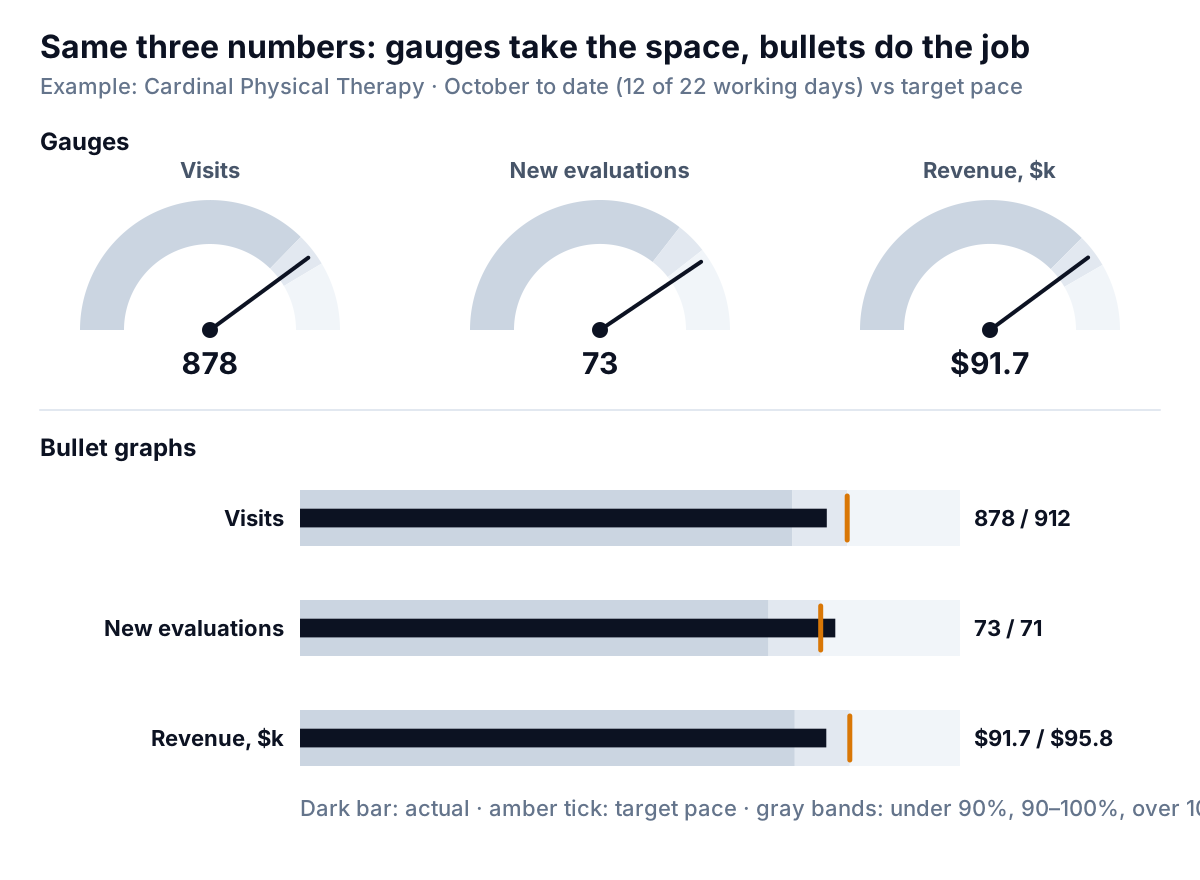
The bullet graph was designed for exactly this. Stephen Few's bullet graph design specification says it was developed to replace the meters and gauges common on dashboards, packing a measure, a comparison and qualitative ranges into a small linear space that's quicker to read than a radial dial. Its parts, per the spec: a label, a single linear scale, the featured measure as a bar, one or two comparison markers, and two to five background ranges (ideally three) shaded in intensities of one hue rather than different colors, darker for poor.
Read Cardinal's three bullets from the right-hand numbers. Visits are at 878 against a pace of 912, about 96%, in the middle band. New evaluations are 73 against 71, past the target tick. Revenue is $91,700 against $95,800, also about 96%. With all three lined up on the same kind of scale, the eye compares bar ends against ticks, which is a position judgment. The gauges ask for three angle judgments in three separate circles, and because each needs its own circle, they can't stack into a tidy column beside other tiles.
Rules for bullet graphs on a small business screen:
- Compare with pace, not the full-month target. On day 12 of 22, a bar at 55% of the monthly goal is on track. Target pace = monthly target × working days so far ÷ working days in the month.
- Three bands, set as percentages of target. Cardinal uses under 90%, 90 to 100% and over 100%. Write them down once and don't adjust them to make a month look better.
- Start the scale at zero. The featured measure is a bar, and bars start at zero. Few's spec allows a scale that starts higher only if you switch the bar to a dot.
- Stack them. Several bullet graphs share a column neatly. That's most of their advantage.
Target bands, and the rule for turning a KPI red
Rates bounce. Cardinal's no-show and late-cancel rate runs between about 9% and 11% in a normal week. A single bad week means little; a run of bad weeks means something changed. The chart for this kind of KPI is a plain line with the target range shaded behind it.
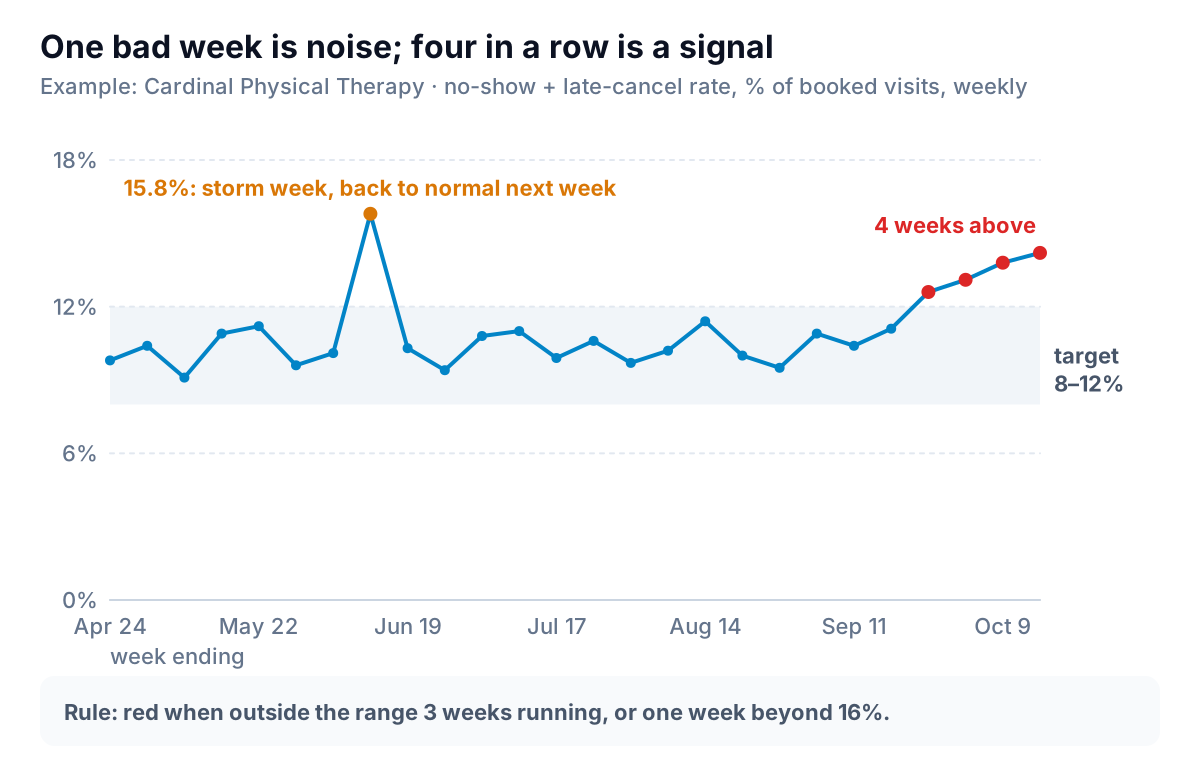
The week ending June 12 hit 15.8%: a storm closed roads for two days and patients canceled. It went straight back into the band. From the week ending September 25, the rate climbed out of the band and stayed out: 12.6%, 13.1%, 13.8%, 14.2%. That's the pattern the tile's ACT flag exists to catch, and it explains the visits tile too. At around 425 booked visits a week, the gap between a 10% and a 14% loss rate is about 17 visits a week, more than the whole 15-visit shortfall against the 380 target.
Write the status rules before you need them, with a time element so one bad week doesn't set off alarms. Cardinal's:
| Status | Rule for a range KPI (no-show rate) | Rule for a target KPI (visits) | What happens |
|---|---|---|---|
| OK | Inside 8–12% | At or above 380 | Nothing; tile stays gray |
| WATCH | Outside the range 1–2 weeks | Below target 1–2 weeks | Amber text; check for a known cause |
| ACT | Outside 3 weeks running, or any week above 16% | Below target 3 weeks running, or one week under 340 | Red edge and text; owner names one action at the Monday meeting |
Where do the band edges come from? From your own history first. Take the last six months of normal weeks and see where most of them fall; Cardinal's sat between 9% and 11.5%, so 8–12% gives a little room. Our monthly KPI report guide shows a more formal way to set a normal range from past data. Industry figures are a weak guide for a band, because clinics define late cancellations differently.
Building these KPI charts in Excel and Google Sheets
Shape the data
Keep one sheet with one row per week and one column per KPI, plus a helper column for each target or band edge, repeated on every row (380 for visits, 8% and 12% for the no-show band). Repeating the target is what lets a chart draw it as a line. Build the tiles on a separate sheet that points at the last row.
Sparklines
In Excel, click the cell where the sparkline should go, choose Insert and pick the Line sparkline type, then select the last 13 cells of that KPI's column; Microsoft's guide to using sparklines walks through it, including the Markers option. Then set a custom vertical axis minimum and maximum as described above. Excel sparklines don't draw a target line; if you need one, use a small line chart instead.
In Google Sheets, sparklines are a formula. =SPARKLINE(B15:B27, {"ymin",340;"ymax",400}) draws visits on a fixed 340–400 scale. Google's SPARKLINE help lists the line options, including ymin, ymax, color and linewidth.
Bullet graphs
Neither Excel nor Google Sheets has a bullet chart type. Microsoft's list of available chart types doesn't include one, and Google's chart types list offers a gauge but no bullet. Two workarounds:
- Excel: make a stacked bar chart whose three series are the band widths (for visits: 821, 91 and 188, which reach 90% of 912, 100% and the end of a 1,100 scale). Add the actual as a fourth series, then use Change Chart Type, choose Combo and put the actual on the secondary axis as a clustered bar, so it draws on top of the bands. Microsoft's page on adding a secondary axis shows the Combo dialog. Set both axes to the same 0–1,100 range, make the actual bar thinner by widening its gap, and mark the target with a data label or a thin shape.
- Google Sheets: a SPARKLINE bar gives a quick progress bar in a cell.
=SPARKLINE({878, 912-878}, {"charttype","bar";"max",1100;"color1","#0c1222";"color2","#cbd5e1"})draws the actual in dark ink and the remaining distance to target pace in gray. It has no bands, so put the status word next to it.
Target band lines
The simplest version in either tool: a line chart with three series, the KPI plus the lower and upper band edges, with the two edges in light gray and dashed. A shaded band looks better and takes more work; the two lines carry the same information.
One screen, read in under a minute
Put the tiles on top, the bullet graphs for month-to-date progress under them, and one band chart for whichever rate is flagged. Our KPI report examples show how six other businesses lay out the same ideas in a written report rather than a screen.
Parity can build this from your data. Upload a CSV or Excel export of weekly totals from your scheduling or practice management system (aggregate counts only, no patient details), or connect QuickBooks Online for the revenue side, and describe the KPIs, targets and status rules you want. Parity builds a dashboard with the headline numbers and their trends, charts, what explains them and a table of what needs attention. Every number and chart is checked against queries on the full dataset before you see it, and you refine it by chat ("use a fixed $95–115 scale for revenue per visit", "turn red after 3 weeks outside the range").
Upload an export of your weekly numbers and get checked KPI tiles, bullet graphs and target bands. Build a report from your data free
At Cardinal, the first Monday with the new screen took four minutes. Two red tiles, one cause: a rise in late cancellations since late September. The front desk started confirming every booking the afternoon before, and the target band will say within three weeks whether it worked.