What you need
On Monday morning, a hospitality group's weekend Square summary across multiple cafe locations shows one figure for gross sales and a lower figure for net sales. The bank feed in Xero shows a completely different deposit total. Meanwhile, a wholesale catering customer has open invoices sitting under slightly different contact names across stores.
That is the exact gap a Xero and Square connector dashboard should close for multi-location operators and bookkeeping teams. Before you build the workspace, gather a few basic items so your POS summaries and accounting ledgers align on the first pass.
- Accounting platform access: Read-only login credentials for your Xero or QuickBooks account where bank feeds, bills, and invoices live.
- Square POS sales exports: CSV or Excel (.xlsx or .xls) files exported from your Square reports covering transaction summaries, item sales, and transfer history by location.
- Location and schedule list: Each store's daily close-of-day cutoff hour and the clearing account names used in your chart of accounts.
- Customer contact roster: A quick list of wholesale, catering, or house-account buyers who get billed via invoices alongside register sales.
- Setup time: A few minutes to connect your accounting tool, upload your Square spreadsheets, and verify your first headline numbers.
What a Xero and Square connector dashboard needs to reconcile
Retail and hospitality bookkeepers spend hours every month matching point-of-sale register totals against accounting bank feeds. Square tracks every swipe, tap, refund, and tip at the register. Xero and QuickBooks track what actually lands in the checking account, plus supplier bills and wholesale receivables.
When those systems sit in separate tabs, small timing and fee differences look like missing money. Combining an AI dashboard for accounting with your POS exports puts both sides of the ledger on one screen.
Parity connects directly to Xero to pull invoices, contacts, and bills, and to QuickBooks to pull invoices, customers, and expenses. For Square data, or when you want to inspect specific register batches, you upload CSV, Excel (.xlsx), or .xls spreadsheets directly into the same workspace.
The table below shows how each field maps across your POS exports and accounting ledgers so your dashboard reconciles every dollar cleanly.
| Reconciliation Metric | Square POS Export | Xero (Invoices, Contacts, Bills) | QuickBooks (Invoices, Customers, Expenses) |
|---|---|---|---|
| Gross Sales | Item price times quantity sold before discounts or refunds | Sales revenue line item on daily clearing invoice | Gross sales income line on daily sales receipt |
| Net Sales | Gross sales minus discounts, comps, and item returns | Net revenue credited to operating sales account | Net sales income after discount and refund lines |
| Taxes & Tips | Collected sales tax and staff gratuities added after net sales | Sales tax payable and tips clearing liability lines | Sales tax liability and tips payable holding accounts |
| Processing Fees | Card transaction fee deducted per swipe or tap before payout | Merchant fee bill or bank fee spend money line | Merchant processing expense deducted from clearing deposit |
| Open Balances | Unpaid Square invoices or open house tabs by customer | Unpaid contact invoices and open supplier bills | Open customer invoices and unpaid vendor expense bills |
Why do Square net sales differ from bank deposits?
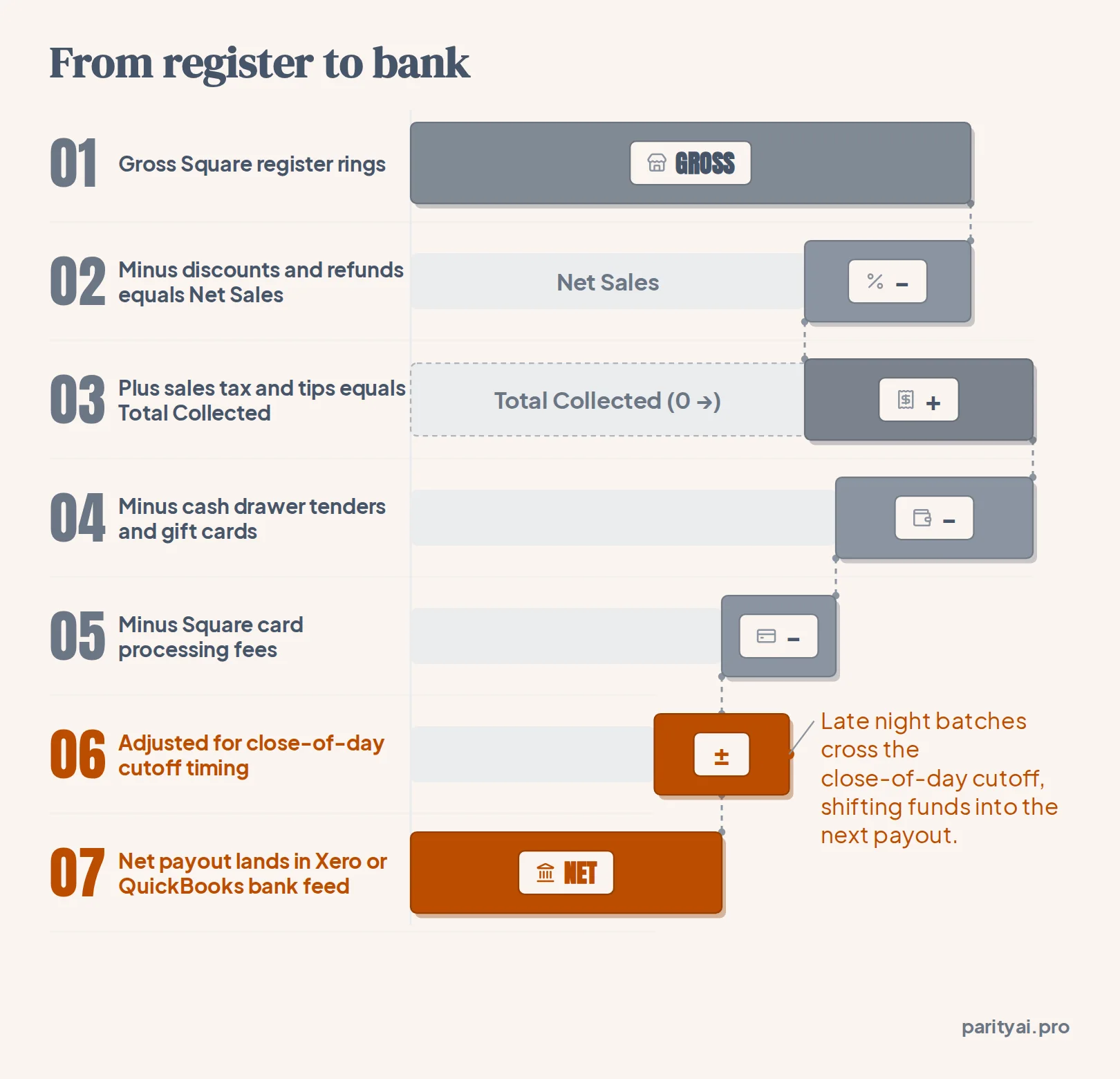
Square net sales almost never match your bank deposit dollar for dollar because net sales only measure product revenue after discounts and refunds. Before initiating a bank transfer, the processor adds collected sales tax and tips, deducts card processing fees, separates cash tendered at the drawer, and groups transactions by your transfer cutoff schedule.
According to the Square Sales Summary and Close of Day report guide, Gross Sales represent total product sales before any deductions, while Net Sales equal Gross Sales minus discounts and refunds. Neither figure includes sales tax, tips, or gift card loads, even though customers pay those amounts on the same credit card swipe.
- Discounts and refunds: Subtracted from gross rings to arrive at net product sales.
- Sales tax and tips: Added onto the total collected at the terminal, increasing the card batch above net sales.
- Cash and gift card redemptions: Included in total collected at the register, but excluded from the electronic card payout.
- Card processing fees: Deducted directly by Square before the funds leave for your bank account.
- Close-of-day cutoff timing: Transactions rung after your transfer cutoff hour roll into the next business day's bank payout.
- Automated clearing entries: As explained in the Xero and Square integration guide, daily sales are typically posted to a clearing account so that card fees and cash totals are separated before matching the net bank feed line.
1. Connect Xero, QuickBooks, and Square exports in read-only mode
When advisory teams build a reconciliation workspace, the first rule is protecting the source ledger. Automated sync apps that push journal entries back into Xero or QuickBooks can create duplicate contacts, post to the wrong tax code, or overwrite reconciled clearing accounts.
Parity operates strictly in read-only mode and never changes your underlying accounting tools or files. You can review all available data connectors to see how accounting platforms pair with spreadsheet uploads.
- Authorize your accounting ledger: Select Xero (invoices, contacts, and bills) or QuickBooks (invoices, customers, and expenses) from the connectors panel to grant read-only access.
- Upload your Square POS files: Export your Sales Summary, Transactions, and Transfers reports from Square as CSV or Excel (.xlsx, .xls) files and drop them into the AI dashboard generator.
- Let Parity profile the dataset: Parity reads every row, profiles the columns across your spreadsheets and connected ledgers, and builds the initial dashboard in a few minutes without manual chart wizards.
- Keep client files private: Every uploaded file travels over an encrypted connection, stays privately linked to your report, and is never used to train models.
Tip: Export your Square Transactions CSV and Transfers CSV for the exact same date range plus one extra day on each end so weekend batches and midnight cutoff stragglers are captured in full.
2. Reconcile gross vs. net POS sales across multiple locations
Once your Xero or QuickBooks data and Square spreadsheets are loaded, you do not need to write spreadsheet lookup formulas or pivot tables to align locations. You describe what you want to see in plain English and refine the layout through follow-up prompts.
Multi-location operators typically face three reconciliation headaches: bars or cafes that close after midnight, delivery app orders mixed into register rings, and card processing fees that vary by location. You can isolate each variance by chatting directly with your dashboard.
Prompt by store location and transfer batch
Ask the workspace to group your Square transactions by location ID and transfer ID, then compare those sums against your Xero clearing invoices or QuickBooks deposits. Because Parity updates the dashboard in place, you can add a breakdown column for discounts, tips, or merchant fees in seconds.
- Compare gross to net by store: Prompt the dashboard to show Gross Sales, Discounts, Refunds, and Net Sales side by side for every retail or hospitality location.
- Bridge net sales to bank payouts: Add columns for Sales Tax, Tips, Cash Tendered, and Square Fees so the final column matches the exact transfer amount hitting Xero or QuickBooks.
- Spot unbatched cutoff transactions: Filter for register rings timestamped after a store's close-of-day cutoff hour to see which sales rolled into the next morning's deposit.
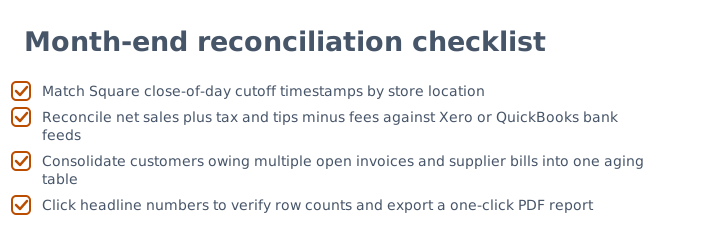
- Inspect the underlying rows: Click any headline number on the dashboard to see the exact calculation query behind it and the underlying rows it counted.
3. How to pull one report for a customer that owes multiple open invoices?
To pull a single consolidated report for a customer with multiple open invoices across Xero, QuickBooks, or Square, connect your accounting data and upload your invoice exports, then prompt the dashboard in plain English to group open balances by customer name or email. The table rolls every unpaid invoice and bill into one contact row with a verified grand total.
Multi-location businesses often bill repeat catering clients, wholesale accounts, or event groups from different registers or ledger profiles. As noted in the QuickBooks guide on merging duplicate customer contacts, slight spelling differences create split receivables in standard reports, and permanently merging records inside the accounting software cannot be undone.
Instead of altering your live ledger, you can consolidate those open balances inside a read-only accounts receivable aging report view. Parity pulls invoices, contacts, and bills from Xero or invoices, customers, and expenses from QuickBooks, and lets you group them alongside any open Square invoice CSVs.
- Group by parent customer or email: Ask the dashboard in plain English to rollup all open invoices by primary billing email or parent company name across locations.
- Combine POS and ledger receivables: View unpaid Square catering invoices right next to open Xero or QuickBooks wholesale invoices in one table.
- Offset open vendor bills: If a wholesale customer is also a local supplier with an open bill in Xero, display their open receivables alongside unpaid bills to see the net position.
- Sort by days past due: Rank multi-invoice customers by oldest unpaid invoice date so collections teams know who to call first.
| Customer Contact | Source Systems & Locations | Open Invoice Count | Aging Bucket | Consolidated Balance Type |
|---|---|---|---|---|
| Harbor Hotel Group | Xero Ledger (Downtown & Airport Cafes) | Multiple open catering invoices | Current & 1–30 days past due | Total open contact invoices |
| Metro Office Catering | Square Invoices CSV + QuickBooks | Multiple POS & wholesale invoices | 31–60 days past due | Combined POS and ledger receivables |
| Valley Roasters Co-op | Xero Invoices + Xero Supplier Bills | Open wholesale invoices & vendor bill | 1–30 days past due | Receivables net of open supplier bill |
| Bayside Event Planners | QuickBooks Customers (3 Store Locations) | Multiple deposit & balance invoices | 60+ days past due | Total overdue customer balance |
Connect Xero or QuickBooks in read-only mode or upload your Square CSV exports to build a verified dashboard and PDF report. Build a report from your data free
4. Verify every calculation and export monthly PDF reports
Before an advisory team sends month-end financials to a restaurant owner or retail board, every variance between the register and the bank statement must be proved. Parity checks every number against your raw underlying data before displaying it on screen.
When a partner or store manager asks why net sales in Location B differed from the Xero clearing total, you do not have to dig through raw spreadsheets. You click the headline number right on the dashboard to inspect the calculation query and view the exact source rows that were counted.
- Audit the headline KPI cards: Click the Gross Sales, Net Sales, and Total Overdue cards to verify the exact rows counted from your Square CSVs and Xero or QuickBooks ledgers.
- Generate the written analysis: Parity writes the report when you need one, combining executive summaries, written analysis, tables, and charts from your verified numbers.
- Export a pixel-perfect PDF: Click export to download a presentation-ready PDF that matches your on-screen dashboard layout for client sign-off.
- Choose your deployment model: Run on the Cloud Hosted plan with encrypted cloud storage, or use the Local Mac Mini option to keep all data and workloads on dedicated office hardware.
Watch out: Always check whether sales tax and tips are included in your Square clearing account rules before signing off on month-end margin percentages, since tax and gratuities inflate total collected without adding to store gross margin.