The first budget vs actual chart Inkwell Stationery's bookkeeper sent over had eighteen bars: a gray budget bar and a blue actual bar for each of nine lines, January to September 2026. Inkwell is an example business, a stationery shop with a busy online store. Its owner looked at the chart for a minute and asked the only question that mattered: "So why are we $34,300 behind on profit?" The chart couldn't say.
The budget vs actual chart that answers that question is a variance bar chart: one bar per line, showing how far each one landed from budget, pointing right when it helped profit and left when it hurt, sorted by size. Add a bullet graph when you want to see each line against its own budget, and a cumulative year-to-date line with the gap charted underneath when the question is "will we catch up?". This guide builds all three from Inkwell's numbers.
Download the practice workbook (.xlsx). It has Inkwell's monthly budget and actuals, the variance and cumulative sheets with every formula, three native Excel charts, and the bullet graph data with build steps.
Why the usual budget vs actual chart doesn't work
The budget vs actual report is a table: each line's budget, actual and the difference. The usual chart draws the first two columns and leaves out the third, which is the one you need.
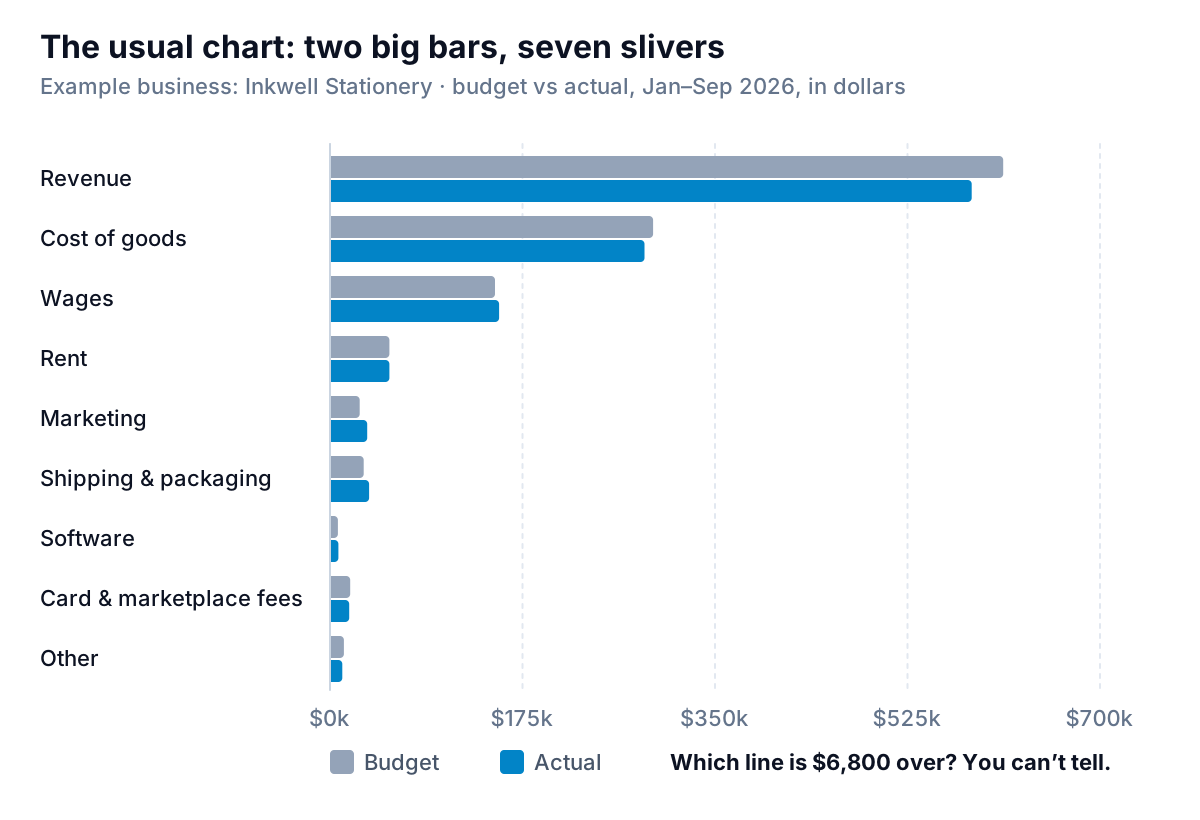
Two things go wrong. First, scale: revenue is $612,000 and software is $7,200, so on a shared axis the small lines are slivers and a 25% overspend on marketing is two bars of almost identical length. Second, the reader has to subtract. To find the $34,300, they'd have to estimate nine gaps by eye, decide which way is good for each line (more revenue is good, more cost is bad), and add them up. Nobody does that, so the chart gets a glance and a nod.
The fix is to chart the difference itself.
Variance bars: the budget vs actual chart that explains the gap
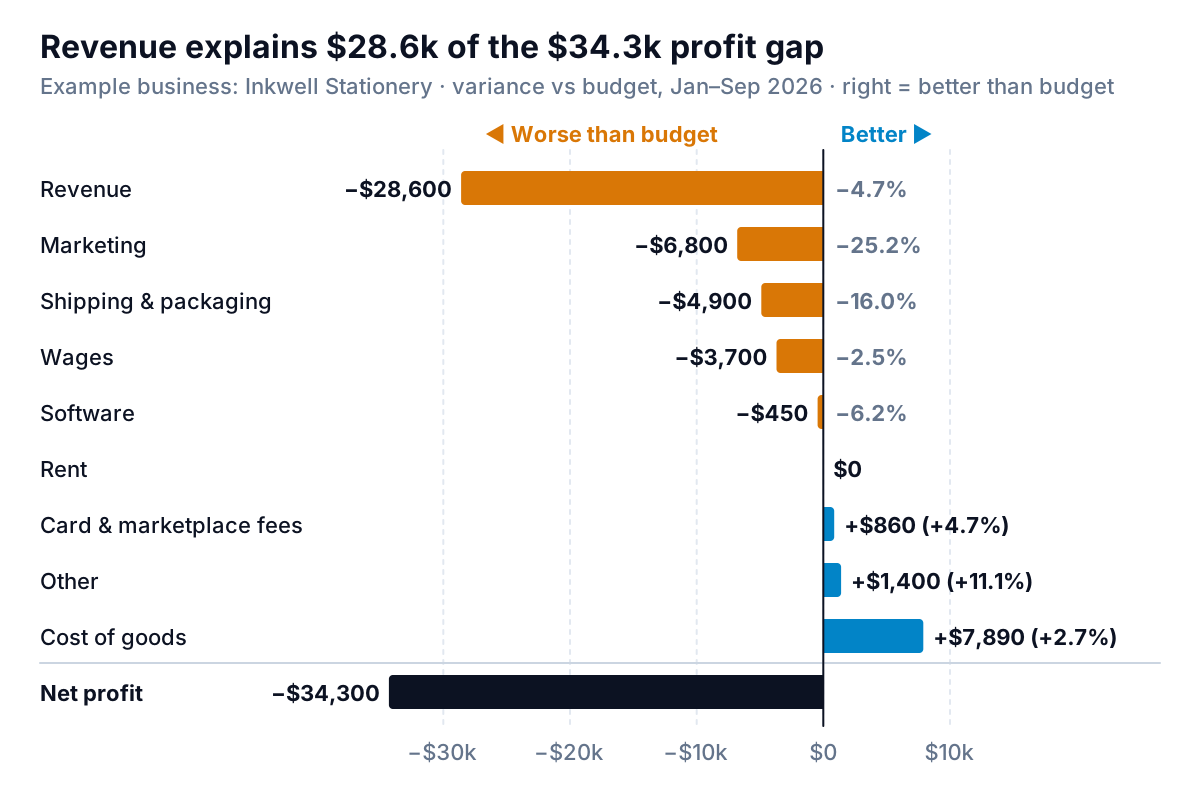
Go back to the chart at the top of this guide and the story reads from the top down. Revenue came in $28,600 short of budget, and that's most of the $34,300. Marketing ($6,800 over), shipping ($4,900 over) and wages ($3,700 over) explain the rest. A few small lines helped. Cost of goods looks like the biggest help at $7,890 under budget, which deserves a second look (more on that below).
Five design rules make this chart work:
- Sign by effect on profit, not by arithmetic. Revenue variance is actual minus budget; cost variance is budget minus actual. Then "positive" always means "better than budget" and every bar adds to the net profit bar. Write the rule in the subtitle.
- Colour by sign, and say what the colours mean. Inkwell's chart uses blue for better and amber for worse, with "Better ▶" and "◀ Worse than budget" above the axis, so the direction reads even without the colour.
- Sort by dollar size. Worst at the top, best at the bottom. The eye lands on the line that matters most.
- End with the total. A net profit bar in a different colour, below a rule, shows the lines add up. If they don't, a line is missing.
- Label with dollars and percent. The bar length is dollars. The percent goes beside it, in a lighter colour, so the reader can see that marketing's $6,800 is 25% over its budget.
When a favourable bar isn't good news
Cost of goods is $7,890 under budget only because Inkwell sold less. Budgeted at 48% of revenue, it should have been $280,030 on actual sales of $583,400; it was $285,870, so the real story is $5,840 over. Shipping gets worse the same way: 5% of actual sales would be $29,170, against $35,500 spent. Before you trust a variance bar for any cost that moves with sales, flex the budget to actual volume. The budget vs actual guide shows how, along with a two-gate rule for which variances to chase. The chart can carry a flexed column instead of the original budget. Just say so in the subtitle.
Dollars or percent? A rule for each
Every budget vs actual chart has to pick one measure for the bar length. Inkwell's numbers show why it matters. Software is 6.2% over budget; marketing is 25.2% over. Revenue is only 4.7% short. Ranked by percent, revenue would sit mid-table, behind software. Ranked by dollars, it's first, because 4.7% of $612,000 is $28,600, and 25.2% of $27,000 is $6,800.
| Use dollars when… | Use percent when… |
|---|---|
| You're explaining a profit gap: dollar variances add up to it, percentages don't | You're comparing lines of very different sizes for control ("which budgets are people ignoring?") |
| You're deciding where to spend management time | You're comparing the same line across months or years as the business grows |
| The audience is the owner, a partner or a lender | The audience is the person who owns that budget line |
The default for an owner's chart: bar length in dollars, percent as a label. And skip percent entirely for lines with tiny budgets, where a $90 overspend reads as "+40%".
Bullet graphs: each line against its own budget
Variance bars answer "what explains the gap?". They don't show whether a line is a little off or wildly off relative to its own size. For that, use a bullet graph. Stephen Few designed it to replace dashboard gauges, and his bullet graph design specification sets out the parts: a bar for the actual value, a short marker for the comparison (here, the budget), and two to five shaded bands behind them for qualitative ranges such as poor, satisfactory and good.
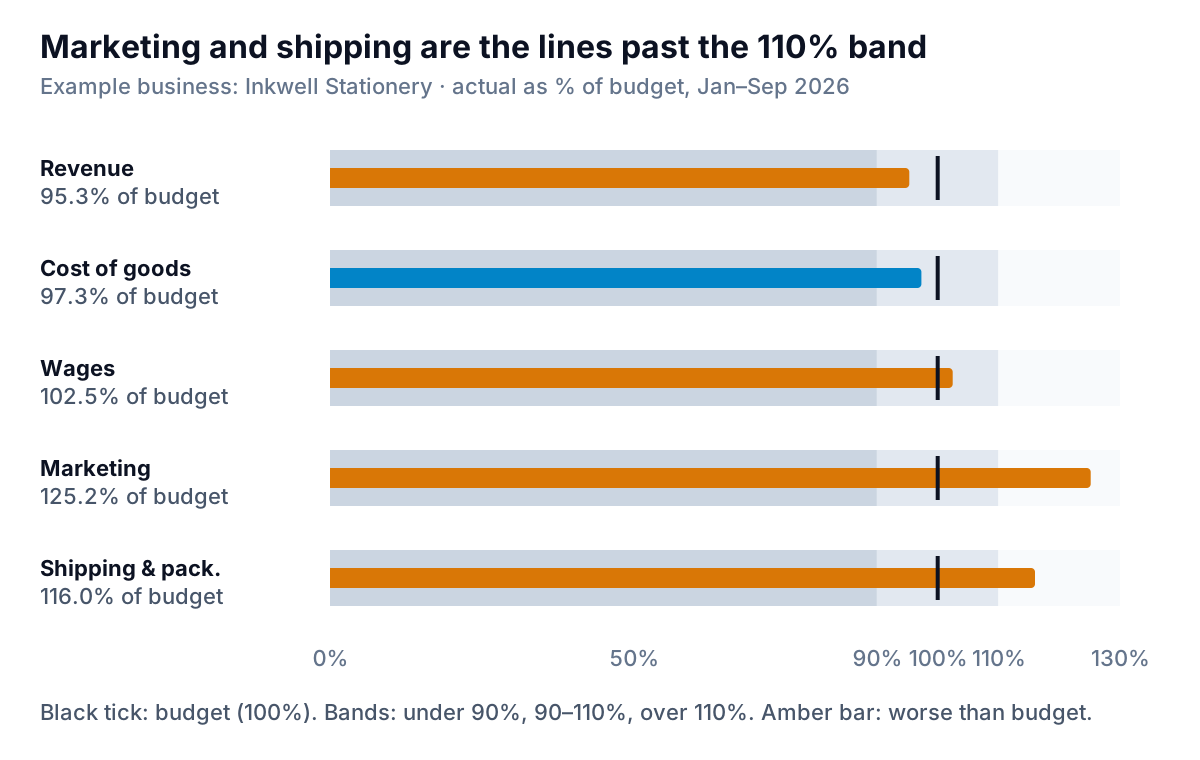
Inkwell's version scales every line as a percentage of its own year-to-date budget, so a $612,000 line and a $27,000 line sit on the same 0–130% axis. The budget is the black tick at 100%. The bands mark under 90%, 90–110% and over 110%. Two lines run past 110%: marketing at 125.2% and shipping at 116.0%. Revenue at 95.3% is inside the band but on the wrong side of the tick, which is why it's amber.
A bullet graph needs a decision about direction. For revenue, under 100% is bad; for costs, over 100% is. Colour the bar by which side of budget is worse for that line, as Inkwell's does, or keep revenue and costs in separate groups. The bands should match a rule you'd act on. Inkwell's 10% band matches its variance policy; a business with tight margins might use 5%.
Building one without a bullet chart type
Neither Excel nor Google Sheets has a bullet graph chart type. In Excel, the workbook's Bullet sheet holds the shaped data: four band columns (90%, 10%, 10% and 20%, which stack to 130%) and the actual percentage. Select them and choose Insert, then Combo, then Create Custom Combo Chart; Microsoft lists this as "Custom combination" among the available chart types. Set the bands to Stacked Column and the actual to Clustered Column on the secondary axis, then give both vertical axes the same 0 to 1.3 bounds and widen the actual series' gap width so it draws as a thin bar inside the bands. The edge between the 90–100% and 100–110% bands marks the budget.
In Google Sheets, the quickest version lives in a cell. The SPARKLINE function draws a stacked bar with a fixed maximum, so =SPARKLINE({MIN(D2,1),MAX(D2-1,0)},{"charttype","bar";"max",1.3;"color1","#94a3b8";"color2","#d97706"}) shows a gray bar up to 100% of budget and an amber piece for any overshoot. It isn't a full bullet graph, but in a table of twenty budget lines it does the job.
Year to date: cumulative lines, and the gap beneath them
The third question is about time: when did we fall behind, and can we catch up? A cumulative line of year-to-date actual against year-to-date budget is the standard answer. It has a weakness: both lines always go up.
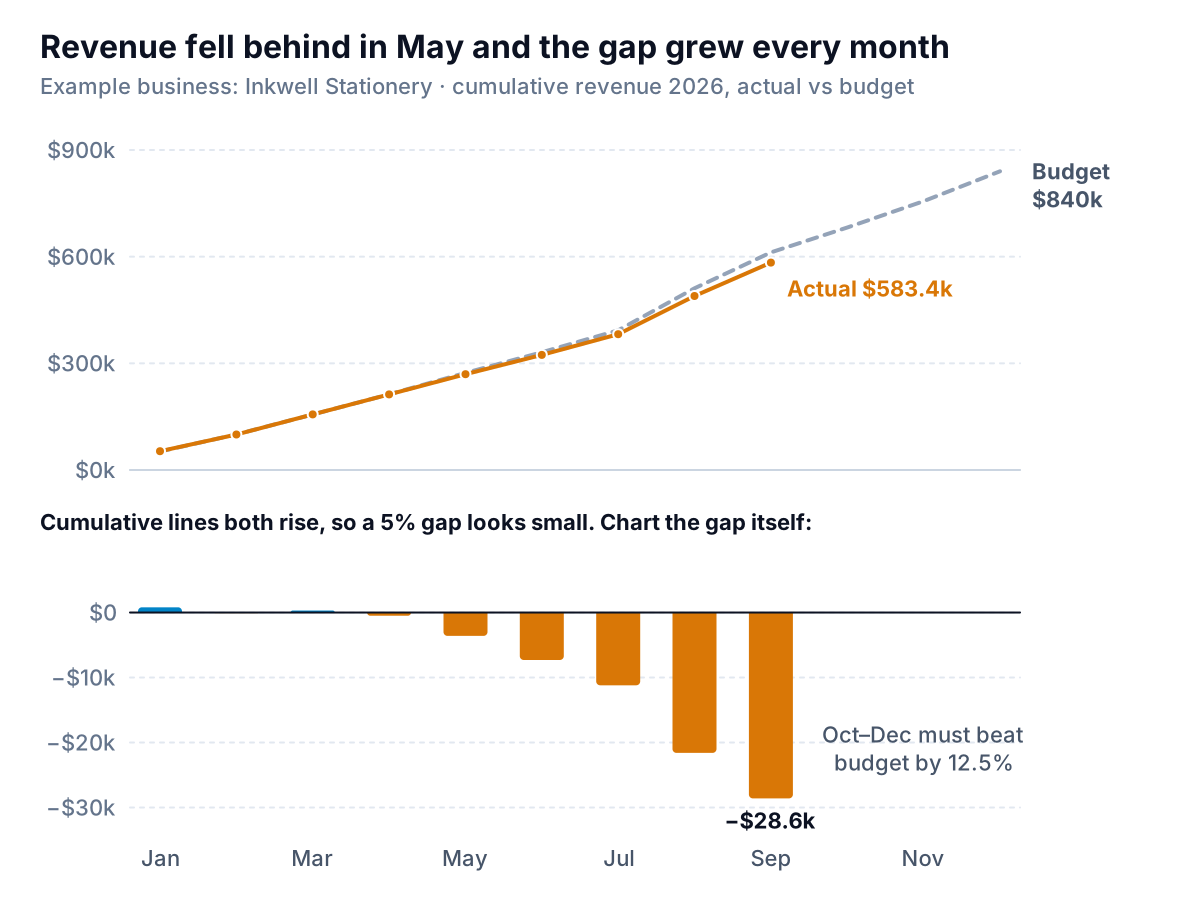
On the top chart, actual and budget look almost the same. A 4.7% gap on a line that climbs to $600,000 is a few pixels. Charted on its own (bottom), the gap is obvious: within $1,000 of budget through April, then wider every month, with August's back-to-school season alone adding $10,400. That's a question for the online store and the school-supplies range, not a rounding error.
The cumulative view also gives the target for the rest of the year. Inkwell's full-year revenue budget is $840,000. To reach it, October to December must bring in $256,600, against $228,000 budgeted for those months: 12.5% more than the plan for the busiest quarter. Put that sentence under the chart. It turns a line chart into a decision about the holiday season.
Build the budget vs actual chart in Excel or Google Sheets
Shape the data first. The workbook's Budget and Actual sheets have one row per P&L line and one column per month, in the same accounts and order. The Variance sheet then calculates, for each line:
- YTD budget:
=SUM(Budget!C2:INDEX(Budget!C2:N2,$B$1)), where B1 holds the number of closed months (9 for January to September). - YTD actual: the same formula on the Actual sheet.
- Variance (+ better):
=IF(B5="Revenue",D5-C5,C5-D5). - Better and Worse:
=MAX(E5,0)and=MIN(E5,0). These two helper columns are how you colour by sign. One of them is always zero. - A check: the variances must sum to the net profit variance. The workbook shows TRUE when they do.
Excel steps
- Sort the variance rows from worst to best (Data, then Sort, by the variance column, smallest to largest).
- Select the line names and the Better and Worse columns, and choose Insert, then Bar, then Stacked Bar. Because one value in each row is zero, each line gets one bar, coloured by its series.
- Excel draws the first row at the bottom. To put the worst line at the top, select the vertical axis and tick Categories in reverse order, as Microsoft's page on changing the plotting order describes.
- Colour Better and Worse, add data labels, delete the legend, and write the sign rule into the title or subtitle.
For the cumulative chart, add running totals with =SUM($B$2:B2) filled down, and make months without actuals return =NA() so the actual line stops instead of dropping to zero. Then chart the gap (cumulative actual minus cumulative budget) as columns below. Both charts are built in the workbook's Cumulative sheet.
Google Sheets steps
The same table works. Select the line names with the Better and Worse columns, choose Insert, then Chart, and pick a stacked bar chart under Setup. Change colours under Customize, then Series. If the rows come out in the opposite order to what you want, sort the table the other way. For cumulative lines, use a line chart, and Google's column chart help covers the gap columns.
Which chart for which meeting
For the monthly owner's review, lead with the variance bars for the year to date, then the cumulative revenue gap. Keep the bullet graphs for the people who own each budget line: they show at a glance whose line is past the band. Show the table too, for anyone who wants the numbers. The variance bars pair well with a P&L chart of margins over time, and if you don't have a phased budget yet, our small business budget template is a place to start. If you'd rather not rebuild these every month, Parity builds a budget vs actual dashboard from QuickBooks Online (which has a Budgets vs. Actuals report on Plus and Advanced, per Intuit's budgets help) or from a budget and actuals spreadsheet you upload, checks every number against the full data, and lets you refine it by chat.
Upload your budget and actuals and get variance bars, year-to-date trends and the lines that need attention, checked against your data. Build a report from your data free
The test for any budget vs actual chart is the question Inkwell's owner asked. If someone looks at it for a minute and can say why profit is off plan, and by how much from each line, it's working. If they have to subtract, it isn't.