The needle on the dashboard gauge sat at 69%, in the green band. It was the end of September, Oxbow Outfitters (an example outdoor retailer with stores in Bend, Hood River and Missoula plus a web shop) had sold $1,654,000 against a $2.4 million target for the year, and 69% with a quarter to go felt comfortable. It wasn't. A sales target chart compares sales with where the target says you should be by now, and Oxbow should have been at 71%. One store was 12% behind and the gauge showed none of it.
This guide covers the three sales target charts that answer real questions (will we hit the year, which store is behind, how far along are we) and why the gauge isn't one of them. Every chart is in a practice workbook with the example data, formulas and native Excel charts: download the sales target chart workbook (.xlsx).
Three questions, three sales target charts
A target chart is only useful if it answers a question someone will act on. These are the three that come up at a small retailer, and the chart for each:
| The question | The chart | Decision rule |
|---|---|---|
| Will we hit the year? | Cumulative actual against a seasonal pace line | Use it when one target covers months, not days |
| Which store (or rep) is behind? | One bullet chart per store, on a shared % scale | Use it when you compare 3 to 15 targets of different sizes |
| How far along are we, at a glance? | Progress bars with a "should be here" mark | Use it in a table or a weekly email, where space is tight |
If the question is whether this month is on pace day by day, that's a different chart with selling days on the axis, covered in our sales dashboard guide. This post works at the scale of a year and a quarter.
Cumulative actual against a seasonal pace line
Monthly sales against monthly targets jump around: a wet May, a late Easter, a big school order. Adding them up month by month smooths the noise and shows the one thing the owner needs: the gap between where you are and where the plan says you should be.
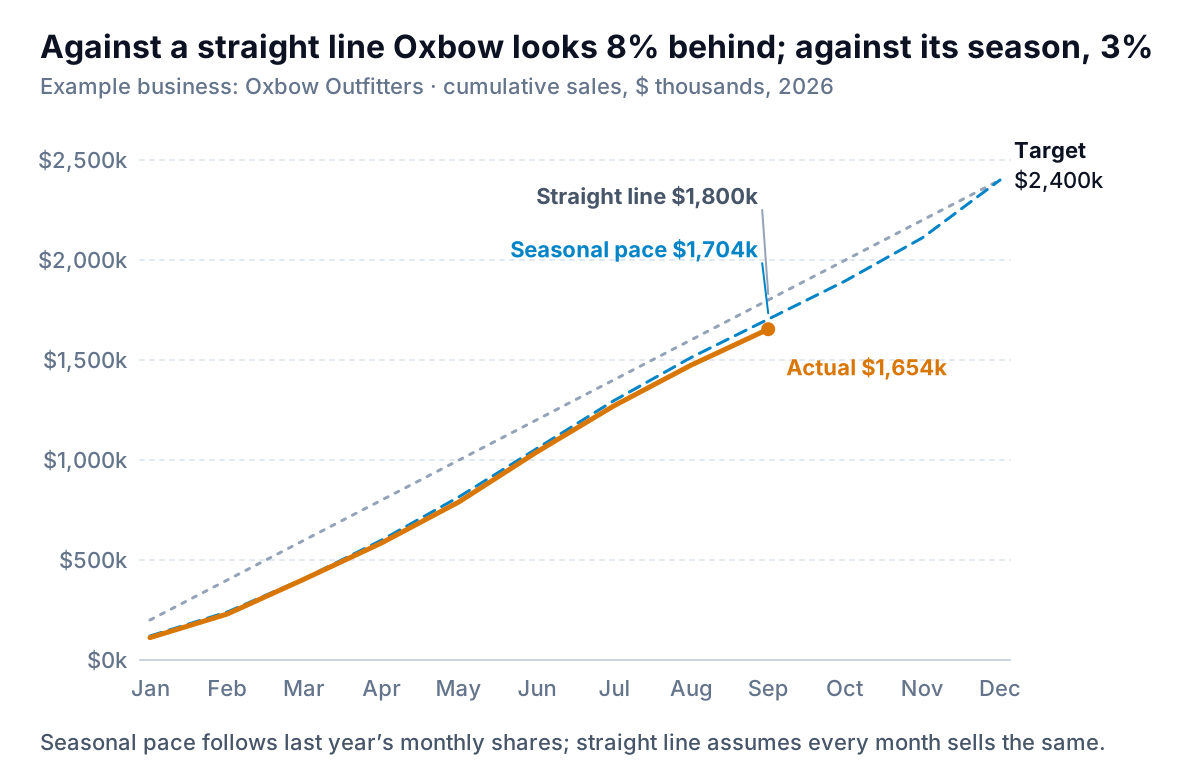
The chart has three lines, and the second one is the point of it:
- Actual, cumulative (solid amber): January to September, $1,654,000.
- Seasonal pace (blue dashes): the annual target spread over the months in the same shape as last year's sales. Oxbow sells 5% of its year in January and 12% in December, so by the end of September the plan expects 71% of $2.4 million, or $1,704,000.
- Straight line (grey dots): the target divided evenly, $200,000 a month, $1,800,000 by September. It's there only to show how wrong it would be.
Against the straight line, Oxbow looks 8% behind, and the owner would be tempted to discount in October. Against the seasonal pace it's 3% behind, $50,000 short. The rest of the year has a target of $696,000 and Oxbow needs $746,000, which is 107% of its fourth-quarter plan. That's a stretch, not an emergency.
One warning about cumulative lines: they always go up, so the slope of the line flatters everyone. Read the gap between the lines, not the angle. If the gap matters more than the totals, add a fourth series below the chart with the gap itself ($ behind or ahead each month), on its own axis starting at zero.
Build it in Excel
- Lay out one row per month: month, seasonal share (last year's month ÷ last year's total), and actual. The workbook's "Monthly" sheet has this with the annual target in one input cell.
- Monthly target:
=C2*$C$16, the share times the annual target. - Seasonal pace:
=SUM($D$2:D2), filled down. Cumulative actual:=IF(E2="",NA(),SUM($E$2:E2)). TheNA()matters: Excel's line charts skip #N/A, so the actual line stops at September instead of dropping to zero for empty months. - Select the month column and the three cumulative columns, then insert a line chart. Make the actual line thick and solid, the pace line dashed, and the straight line thin and grey (or delete it once you've made the point).
- Label the lines at their ends and delete the legend.
The summary cells beside the chart do the arithmetic: months done, year-to-date pace, the gap, and "needed rest of year as % of rest-of-year target". If that last number is over about 115%, the year needs a new plan, not more effort. That threshold is a rule of thumb for a business like Oxbow, not a benchmark.
A bullet chart per store
The company is 3% behind. Who is behind? Four stores with four different targets can't share a dollar axis, because Bend's $600,000 would dwarf Online's $300,000. Convert each to a percentage of its own year-to-date target and draw them all on one scale.
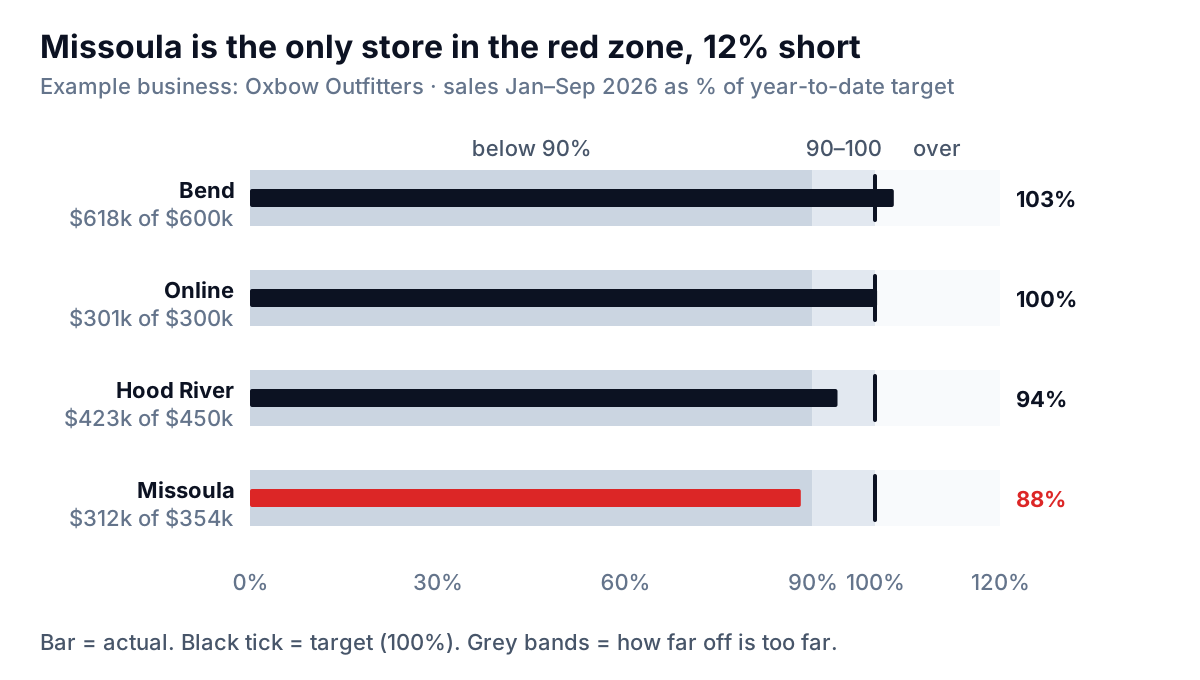
The bullet graph comes from Stephen Few, who designed it as a compact replacement for dashboard gauges. His bullet graph design specification lists five parts: a text label, a single linear scale, the featured measure (the bar), one or two comparative measures (the tick, usually the target), and two to five background ranges that mark qualitative states such as poor, satisfactory and good. He recommends no more than five ranges, ideally three, drawn in shades of one colour so they still work for colour-blind readers.
Oxbow's bands are below 90% (a problem), 90–100% (close) and over 100%. Missoula's bar stops in the darkest band, at 88%: $312,000 against $354,000. Hood River is 6% short but inside the "close" band. Bend and the web shop are at or past target. That ranking turns into an agenda: Missoula first, Hood River second, nobody else.
Pick the band edges before you see the numbers, and keep them all year. If the "problem" line moves to whatever this month's worst store happens to be, the chart stops meaning anything.
Build it in Excel or Google Sheets
Neither Excel nor Google Sheets has a bullet chart type. Google's list of chart types in Sheets includes gauges but no bullet chart, and Excel's chart menu has none either. The standard workaround, used in the workbook's "Stores" sheet:
- One row per store: full-year target, year-to-date target, actual, and actual ÷ YTD target.
- Three band columns holding 90%, 10% and 20%. Stacked, they reach 90%, 100% and 120%.
- Insert a stacked bar chart of the three band columns and colour them dark, mid and light grey with no gap between them.
- Add the actual % as a second series, put it on the secondary axis, change it to a clustered bar with a wide gap width so it draws as a thin bar inside the bands, and set both axes to the same 0–120% scale. Mismatched axes are the most common way this chart goes wrong.
- For the target tick, add a series of 100% values as a scatter series with a short vertical error bar, or simply rely on the edge between the middle and light bands, which sits at 100%.
In Google Sheets, the quickest version skips the chart: a SPARKLINE bar in each row, covered under progress bars below.
Why gauges waste the space
Gauges are popular because they look like a car dashboard. They're poor at the one job a target chart has: comparing several numbers against their targets at once.
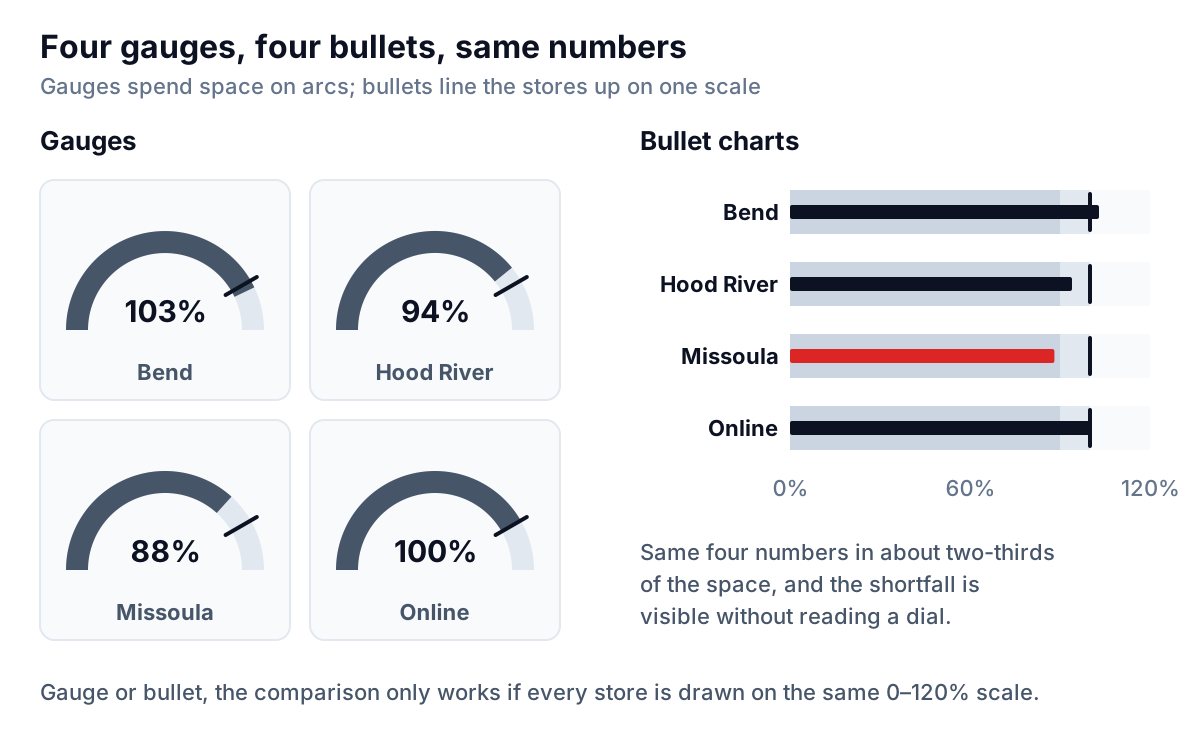
Three problems show up side by side:
- Space. A gauge spends most of its area on an arc and empty space beneath it. Few's specification notes that the bullet graph's linear design gives it a small footprint, which is what a dashboard needs. In the figure, four bullets fit in about two-thirds of the area of four gauges, with room to spare for labels.
- Comparison. To compare gauges you read each number and hold it in your head. Bullets share one baseline and one scale, so lengths compare directly. William Cleveland and Robert McGill's 1984 graphical perception experiments found that people judge position along a common scale more accurately than angles, which is what a gauge needle asks you to read.
- Context. Most gauges show one comparison, the target. A bullet can carry the target and a second marker, such as last year's figure, without getting busier.
A single gauge for a single number on a TV screen in the stockroom does no harm. Four or more on a report page is where they cost you.
Progress bars, with one extra mark
Sometimes there isn't room for a chart at all: a row in a weekly email, a column in a store table. A progress bar of year-to-date sales against the full-year target fits anywhere. On its own, though, it misleads.
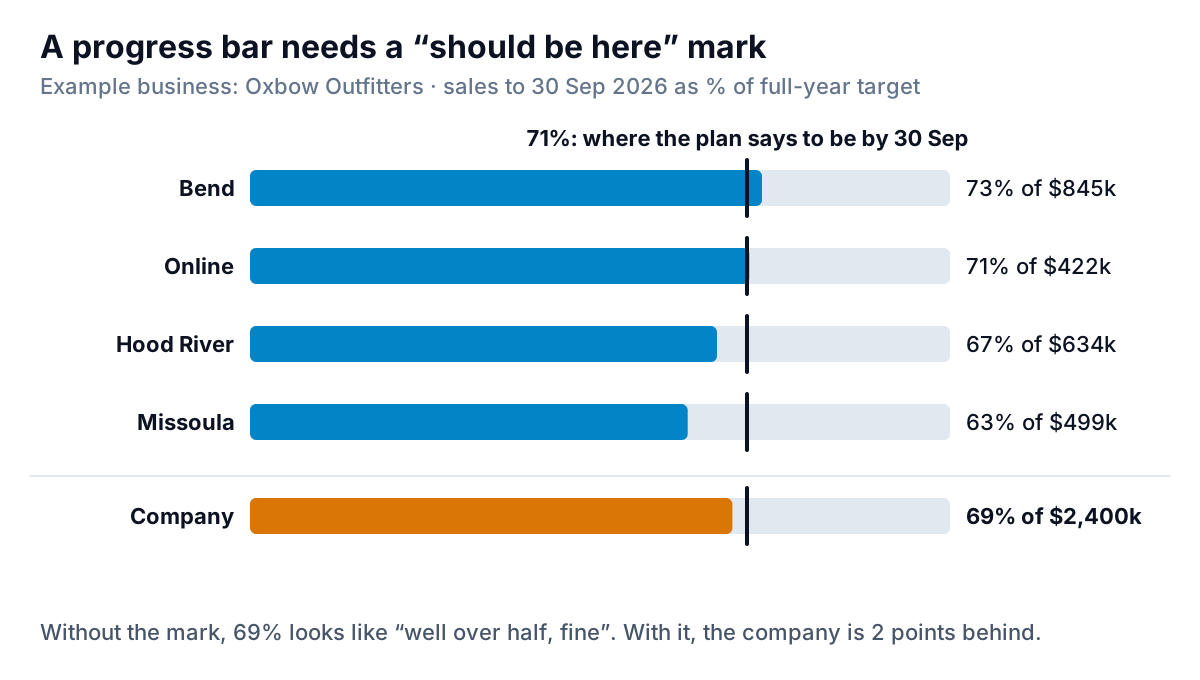
Without the mark at 71%, Oxbow's company bar at 69% reads as "well past half, fine", which is exactly what the gauge said. With it, the company is two points behind and Missoula about eight. The mark is the year-to-date share of the target from the seasonal plan, not the share of the calendar elapsed (75% at the end of September), which would make every store look worse than it is.
Build it in a cell
- Excel: select the progress column, then Home > Conditional Formatting > Data Bars. Microsoft's guide to conditional formatting explains how to edit the rule (Manage Rules, then Edit Rule) and set the minimum and maximum types. Set both to Number, 0 and 1. The default scales bars between the lowest and highest values in the range, so the weakest store gets almost no bar and the strongest looks complete.
- Google Sheets:
=SPARKLINE(I2,{"charttype","bar";"max",1;"color1","#0284c7"})draws a bar scaled to 100% in the cell, using the bar options Google documents for SPARKLINE. A data bar can't carry the "should be here" mark, so put the plan's percentage in the next column, or format the % cell red when it falls under the mark.
Five ways a sales target chart misleads
- Straight-line targets for a seasonal business. Covered above, and the most common. If last year's monthly shares are odd (a one-off contract, a closure), use an average of two or three years.
- Targets that change mid-year. If the target is cut in July, keep the original line in grey and add the new one. A chart where the target quietly moves to meet the actuals isn't tracking anything.
- Percentages of small targets. A new pop-up with a $20,000 target that sells $30,000 is at 150% and tops every ranking, while contributing less than Missoula's shortfall. Show the dollars beside the percentage, as the bullet chart labels do.
- Gross sales against a net target. If the target was set on sales after returns and discounts, compare it with the same. Mixing them flatters the months with heavy returns.
- Green and red with no middle. Two states turn a store 1% short into a failure. Few's three bands (problem, close, on target) are kinder and more accurate.
Targets are a cousin of budgets; if you also track costs against plan, our budget vs actual guide covers variance charts, and a KPI dashboard is where these charts usually end up living.
Keeping the target chart honest every month
The workbook works as long as someone types in each month's actuals and the store targets don't change. If you'd rather not, Parity builds the same comparison from your sales data: connect Shopify, Square or QuickBooks, or upload an export, give it the targets, and ask for actual against seasonal pace by store. It builds the dashboard with headline numbers, charts and a table of what needs attention, with every number checked against queries on the full dataset before you see it, and you can update it with next month's file.
Bring your sales data and your targets, and get a checked dashboard with pace, gaps and the stores that need attention. Build a report from your data free
Oxbow replaced its four gauges with the three charts in this guide. The October meeting took 20 minutes: the cumulative chart said the year was $50,000 short and recoverable, the bullets said Missoula owned most of the gap, and the progress table went into the weekly email to store managers with the 71% mark on every row. Nobody mentioned the green needle again.