On August 14, a shelf count at Twine & Thread Craft Supply, an example yarn and fabric shop we'll follow in this guide, found 48 skeins of Rust merino where the records said 51. Under the shop's old system, a single quantity column that anyone could type over, that would have been the end of it: change 51 to 48 and never know why. If you want to know how to keep track of inventory in Excel, start with that lesson: don't type balances at all. Keep two sheets, a list of items and a log of every movement (received, sold, returned, adjusted), and let a formula work out what's on hand.
That's how the free template in this guide works. Download the inventory spreadsheet template (.xlsx). It opens in Excel, Google Sheets and Numbers, has no macros, and comes with a filled-in example for Twine & Thread's third quarter and a blank copy with every formula in place.
Why a stock list you type over stops working
Most homemade inventory sheets are a list of items with a "quantity" column that someone edits when stock comes in or goes out. It works for a month. Then three things happen:
- You lose the history. When the count is wrong, there's no trail to follow. The cell only knows its latest value.
- Two people overwrite each other. One person adds a delivery while another subtracts a sale from the old figure, and one change disappears.
- You can't answer "how fast does this sell?" Without a record of sales by date, there's no days-of-cover figure and no way to set a sensible reorder point.
A movement log fixes all three. Every change is a new row with a date, an item, a type and a quantity. The balance is a sum, so it can always be rebuilt and checked, and the same rows give you sales over any period you like.
What's in the inventory template
The workbook has seven tabs:
- How to use: the setup steps, what each formula does, and the limits.
- Example items, Example movements, Example summary: 18 items at the fictional Twine & Thread, with 251 movements from July 1 to September 30, 2026.
- Your items, Your movements, Your summary: the same three sheets, empty, with formulas ready for 200 items and 3,000 movement rows.
Shaded cells are for typing. Everything else is a formula, so don't type over it. If you need more rows, insert them inside the existing range (above the last row) so the formulas pick them up.
How to keep track of inventory in Excel, step by step
Setup takes an afternoon. After that, it's a short session each week.
Step 1: list your items
On the items sheet, give every item its own row. The typed columns are:
- SKU: a short, unique code. Twine & Thread uses a two-letter category prefix and a number (YN-102 is yarn, FB-201 fabric). If you sell a product in sizes or colours and need to know which ones are running low, each size or colour gets its own SKU.
- Item, Category, Supplier, Unit: the unit is what you count and sell in: skein, yard, pack, kit.
- Unit cost: what you pay per unit, from your latest supplier invoice. Stock is valued at cost, never at the shelf price.
- Opening qty: a physical count on your start date. This is the one balance you ever type.
- Reorder point and Order up to: the level that triggers an order and the level an order should bring you back to. Leave both blank for items you won't buy again.
- On order: units ordered but not yet delivered. Clear it when you log the delivery.
How to pick the reorder point is a question of its own: roughly, what you sell during the supplier's lead time plus a buffer. Our inventory dashboard guide works through the formula with an example, so we won't repeat it here.
Step 2: log every movement
The movements sheet has five typed columns: date, SKU, type, quantity and a note. The type comes from a drop-down list with four choices:
- Received: a supplier delivery, entered after you've checked it against the packing slip.
- Sold: sales, which can come from your point-of-sale system's sales-by-item report. One line per item per day or per week is fine. Twine & Thread posts weekly totals every Saturday.
- Customer return: an item that goes back on the shelf.
- Adjustment: anything else, with a sign. +1 for an item found in the back room, −3 for skeins missing on a count, −2 for opened packs written off.
Type quantities as positive numbers except for adjustments. A formula column called "Signed qty" turns sales negative and leaves the rest as they are, so you never have to think about signs when you're entering sales. The SKU column has a drop-down that reads the items sheet, and a formula next to it looks up the item name, showing "Unknown SKU" in red if you type a code that isn't on the list. Microsoft's guide to creating a drop-down list explains how to edit the type choices if you need more.
Step 3: let the formulas do the rest
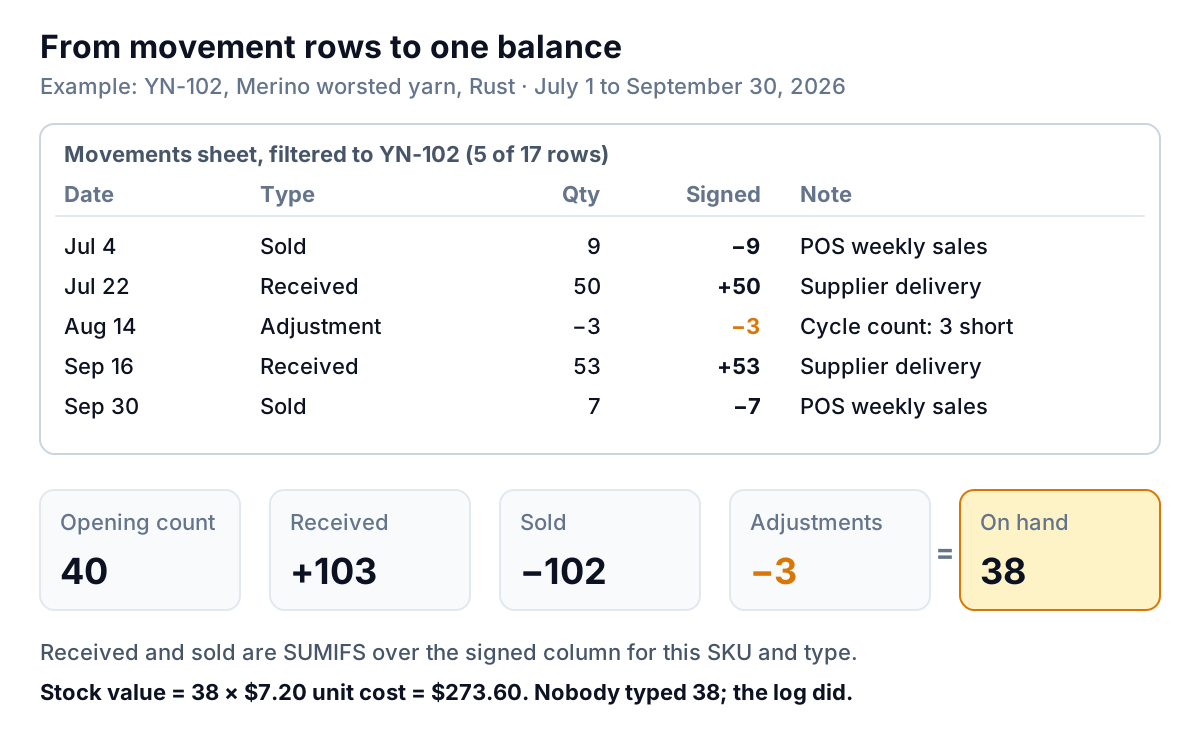
Back on the items sheet, the formula columns read the log. Here's what each does, with the Rust merino row as the example.
| Column | What it calculates | Rust merino (YN-102) |
|---|---|---|
| Received | SUMIFS of signed qty where SKU matches and type is Received | 103 |
| Sold | Same, type Sold, sign flipped back to positive | 102 |
| Returns and adjustments | Customer returns plus adjustments, signed | −3 |
| On hand | Opening + received − sold + returns and adjustments | 40 + 103 − 102 − 3 = 38 |
| Stock value | On hand × unit cost | 38 × $7.20 = $273.60 |
| Sold last 30 days | SUMIFS of sales dated in the 30 days to the as-of date | 37 |
| Days of cover | On hand ÷ (sold last 30 days ÷ 30) | 38 ÷ 1.23 = 31 days |
| Last sale | MAXIFS: the latest date with a Sold row | Sep 30, 2026 |
| Status | Below zero, Reorder, Slow or OK (rules below) | OK |
| Suggested order | Order up to − on hand − on order, for Reorder items | blank |
The workhorse is SUMIFS, which adds up a column where several conditions are true at once. The received formula on row 6, for instance, is =SUMIFS(signed qty, SKU column, A6, type column, "Received") pointed at the movements sheet. If SUMIFS is new to you, our SUMIFS guide walks through it with practice data.
The status column applies four rules in order:
- Check: below zero if on hand is negative. That's always a data problem: a missed delivery, a sale logged against the wrong SKU, or a typo.
- Reorder if on hand plus on order is at or below the reorder point.
- Slow if there's been no sale for more days than the number in cell B3 (60 in the example), or no sale logged at all.
- OK otherwise.
Reading the example: Twine & Thread on September 30
Set the as-of date, filter the status column, and the sheet tells you what to do this week. Here are seven of the shop's 18 items.
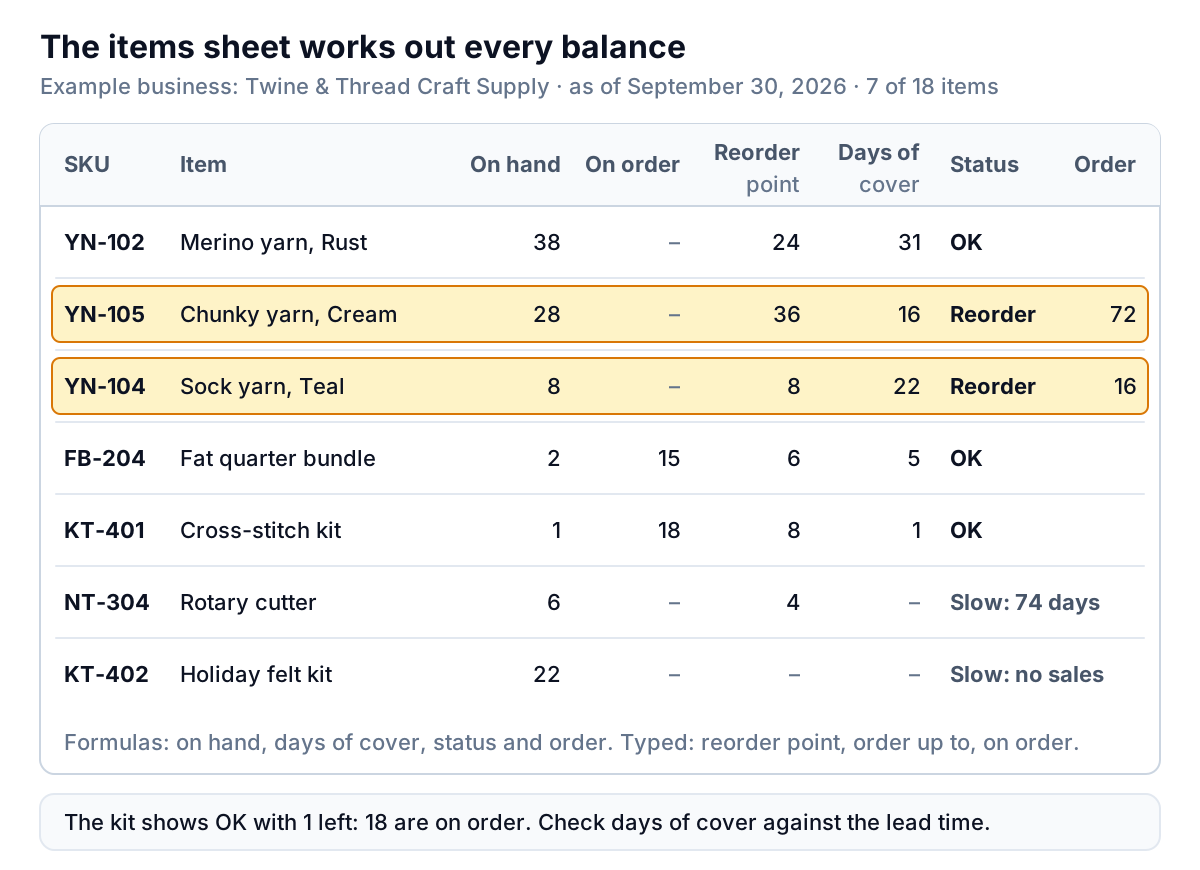
Two reorders. Chunky cream yarn is at 28 against a reorder point of 36, and the suggested order brings it back up to 100: 100 − 28 = 72 skeins, $244.80 at $3.40. Sock yarn sits exactly on its reorder point of 8, so the sheet suggests 24 − 8 = 16 skeins, $216.00. Together that's $460.80 of orders.
On order stops a double order. The fat quarter bundles are down to 2, well under the reorder point of 6, but 15 are already on the way, so 2 + 15 = 17 clears the trigger and the sheet doesn't ask you to order again. This is the most common way a simple inventory spreadsheet wastes money: it flags an item every week until the delivery arrives, and somebody orders it twice.
The kit that says OK. The beginner cross-stitch kit has 1 left and 18 on order, so it passes the reorder test. But it has sold 22 in the last 30 days (back-to-school picked up in September) and the delivery isn't due until October 21. That's three weeks with nothing to sell. The status rule can't see that; the days-of-cover column can. When days of cover is shorter than the time until the next delivery, ask the supplier to split the order or ship part of it early, and raise the reorder point for next time.
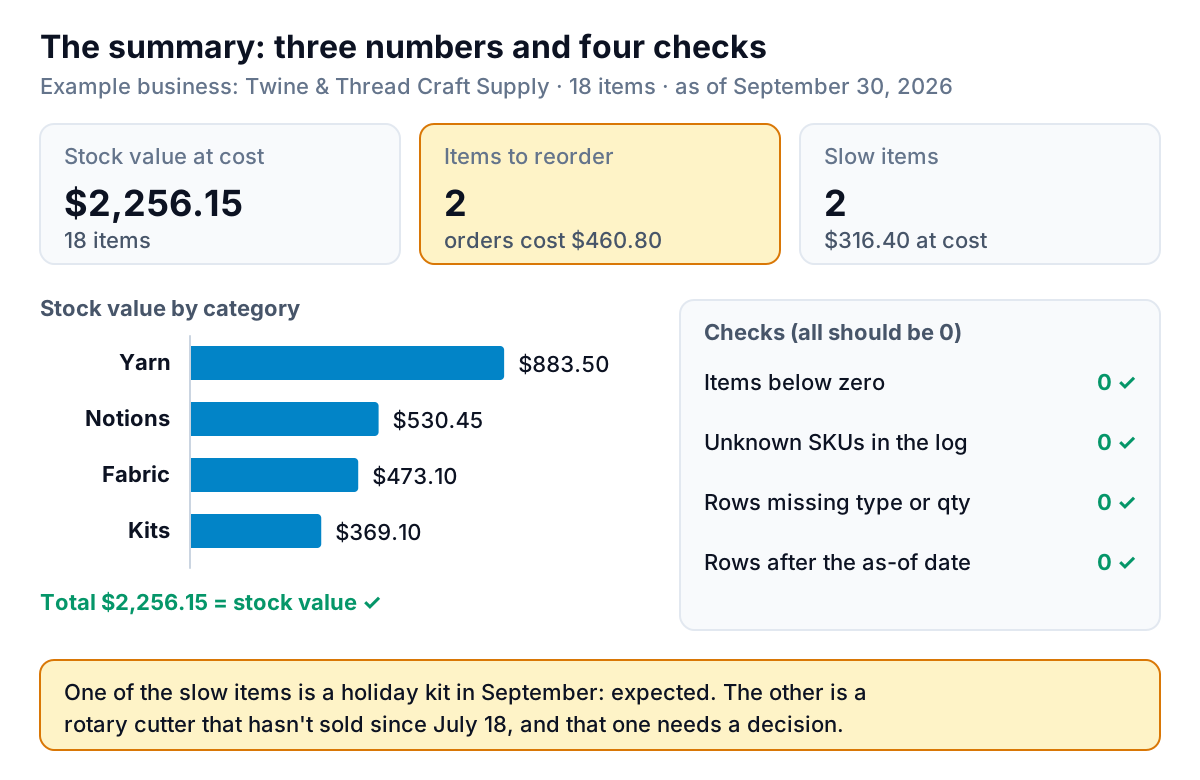
Two slow items. The 45 mm rotary cutters haven't sold since July 18, 74 days before the as-of date: six of them, $74.40 at cost. The holiday felt ornament kits haven't sold at all, which is exactly what you'd expect in September for a December product. A slow flag is a question, not a verdict. The cutter needs a decision (move it next to the fabric, bundle it with a cutting mat, or stop restocking it). The holiday kits need a date in the diary to check again in mid-November.
The summary sheet
The summary turns the items sheet into three numbers (stock value, what to order, what's slow) and a set of checks that should all be zero before you trust anything else.
Keeping the numbers honest
A movement log is only as good as what goes into it. Four habits keep it close to the shelf:
- Log deliveries after checking them, not when you order. Count the box against the packing slip, then enter what actually arrived. Short shipments are one of the quietest ways a stock record drifts.
- Count part of the shop regularly. Pick a category each week or each month, count it, and post the difference as an adjustment with a note. Twine & Thread's August 14 yarn count found Rust merino 3 short and Charcoal 1 over. Square, for comparison, recommends cycle counting each item variation at least once every 90 days for shops using its retail counting tools. That's a sensible rhythm for a spreadsheet too.
- Read the checks. Items below zero, unknown SKUs, rows missing a type or quantity, and rows dated after the as-of date should all be 0. If one isn't, fix it before ordering.
- Do a full count at year end. For tax purposes, the IRS says in Publication 538 that a business keeping inventories must take a physical inventory at reasonable intervals and adjust the book figure to match. Small businesses under the gross receipts threshold have other options, so ask your accountant which rules apply to you and which cost figure belongs in your books.
How to track inventory for a small business when Excel isn't enough
A spreadsheet like this one is a good fit for a single shop with a few hundred items, one or two people entering data, and sales you can export once a week. It stops being a good fit when the cost of keeping it in step with reality is higher than the cost of software. Concrete signs:
- You sell the same stock in two places at once. A shop and a website drawing on one shelf need the balance to update the moment something sells, or you'll sell the last item twice. Spreadsheets can't do that.
- The weekly sales entry takes more than an hour. At that point the export, paste and check is costing you more than a subscription.
- You need barcode scanning or purchase orders. The template has neither.
- Your accountant needs costed stock. The template uses one current cost per item. Accounting systems cost stock by a set method. QuickBooks Online, for instance, tracks inventory on its Plus and Advanced plans and uses first in, first out (FIFO).
If your point-of-sale system already tracks stock, the spreadsheet's job changes. You stop using it as the record and use the system's exports for analysis instead: what's slow, what's tying up cash, what to stop buying. A related guide, retail inventory management for small shops, covers the counting, receiving and buying habits that matter whichever tool holds the numbers. For restaurants, the restaurant inventory template is built around weekly counts and food cost instead of a movement log.
What this template can't do
- Cost layers. Stock value uses one unit cost per item. If prices change often, it won't match your accounting system, and it isn't a tax figure.
- Locations, transfers or kits built from parts. Each SKU is one row in one place.
- Live updates. The balance is as current as your last logged sale.
- Forecasting. Days of cover uses the last 30 days. It won't see a season coming, which is why the holiday kits and the back-to-school spike both need your judgment.
- Old Excel. The last-sale column uses MAXIFS, which needs Excel 2019 or later, Microsoft 365, or Google Sheets. In older versions that one column shows an error; the rest works.
Once the log has a few months of rows in it, the questions get more interesting than "what do I order?": which categories turn fastest, how much cash sits in slow stock, whether this autumn is selling better than last. Those are dashboard questions.
Upload your inventory spreadsheet or a POS export and Parity builds a checked dashboard of stock value, slow items and what to reorder. Build a report from your data free
Whatever you use, the lesson of August 14 holds: never type a balance. Log what moved, count a section of the shop every week or two, and let the arithmetic show you where the stock went.