SUMIF adds numbers that meet one condition and puts the range to add last: =SUMIF(range, criteria, [sum_range]). SUMIFS handles one condition or many and puts the range to add first: =SUMIFS(sum_range, criteria_range1, criteria1, …). For a single condition they give the same answer; for two or more, only SUMIFS works.
So the practical answer to SUMIF vs SUMIFS is short: write SUMIFS by default, even for one condition, so you only have one argument order to remember. The rest of this guide shows why that matters. Swapping between the two orders is the most common way these formulas go wrong, and SUMIF has a habit of producing a wrong total without any error. We'll also cover the one place SUMIF is still the neater choice, and the rest of the family: COUNTIFS, AVERAGEIFS, MAXIFS and MINIFS.
The example business is Westwind Kite Shop, a fictional shop with a beachfront store and a website, and 16 sales lines from September 2026 worth $4,816. Download the practice workbook (.xlsx): the Practice sheet has the tasks with blank answer cells; the Solution sheet has every formula, including two deliberate traps.
SUMIF vs SUMIFS side by side
Westwind's data sits in A1:F17: date (A), product (B), category (C: Kites, Lines & bars, or Lessons), channel (D: Shop or Online), quantity (E) and revenue (F). The owner's first question is how much the kites brought in.
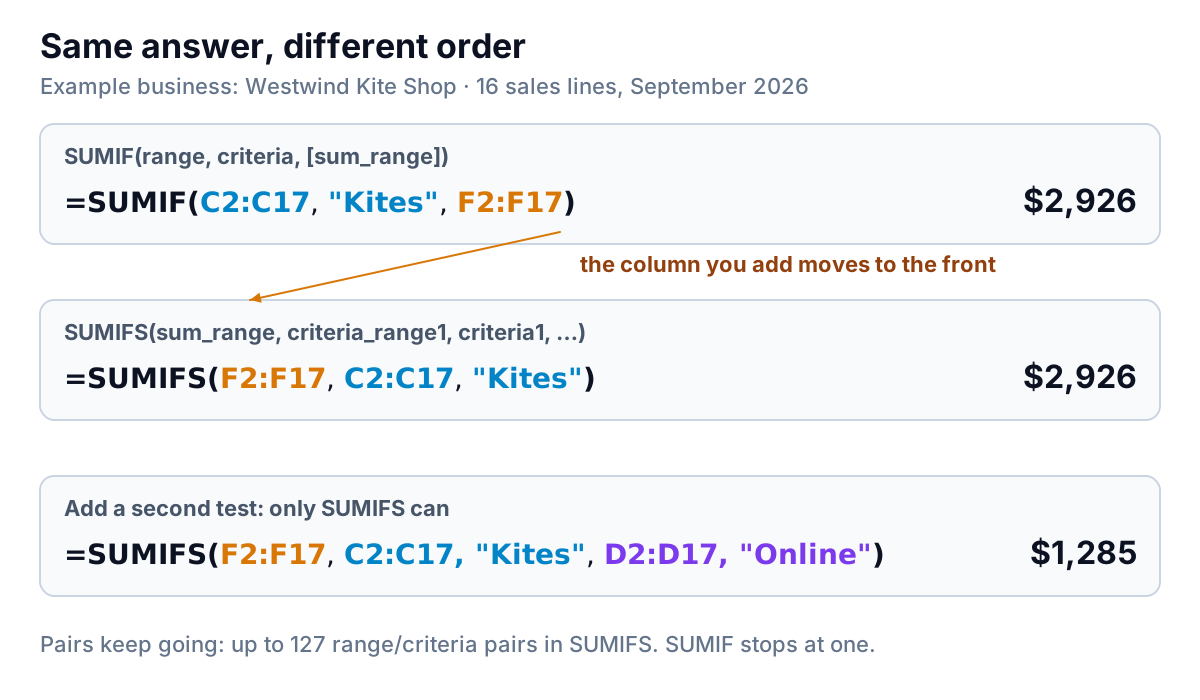
Both formulas return $2,926. The difference is where F2:F17, the revenue column, goes. Add a second condition, online sales only, and SUMIF has nowhere to put it. SUMIFS just takes another pair: =SUMIFS(F2:F17,C2:C17,"Kites",D2:D17,"Online") returns $1,285.
| SUMIF | SUMIFS | |
|---|---|---|
| Conditions | One | One to 127 range/criteria pairs |
| Where the sum range goes | Last | First |
| Sum range optional? | Yes: leave it out and SUMIF adds the tested cells | No |
| Ranges of different sizes | Quietly resized, no error | #VALUE! |
| Wildcards (* ? ~) and operators | Yes | Yes, same rules |
| Excel versions | All current versions | All current versions |
The details come from Microsoft's references for SUMIF and SUMIFS, both of which list Excel for Microsoft 365, Excel 2016 through 2024 and Excel for the web. Microsoft's SUMIFS page also warns about the order directly: the sum range is the first argument in SUMIFS but the third in SUMIF.
The argument order trap
The trap shows up when you change a formula, not when you first write it. Three ways it happens:
Adding a condition to a SUMIF
You have =SUMIF(C2:C17,"Kites",F2:F17) and the owner asks for online only, so you type a new pair on the end: =SUMIF(C2:C17,"Kites",F2:F17,D2:D17,"Online"). Excel won't accept it, because SUMIF takes at most three arguments. That one's harmless; you notice straight away. The fix is to rewrite it as SUMIFS with F2:F17 moved to the front, and that move is where the next mistake creeps in.
Changing the function name but not the order
Change SUMIF to SUMIFS and leave the arguments where they were, and SUMIFS now treats the criteria range as the column to add and finds your criteria where it expects a range. Excel shows an error instead of a total, and the error says nothing about argument order. The quick check: the first thing inside a SUMIFS should always be the column of money (or units) you want added up.
Pointing at the wrong first column
In SUMIFS, the first range decides what you're counting up. =SUMIFS(F2:F17,C2:C17,"Kites") is $2,926 of kite revenue. =SUMIFS(E2:E17,C2:C17,"Kites") is 16, the number of kites sold. Both are useful. But when you copy a formula from one report to another, check the first argument before anything else.
When the ranges don't line up
This is the real difference between the two functions, and it's why SUMIFS is the safer default. Microsoft's SUMIF reference explains that if the sum range is a different size from the tested range, Excel uses a range that starts at the first cell of sum_range and has the same dimensions as range. In other words, SUMIF quietly redraws your range. Sometimes that rescues you; sometimes it adds the wrong cells.
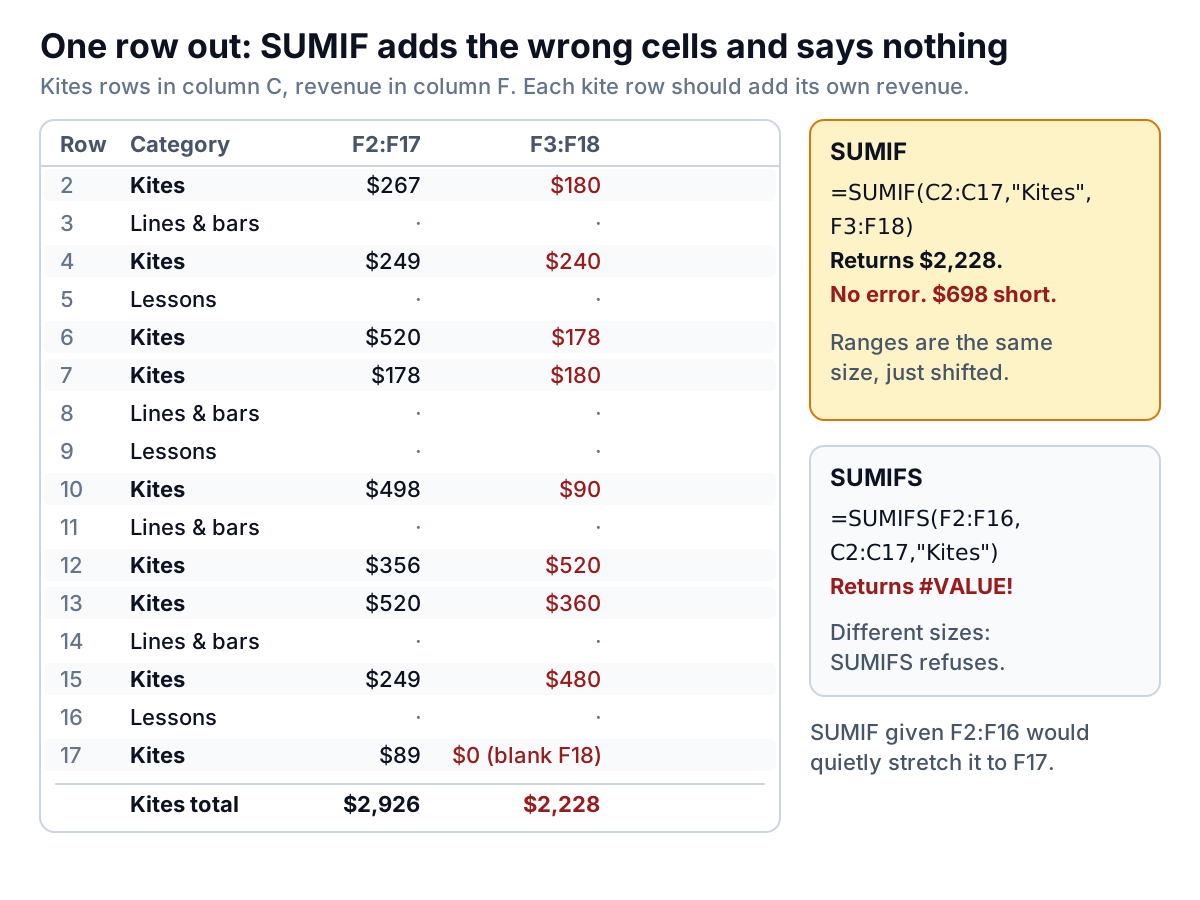
Look at what happens on Westwind's sheet:
=SUMIF(C2:C17,"Kites",F3:F18)is the classic accident: a range dragged one row too far, or a header row added above the data and only one range adjusted. Each kite row picks up the revenue from the row below it. The answer is $2,228 instead of $2,926, with no error.=SUMIF(C2:C17,"Kites",F2:F16)is one row short, and SUMIF stretches it to F2:F17 without telling you. Here that happens to give the right answer, which is worse in a way: the formula looks wrong to anyone who reads it but passes every check.=SUMIFS(F2:F16,C2:C17,"Kites")returns #VALUE!. Microsoft's troubleshooting page puts it plainly: the range arguments must always be the same in SUMIFS, while SUMIF can use different size ranges.
An error you can see is better than a total that's quietly wrong. Neither function catches a same-size range that's shifted by a row, so =SUMIFS(F3:F18,C2:C17,"Kites") is also $2,228. Whole-column references (F:F, C:C) rule out both kinds of mismatch, and a check total at the bottom of your summary catches the rest.
Checking a formula you inherited
Two built-in tools catch both kinds of mismatch in under a minute. First, click into the formula bar: Excel outlines each range in the formula in its own colour on the sheet. If the box around the revenue column starts or ends on a different row from the box around the category column, you've found the problem. Second, for a formula that still looks right but gives a strange number, select the cell and use Formulas › Evaluate Formula, which steps through the calculation one part at a time. Do this once for every SUMIF or SUMIFS in a sheet you take over, especially one built by copying exports into place, and keep the check total at the bottom so you'll see it the day a range drifts.
When SUMIF is still the neater choice
SUMIF has one trick SUMIFS doesn't: the sum range is optional. When the condition is about the numbers themselves, you only need one range.
=SUMIF(F2:F17,">=300")That adds every sales line of $300 or more: $3,094 for Westwind, from seven lines. The SUMIFS version needs the range twice, =SUMIFS(F2:F17,F2:F17,">=300"), and gives the same answer. Either is fine; SUMIF is shorter.
The other reason to keep SUMIF is that it's already there. Plenty of older workbooks are full of it, and a working formula doesn't need rewriting. Google Sheets has both functions with the same argument order, so a shared file isn't a reason to choose one over the other either; our SUMIFS in Google Sheets guide covers that side.
The same pattern: COUNTIFS, AVERAGEIFS, MAXIFS and MINIFS
The SUMIF/SUMIFS split repeats across the family, with the same argument-order quirk. Every plural function takes ranges of the same size and joins its tests with AND.
| Function | Syntax | Westwind example | If nothing matches |
|---|---|---|---|
| COUNTIFS | COUNTIFS(criteria_range1, criteria1, …) | Online kite sales lines: 5 | 0 |
| AVERAGEIFS | AVERAGEIFS(average_range, criteria_range1, criteria1, …) | Average online kite sale: $257 | #DIV/0! |
| MAXIFS | MAXIFS(max_range, criteria_range1, criteria1, …) | Largest single kite sale: $520 | 0 |
| MINIFS | MINIFS(min_range, criteria_range1, criteria1, …) | Smallest kite sale: $89 | 0 |
COUNTIFS has no range to add, so it starts straight away with the tests. AVERAGEIFS follows SUMIFS, with the range to average first; its single-condition sibling AVERAGEIF follows SUMIF, with it last, and it resizes mismatched ranges the same quiet way.
Two version and error notes:
- MAXIFS and MINIFS are newer. Microsoft says they're available with Office 2019 or a Microsoft 365 subscription, and they appear in Excel 2021 and 2024 too. In Excel 2016 the formula shows #NAME?. If your file goes to someone on an older version, use a pivot table or a helper column instead.
- AVERAGEIFS with no matches returns #DIV/0!, because it divides by a count of zero. Westwind sells lessons only in the shop, so
=AVERAGEIFS(F2:F17,C2:C17,"Lessons",D2:D17,"Online")shows #DIV/0!. Wrap it in IFERROR, but don't return 0:=IFERROR(AVERAGEIFS(…),"No sales"). A zero average looks like real data, and it drags down anything that averages the averages.
Which one to use: the decision in four lines
- Writing a new formula? SUMIFS, even for one condition.
- The condition is about the numbers you're adding (lines over $300)? SUMIF with no sum range is shorter; SUMIFS works too.
- Editing an old SUMIF to add a condition? Rewrite it as SUMIFS and move the sum range to the front first.
- Counting, averaging or finding the largest instead? Use the plural sibling, and check the first argument: COUNTIFS has no value range, the others put it first.
For the full set of SUMIFS criteria (dates, wildcards, not-equal, blanks and OR conditions), see our SUMIFS guide. If you're building a summary block to sit at the top of a sheet, our sales report guide shows a layout that runs on these functions.
When shop and online live in different files
Westwind's 16 lines sit in one sheet because we put them there. In real life, a shop like this usually has the store's sales in its point-of-sale system and the online orders in its ecommerce platform, and someone copies both exports into one sheet each month before any SUMIFS can run. That copying is where ranges end up one row out.
Parity connects Square and Shopify directly, or takes a CSV or Excel export from any other system, and builds a dashboard from the data: headline numbers with their trends, charts, what explains them, and a table of what needs attention. Every number is checked against queries on the full dataset before you see it. You can export it to Excel, or update it with next month's file instead of re-pasting. Our Shopify reports guide covers what the platform's own reports already show.
Connect Shopify or Square, or upload your sales exports, and get a checked dashboard of revenue by category and channel. Build a report from your data free
In a spreadsheet, though, the rule stands: SUMIFS by default, sum range first, every range the same size, and a check total that proves the parts add back to the whole. With those four habits, the SUMIF vs SUMIFS question stops costing you money.