XLOOKUP and INDEX/MATCH give the same answer for almost every lookup: =XLOOKUP(H2,A2:A9,D2:D9) and =INDEX(D2:D9,MATCH(H2,A2:A9,0)) both find H2 in column A and return the value from column D. Choose XLOOKUP for files that only live in Microsoft 365, Excel 2021 or Excel 2024, because it's shorter and safer by default; choose INDEX/MATCH for files that travel, because it works in every version of Excel.
Most XLOOKUP vs INDEX MATCH articles declare a winner. The honest picture is narrower than that. INDEX/MATCH was never limited the way VLOOKUP is: it looks left, survives inserted columns and handles two-way lookups. What XLOOKUP adds is better defaults and a few built-in options. We'll go through the differences on one example business, Crestview Property Group, a fictional landlord with eight units across four buildings, a maintenance budget and a work order log. Each formula is in the practice workbook, with INDEX/MATCH in one column and XLOOKUP in the next.
Download the practice workbook (.xlsx)
The same lookup, written both ways
Crestview's unit list is in A1:E9: unit, property, bedrooms, monthly rent and lease end. The office manager wants the rent for unit B-204, typed in H2.
=INDEX(D2:D9,MATCH(H2,A2:A9,0))→ $1,475
=XLOOKUP(H2,A2:A9,D2:D9)→ $1,475
INDEX/MATCH is two functions doing one job each. MATCH finds B-204 in A2:A9 and returns its position, 3. INDEX returns the 3rd item of D2:D9. XLOOKUP does both steps in one function, with the same two ranges.
Notice what's the same. Both use a lookup range and a separate return range, so both can return a column to the left of the one they search: =INDEX(A2:A9,MATCH(1890,D2:D9,0)) and =XLOOKUP(1890,D2:D9,A2:A9) both tell you C-215 is the unit that rents for $1,890. Both keep working if someone inserts a column, because neither relies on a typed column number. Those were VLOOKUP's weaknesses, not INDEX/MATCH's; our XLOOKUP vs VLOOKUP comparison covers them.
Where XLOOKUP and INDEX/MATCH actually differ
| INDEX/MATCH | XLOOKUP | |
|---|---|---|
| Default match | MATCH defaults to 1, "less than", which assumes sorted data. You must type 0 | Exact |
| Not found | #N/A; wrap in IFNA | Fourth argument |
| Last match | Needs a workaround (or XMATCH) | search_mode -1 |
| Whole row or several columns | INDEX with column 0, or one formula per column | Wider return range |
| Two-way lookup | INDEX with two MATCHes, very readable | XLOOKUP inside XLOOKUP |
| Versions | Every Excel version, Google Sheets | Microsoft 365, Excel 2021, Excel 2024, Google Sheets |
The default match: MATCH's missing 0
This is the difference that costs money. Microsoft's MATCH page says the default match_type is 1, which finds the largest value less than or equal to what you asked for and expects the list sorted ascending. Leave out the 0 and a typo returns a neighbour's data instead of an error.
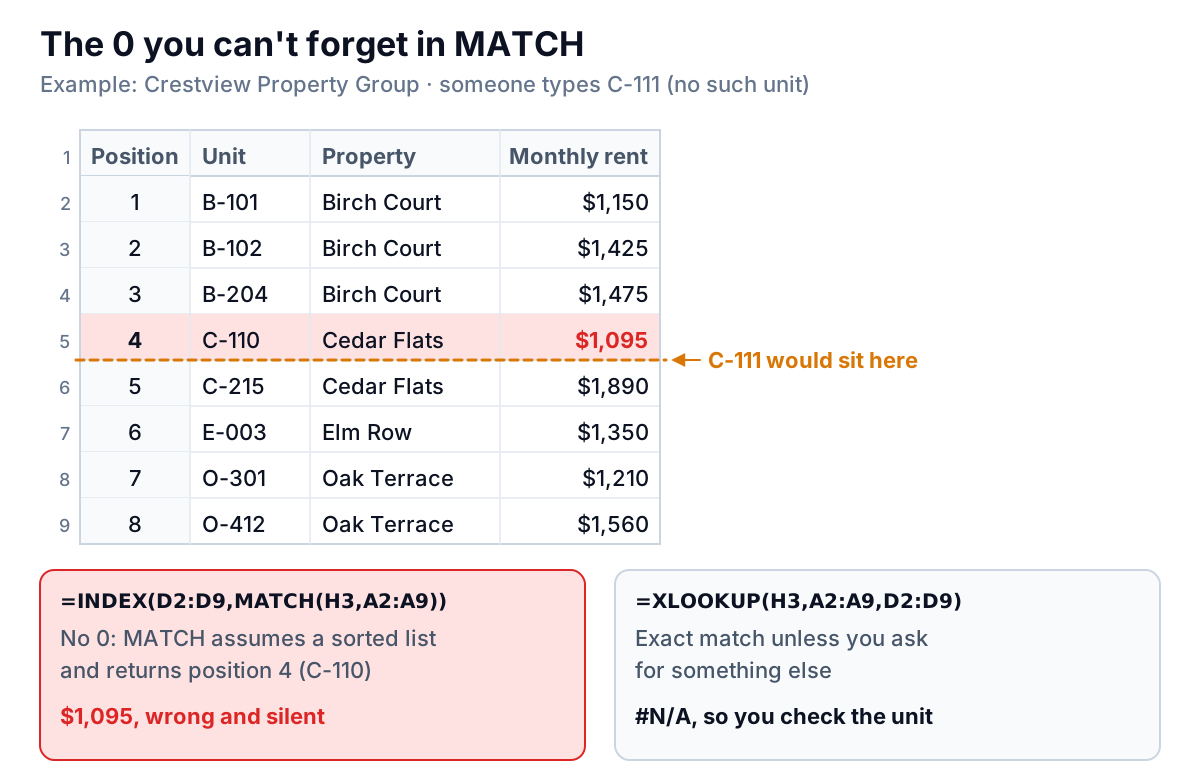
Someone types C-111. =INDEX(D2:D9,MATCH(H3,A2:A9)) returns $1,095, the rent for C-110, because that's the last unit code before where C-111 would sort. =XLOOKUP(H3,A2:A9,D2:D9) returns #N/A. If that figure went into a rent increase letter or an arrears check, one of these formulas just put the wrong number in front of a tenant.
INDEX/MATCH with the 0 is exactly as safe as XLOOKUP. The difference is that XLOOKUP is safe when you forget something, and INDEX/MATCH isn't.
Not found and last match
For a friendly message, INDEX/MATCH needs a wrapper: =IFNA(INDEX(D2:D9,MATCH(H4,A2:A9,0)),"No such unit"). XLOOKUP has it built in: =XLOOKUP(H4,A2:A9,D2:D9,"No such unit"). Both work; one is shorter.
The bigger gap is the last match. Crestview's work order log in A19:D27 has three jobs for B-204, oldest first. The manager wants the most recent one before calling the tenant.
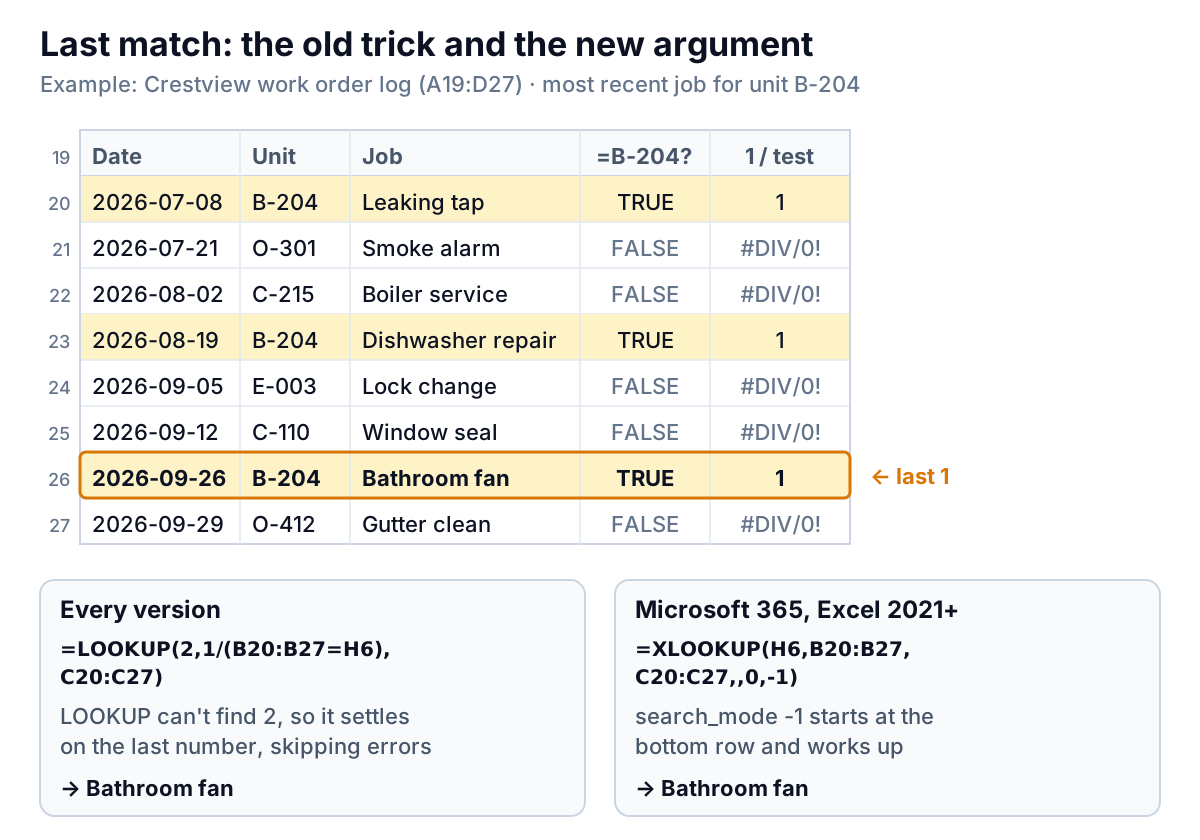
Plain INDEX/MATCH can only find the first match, the leaking tap from July. The classic workaround for older Excel uses the LOOKUP function: =LOOKUP(2,1/(B20:B27=H6),C20:C27). Dividing 1 by the TRUE/FALSE test gives 1 for B-204 rows and a #DIV/0! error for the rest; LOOKUP can't find a 2, so it settles on the last number in the list, which belongs to the latest B-204 row: the bathroom fan from 26 September. It works, but few people can read it. XLOOKUP's version is =XLOOKUP(H6,B20:B27,C20:C27,,0,-1), and the -1 says "search from the bottom".
If you like the INDEX style but have a recent Excel, XMATCH brings the same option: =INDEX(C20:C27,XMATCH(H6,B20:B27,0,-1)) also returns the bathroom fan. XMATCH has XLOOKUP's exact-match default and search modes, and the same version requirements.
Returning the whole record
To pull everything about unit O-301 at once, give XLOOKUP a wider return range: =XLOOKUP(H10,A2:A9,B2:E9) spills Oak Terrace, 1 bedroom, $1,210 and the 31 October lease end across four cells. INDEX can do the same with a column number of 0, which returns the whole row: =INDEX(B2:E9,MATCH(H9,A2:A9,0),0). In Microsoft 365 both spill; in older versions the INDEX version has to be entered as an array formula across the four cells.
Two-way lookups: XLOOKUP vs INDEX MATCH on a grid
Two-way lookups are where INDEX/MATCH has always been at its best. Crestview's maintenance spend sits in a grid, A12:D16: properties down the side, months across the top. The question is "what did Cedar Flats cost in August?"
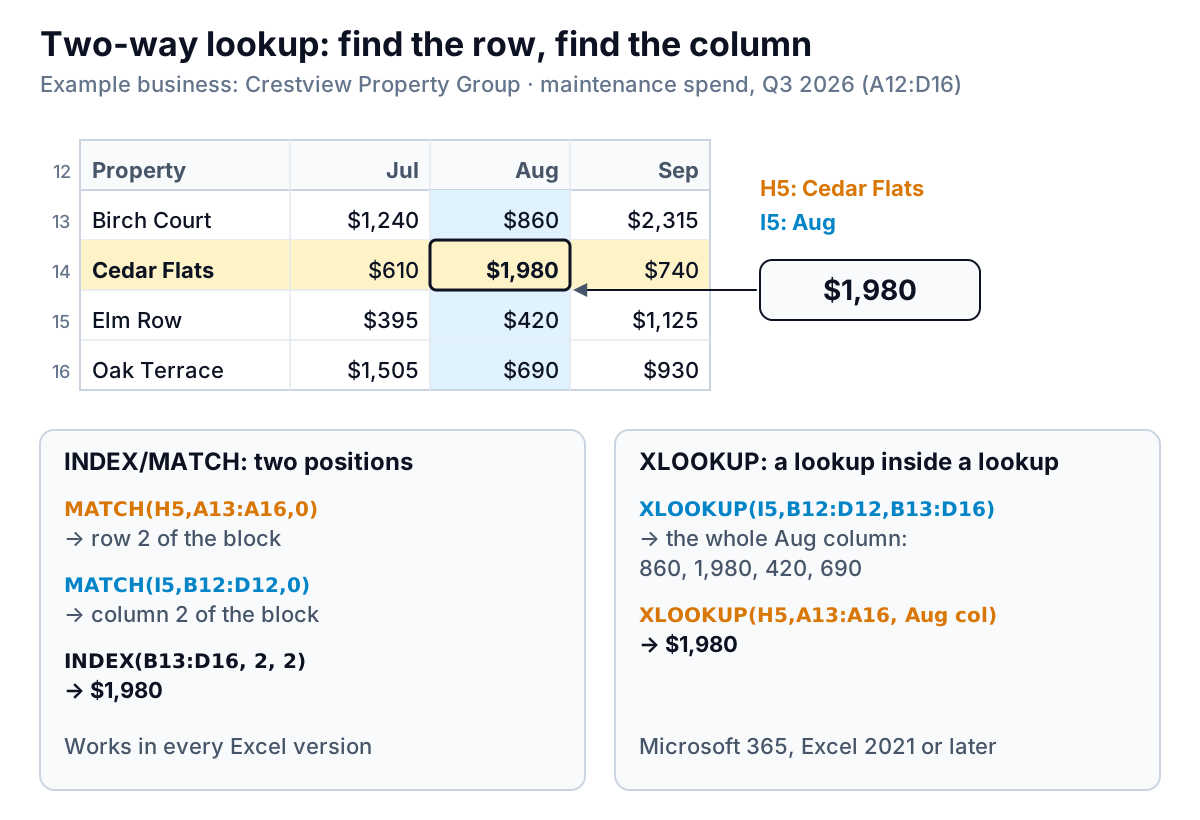
=INDEX(B13:D16,MATCH(H5,A13:A16,0),MATCH(I5,B12:D12,0))→ $1,980
=XLOOKUP(H5,A13:A16,XLOOKUP(I5,B12:D12,B13:D16))→ $1,980
The INDEX/MATCH version reads naturally: INDEX takes the grid, a row number and a column number, and each MATCH supplies one of them. The XLOOKUP version nests one lookup in another. The inner XLOOKUP(I5,B12:D12,B13:D16) searches the month headers and returns the whole August column ($860, $1,980, $420, $690); the outer XLOOKUP then picks the Cedar Flats row from it. Microsoft's own XLOOKUP page uses this nested pattern for a two-way lookup and notes it's "similar to using the INDEX and MATCH functions together".
Neither is wrong. For two-way grids many people find INDEX/MATCH easier to check, because you can test each MATCH on its own and see a plain number. If you want INDEX's readability with XLOOKUP's safer defaults, use =INDEX(B13:D16,XMATCH(H5,A13:A16),XMATCH(I5,B12:D12)), which also returns $1,980 and needs no 0s.
Compatibility usually decides it
For most small businesses, the deciding question in XLOOKUP vs INDEX MATCH isn't syntax. It's who opens the file.
| Where the file is opened | INDEX/MATCH | XLOOKUP / XMATCH |
|---|---|---|
| Microsoft 365 (Windows, Mac, mobile) | Works | Works |
| Excel 2021, Excel 2024 | Works | Works |
| Excel 2019, 2016 and older | Works | Not available; shows #NAME? |
| Google Sheets | Works | XLOOKUP works (Google's XLOOKUP help) |
Microsoft's XLOOKUP page states that XLOOKUP is not available in Excel 2016 and Excel 2019, even though those versions can open a workbook that uses it. A property manager might send a rent schedule to an owner, an accountant and a lender; if any of them is on an older Excel, XLOOKUP cells won't calculate for them. INDEX/MATCH with the 0 will.
What about speed?
You'll find plenty of claims that one is faster. Microsoft's own statement is modest: its performance notes say VLOOKUP, HLOOKUP and MATCH received substantial speed improvements, and that XLOOKUP and XMATCH bring more for Microsoft 365 users. It doesn't publish a head-to-head figure, and we won't invent one. For a sheet of a few hundred units or a few thousand log rows, you won't feel a difference.
On genuinely large sheets, layout matters more than the choice of function. One technique favours INDEX/MATCH: if you need several columns from the same row, put the MATCH in a helper column once, then point several INDEX formulas at that position. One search serves every column. With XLOOKUP, each formula searches again, unless you return all the columns with one spilled formula. Avoid whole-column references like A:A in either.
Mistakes both formulas share
Switching functions doesn't fix every broken lookup. These catch out INDEX/MATCH and XLOOKUP equally:
| Mistake | What happens | Fix |
|---|---|---|
Ranges that start on different rows, such as INDEX(D3:D10,MATCH(H2,A2:A9,0)) | Every answer comes from the row below. Same-size ranges give no error, in either function | Make the lookup and return ranges start and end on the same rows |
| Ranges of different sizes | XLOOKUP returns #VALUE!; INDEX can return #REF! if MATCH's position falls outside its range, or a wrong row if not | Same fix: matching rows |
| Trailing spaces ("B-204 ") | #N/A for a unit you can see | Wrap the lookup value in TRIM, or clean the column |
| Unit numbers stored as text in one place and numbers in another | #N/A | Convert the column so both sides match |
| Ranges not locked before copying down | Lookups drift down the sheet and start missing the top rows | Add $ signs: $A$2:$A$9 |
| Duplicate keys | Both return the first match only | Check with COUNTIF, or use search_mode -1 deliberately |
The first row of that table is worth a second look. Microsoft's INDEX page notes that a row number outside the array gives #REF!, but a range that's merely shifted by one row stays inside the array, so nothing flags it. When a lookup returns believable but wrong numbers, check the row numbers in the two ranges before anything else.
Decision rules
- Everyone is on Microsoft 365, Excel 2021 or 2024: use XLOOKUP for single lookups and newest-entry lookups. Use INDEX with two XMATCHes, or nested XLOOKUP, for grids.
- Anyone might open it in Excel 2019 or older: use INDEX/MATCH, always with the 0, and IFNA for a message.
- You're maintaining an existing INDEX/MATCH workbook: leave working formulas alone. Search for any MATCH without the 0 and fix those first.
- The lookup has two or more conditions: both can do it with the multiply method; see XLOOKUP with multiple criteria for the formulas and the traps.
For everything else XLOOKUP can do, from wildcards to discount tiers, see the main XLOOKUP guide.
At Crestview, these lookups mostly exist to join a rent roll to a maintenance log and an accounting export, so someone can see income and costs per building. If that join gets rebuilt every month, Parity can do it from the files: upload the exports (CSV or Excel), or connect QuickBooks Online, and it builds a dashboard with the headline numbers and trends, charts, what explains them and a table of what needs attention, checked against queries on the full dataset. When you ask, it writes the monthly owner report from the same data. If you'd rather keep it all in a spreadsheet, our Excel dashboard guide shows how to lay one out.
Upload your rent roll and expense exports and get a checked dashboard by property. Build a report from your data free