Verdant Meal Prep's store conversion rate fell from 2.90% in July to 2.69% in August, and the owner had already decided why. She'd changed the checkout in April, moving the delivery-day picker into the cart, and she was ready to put it back. A funnel chart of August's sessions told her nothing new: a wide bar of visitors on top, a few slivers underneath. The chart that changed her mind was plainer, a set of bars with the conversion rate between each step, July next to August. Every checkout step had improved. The whole drop was at the first step, where visitors decide whether to add anything to a cart at all. Verdant is an example business, an online store selling weekly prepared meals for delivery, and its numbers run through this guide.
A funnel chart shows how many people reach each step of a process, from first visit to finished order, so you can see where they drop out. It's a natural fit for the question, and it's often the wrong chart for the answer. This guide shows when a funnel chart works, the plain bar chart that usually works better, how to compare two periods without fooling yourself, and how to build both in Excel and Google Sheets.
Two questions a funnel should answer
Owners look at a funnel to answer two things:
- Where do most people leave? Which step loses the biggest share of the people who reached it.
- Did it get better or worse, and where? When the overall conversion rate moves, which step moved it.
A third question, why they leave, no chart can answer; for that you need session recordings, customer messages or a test. But knowing which step to look at saves most of the effort.
The numbers that answer both questions are step conversion rates: of the people who reached a step, what share made it to the next. If you want the formulas and the difference between session, user and order-based rates, our conversion rate formula guide covers them. Here we'll stick to drawing them.
Funnel chart or bars? The same August, drawn both ways
Here's Verdant's August, from Shopify's Conversion rate breakdown report: 30,500 sessions, 2,135 with something added to the cart, 1,281 that reached checkout, 820 that completed it.
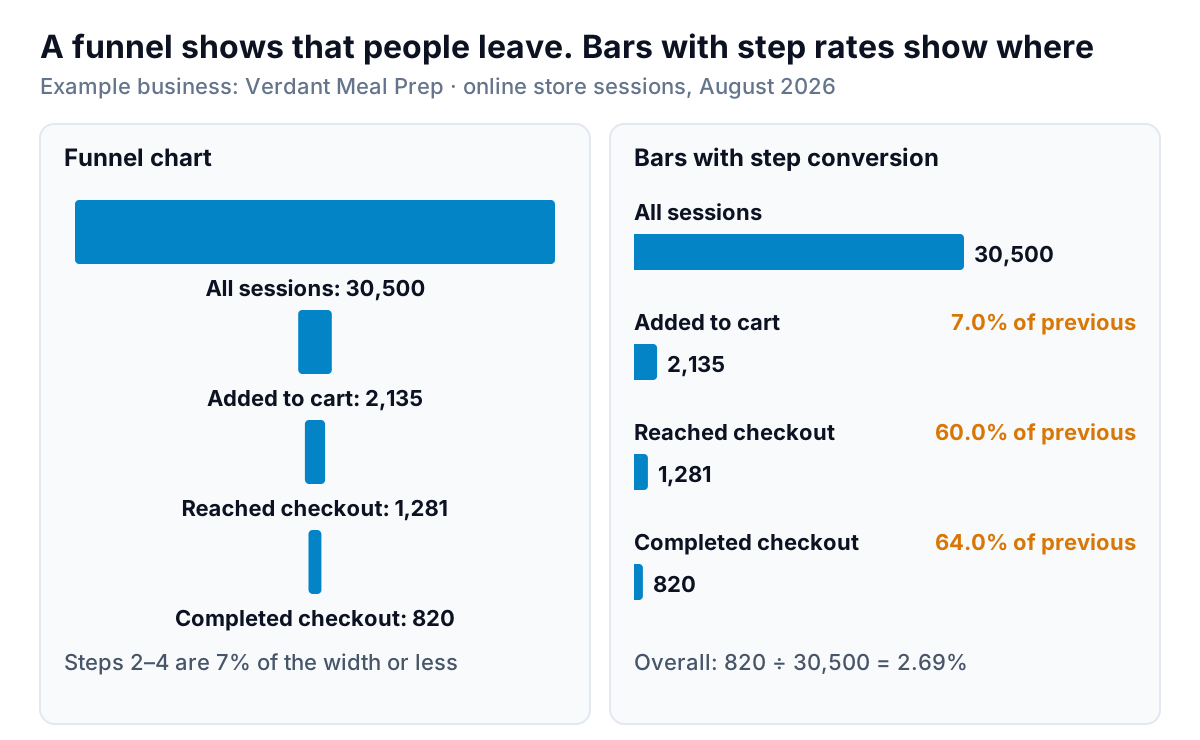
The funnel on the left has two problems. First, when the top step is ten times the second, as it is for almost any online store, every later step shrinks to a sliver, and the differences between them (the part you need) are invisible. Second, the bars are centred, so their ends don't line up. Try comparing the third and fourth bars by eye: you end up measuring each from its own centre. Left-aligned bars give every step the same starting line.
The right panel does the job. Same bars, left-aligned, each step's count printed at the end and, most important, the step conversion rate beside it. Now you can read August: 7.0% of sessions added to cart, 60.0% of carts reached checkout, 64.0% of checkouts became orders. The Financial Times' Visual Vocabulary, a widely used chart-choosing guide, doesn't include a funnel chart at all; among its suggestions for ranking are ordered bars.
A decision rule for choosing:
- Use a funnel chart when the steps are of similar size (say, each keeps more than a third of the one before, like a sales pipeline from qualified lead to won deal), when the audience expects the shape, and when you'll print the rates on it anyway.
- Use left-aligned bars with step rates for a website or store funnel, where the first step dwarfs the rest, and whenever you're comparing periods.
- Use a table if you have more than about six steps, or if the audience will want to copy the numbers.
Comparing two periods: chart the step rates, not the funnels
Two funnels side by side are almost impossible to compare by eye. Put the step rates next to each other instead, one pair of bars per step.
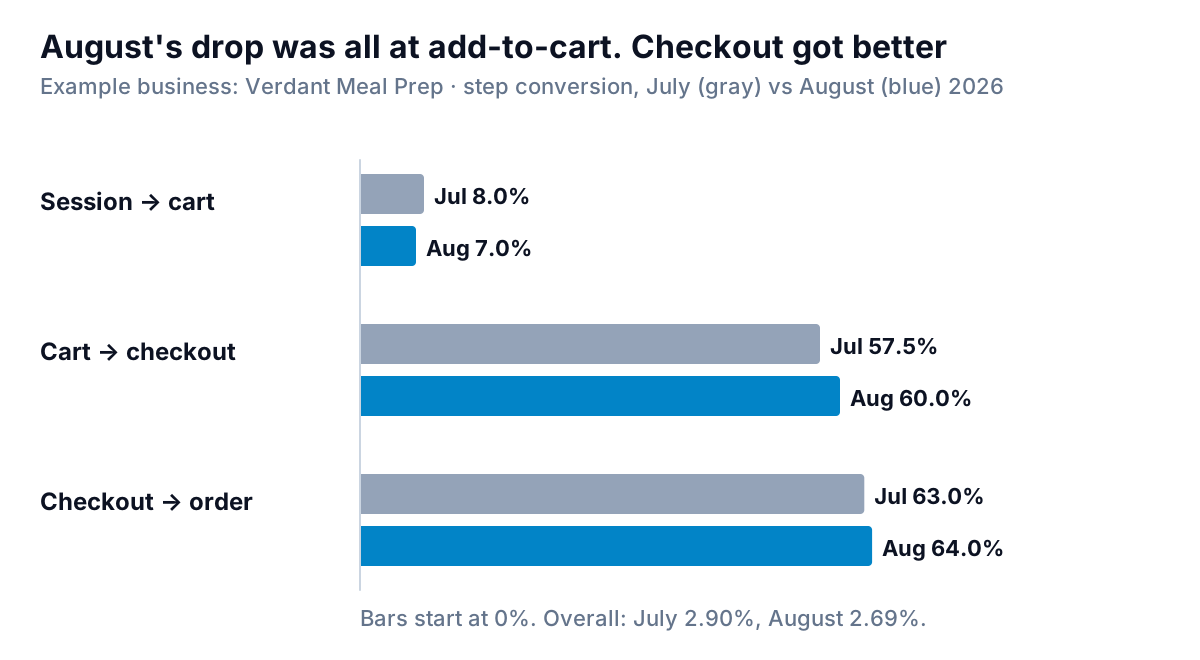
Verdant's July: 24,000 sessions, 1,920 carts (8.0%), 1,104 checkouts (57.5% of carts), 696 completed (63.0% of checkouts), 2.90% overall. August had 6,500 more sessions, mostly from a short video about Verdant's meals that spread on social media. Those visitors browsed and left. The add-to-cart rate fell a full point, from 8.0% to 7.0%, while both checkout steps improved by 1 to 2.5 points.
Multiply the steps and you can check the overall rate: 7.0% × 60.0% × 64.0% = 2.69%. If August had kept July's 8.0% add-to-cart rate with its own checkout rates, the overall rate would have been 8.0% × 60.0% × 64.0% = 3.07%, better than July. The checkout change was working. Putting the picker back would have undone the one improvement in the month.
Two rules for comparisons:
- Compare step to step, not step to top. Shopify's behavior reports documentation says the Conversion rate breakdown calculates each step's rate as that step's sessions divided by total sessions. That's 100%, 7.0%, 4.2% and 2.69% for Verdant's August. Each of those numbers falls whenever the first step falls, so a problem at the top looks like a problem everywhere. Divide each step by the step before it for the comparison chart.
- Split by traffic source when the mix changes. A burst of visitors from one channel changes the top of the funnel without anything on your site changing. If your analytics let you, draw the same pairs for your main sources. Our marketing dashboard guide covers judging channels by what they actually bring in.
Watching the funnel over time
A funnel is a snapshot of one period. To see whether a step is drifting, chart each step rate as its own small line chart, side by side, months along the bottom.
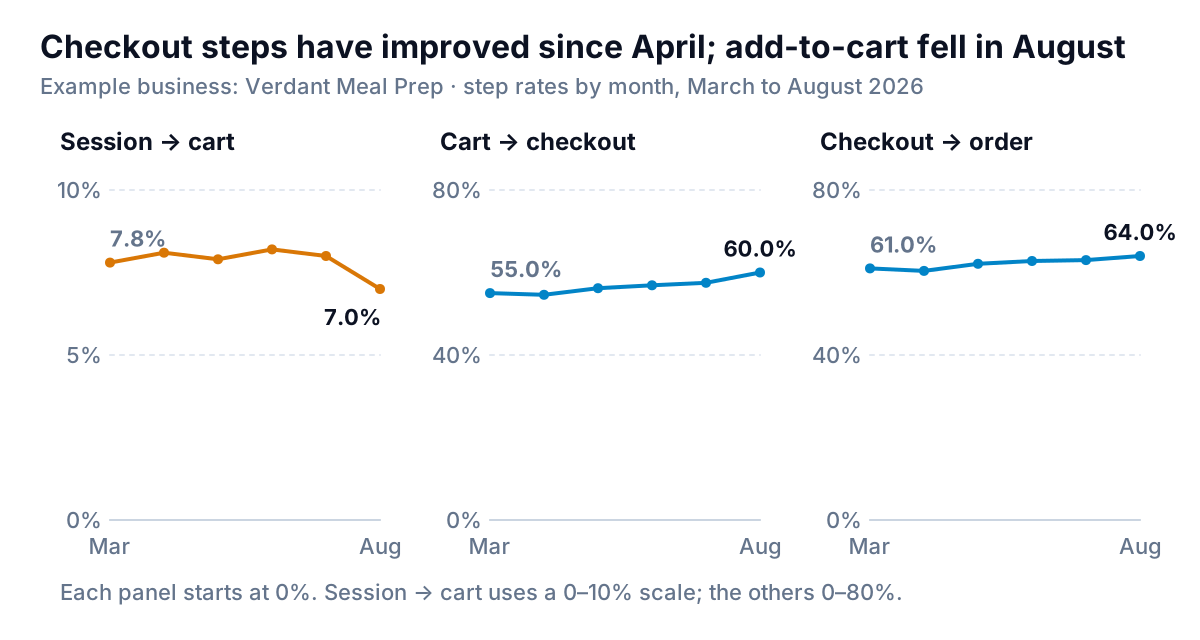
Each panel gets its own y-axis because the steps live at different levels: add-to-cart around 8%, the checkout steps around 60%. On a shared axis, the add-to-cart line would be a flat strip along the bottom. Start each axis at 0% and say so under the chart, so a 1-point dip doesn't look like a collapse.
This view caught something the July-vs-August comparison couldn't. Verdant's checkout steps didn't jump in August; they had been creeping up since April, after the delivery-day picker moved. Add-to-cart, meanwhile, had sat between 7.8% and 8.2% for five months before August's drop. One step had a slow, real improvement and the other a sudden, explainable dip.
Building a funnel chart in Excel
Excel has a built-in funnel chart. Microsoft's funnel chart guide says it's available in Office 2021 and Microsoft 365 on Windows, and in Office 2021, Office 2024 and Microsoft 365 on Mac. On older versions, use the bar version below.
- Put the steps in one column and the counts in the next, in order from first to last.
- Select both columns. On Windows, go to Insert, then the "Insert Waterfall, Funnel, Stock, Surface or Radar chart" button, and choose Funnel. On a Mac, it's under the Waterfall icon on the Insert tab.
- Use the Chart Design and Format tabs to change colours. Work out each step rate in a third column (
=B3/B2, filled down) and put it into the step names themselves, such as "Added to cart · 7.0%", so the chart shows the rate as well as the count.
For the left-aligned bars, which we'd use for most store funnels, insert a Clustered Bar chart from the same data instead. Excel plots the first row at the bottom of a bar chart, so either list the steps in reverse or tick "Categories in reverse order" in the vertical axis options. Then add data labels and put the step rates in the label text. For the July-vs-August comparison, make a small table with steps in rows and the two months' step rates in columns, and insert a Clustered Bar chart from that. Our guide to Excel chart types covers the other options.
And in Google Sheets
Google Sheets has no funnel chart; it isn't in Google's list of chart types. Use a bar chart, which is the better chart anyway: Insert > Chart, then pick Bar chart under Setup > Chart type. If someone insists on the funnel shape, the usual workaround is a stacked bar chart with an invisible spacer: add a column before the counts with =(MAX($C$2:$C$5)-C2)/2, chart both columns as a stacked bar, then under Customize > Series choose the spacer series and set its fill opacity to 0%. The visible bars are now centred.
What to do with what the chart shows
The step that loses the most people relative to its size is where to start, and each step has its own usual suspects:
| Weak step | Look at first |
|---|---|
| Session to cart | Who is arriving (a new channel, a viral post), the menu or product page, price clarity, whether delivery areas and dates are visible before adding |
| Cart to checkout | Surprise costs in the cart, minimum order rules, a required account, slow mobile pages |
| Checkout to order | Payment failures, shipping or delivery costs shown late, form length, delivery slots running out |
Verdant left the checkout alone and looked at the top instead. The video's viewers were landing on the home page, far from the menu, and many were outside the delivery area. Verdant added a postcode check and a "this week's menu" link above the fold. She'll judge it on October's step rates rather than September's, because Shopify's measurement change landed in the middle of September.
Parity builds this kind of chart from your data. Connect Shopify, or upload a CSV or Excel export from your analytics or booking tool, and ask for "funnel by step with step conversion rates, July vs August, split by traffic source". It builds a dashboard with the headline numbers and their trends, the charts, what explains them and a table of what needs attention, and every number is checked against queries on the full dataset before you see it.
Bring in your store or analytics export and get a checked funnel with step rates and period comparisons. Build a report from your data free
The rest of this series picks up after the first order: new vs returning customers for how much of your revenue comes back, cohort retention charts for whether each month's new customers stick, and churn charts for memberships and subscriptions.