Yarrow Herbal Tea's May was its best month for new customers: 524 first orders, almost twice a normal month, thanks to a 50%-off sampler pushed by an influencer. By September, 63 of those people had come back the month after their first order. That's exactly as many as April's cohort managed, and April only had 286 new customers. A cohort retention chart is how the owner saw the difference: it shows, for each group of customers who started in the same month, what share came back one, two, three months later. Yarrow is an example business, an online shop selling loose-leaf herbal tea, and its numbers run through this guide.
Our cohort analysis guide covers how to turn an order export into a cohort table. This post starts where that one stops: which chart to draw from the table, how to build it in Excel or Google Sheets, and the formatting choices that hide the one cohort you needed to see. There's a practice workbook with Yarrow's counts, the formulas, the colour scale and a line chart already built, plus an empty sheet for your own numbers.
Three questions, three ways to draw the same table
A cohort table holds one set of numbers, but owners ask it three different things. Each one has a chart that answers it best.
| The question | Chart that answers it | What to look at |
|---|---|---|
| Are newer customers better or worse than older ones? | Cohort triangle as a heatmap | Read down a column: month 1 for every cohort |
| How fast do customers drop off, and when do they settle? | Retention curves, one line per cohort | The shape: where it flattens, which line sits apart |
| Did a campaign bring loyal customers, or just a lot of customers? | Counts and percentages side by side | Whether the count looks normal while the share doesn't |
The decision rule is simple. If you'll look at it monthly to spot change, build the heatmap. If you're explaining the pattern to someone (a partner, an investor), show the curves, because a line is easier to read than a grid of colours. If you're judging one promotion, put counts next to percentages. Most owners need the heatmap every month and the other two now and then.
The cohort retention chart as a heatmap
Here is Yarrow's table, coloured. Each row is the month of a customer's first order. Each column is months since then. Each cell is the share of that row's new customers who placed an order in that month.
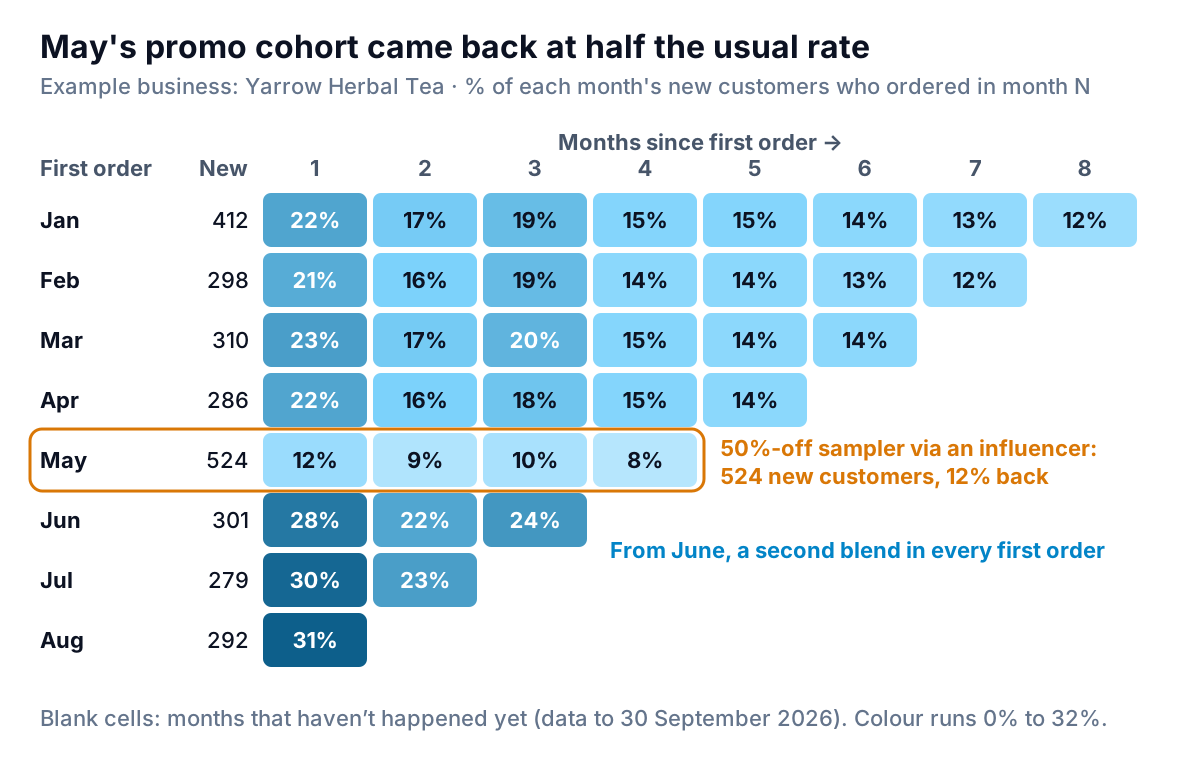
Two things jump out, and both are column stories. May's row is pale all the way across: 12% in month 1 against 21–23% for the four cohorts before it. And from June the first column darkens: 28%, 30%, 31%. In June, Yarrow began putting a free sample of a second blend in every first order. Three cohorts in a row is a pattern, not luck, though the owner will want to see whether month 3 holds up as those cohorts age.
There's also a zigzag across the rows: month 3 is higher than month 2 for almost every cohort. That's the product, not noise. A 100g pouch of loose tea lasts most people two to three months, so a wave of reorders lands in month 3. Knowing your own rhythm stops you reading a normal dip as a problem.
Build it in Excel
- Shape the counts. One row per cohort, the cohort size in column B (call it "New", not "Month 0"), and the count of customers who ordered in month 1, 2, 3 and so on in columns C onwards. If you followed the cohort analysis steps, this is your pivot table, with month 0 moved into its own column.
- Turn counts into percentages. On a second block or sheet, enter
=C3/$B3in the first cell and fill it right and down, but only across months that have actually happened. If you'd rather fill the whole block, use=IF(C3="","",C3/$B3)so unfinished months stay empty instead of showing 0%. Format as percentages with no decimals. - Add the colour scale. Select the percentage cells (not the cohort size column), then go to Home > Conditional Formatting > Color Scales. Microsoft's guide to data bars, color scales and icon sets shows the presets.
- Fix the ends of the scale. The presets stretch from your lowest value to your highest, so the colours shift every time a new cohort arrives. Instead use Home > Conditional Formatting > Manage Rules > New Rule, choose "Format all cells based on their values", pick 2-Color Scale, and set both Minimum and Maximum to type Number. Yarrow uses 0 (white) and 0.32 (dark blue). Microsoft's conditional formatting article lists the Number, Percent, Percentile and Formula types.
- Keep the numbers in the cells. Don't hide them behind the colour.
Our conditional formatting guide covers extra rules, such as outlining any cell 5 points below the cohort above it.
Build it in Google Sheets
Same shape, same formulas. Select the percentage cells, then Format > Conditional formatting, and in the panel that opens choose a colour scale preview. Google's conditional formatting help says you can set a minimum, a maximum and an optional midpoint, and change each one's type from the drop-down next to it. Set the minimum to number 0 and the maximum to a fixed number, for the same reason as in Excel. Sheets has no chart type called a heatmap (its list of chart types doesn't include one), so the coloured table is the chart.
Four formatting choices that hide the weak cohort
The default way to colour a cohort table makes it almost useless. Here's Yarrow's latest four cohorts, formatted the way most people first try it, then fixed.
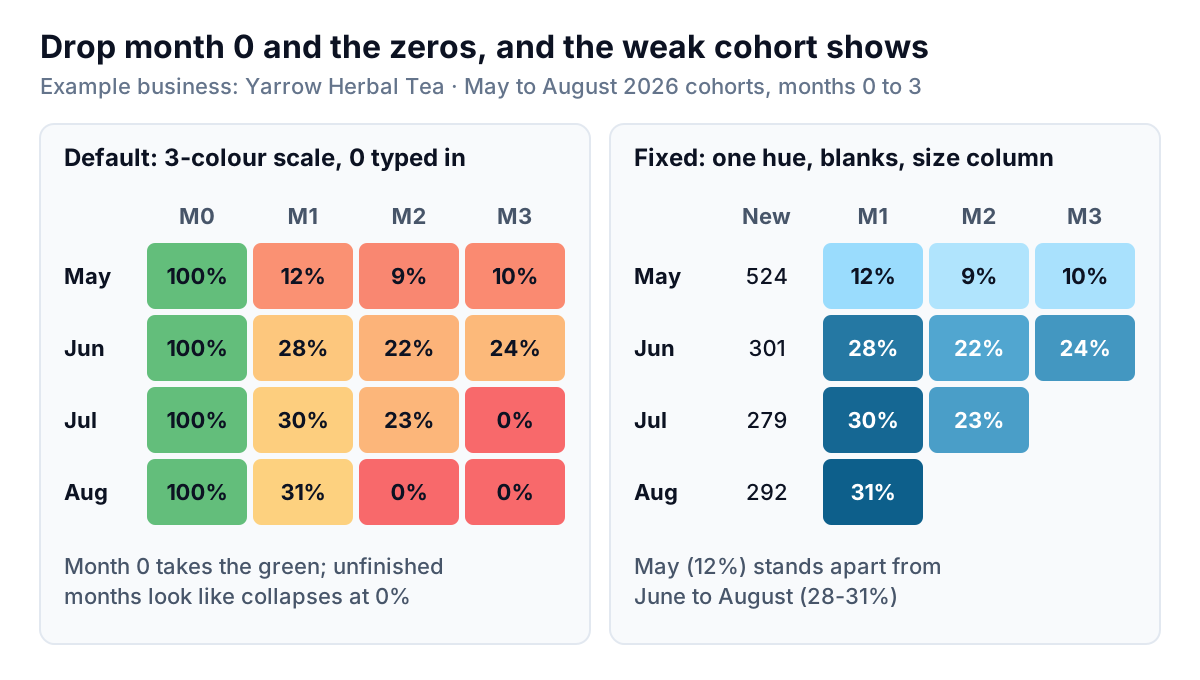
What changed, one at a time:
- Month 0 left out of the colour range. Month 0 is always 100%. Include it and it claims the top of the scale, so every real value from 8% to 31% gets squeezed into the bottom third of the colours. Show the cohort size there instead, as a plain number. It's more useful: it tells you how much weight each row deserves.
- Blanks, not zeros. July's cohort can't have a month 3 yet, because October isn't over. Typing 0, or a formula that returns 0%, paints those cells the colour of disaster and drags any average down. Leave them empty.
- One hue, light to dark. The red-yellow-green preset says "good" and "bad", but 22% isn't bad for a tea shop and it isn't good for a gym. It also fails for readers with red-green colour blindness. One colour from light to dark says "more" without judging, and it prints in grey without losing the order.
- Fixed ends. With Lowest Value and Highest Value, adding September's cohort can recolour every cell above it. With fixed numbers, March is the same blue in every month's report.
Keep the percentages printed in the cells too. In Cleveland and McGill's 1984 graphical perception experiments, shading and colour saturation came near the bottom of their ranking of how accurately people judge values, well below position on a common scale. Colour is good for finding the odd row. It isn't good for telling 19% from 21%, so let the number do that.
Retention curves: one line per cohort
The heatmap is good for spotting a change; the curve is better for explaining the shape. Put months since first order on the x-axis, the retention percentage on the y-axis starting at 0%, and one line per cohort.
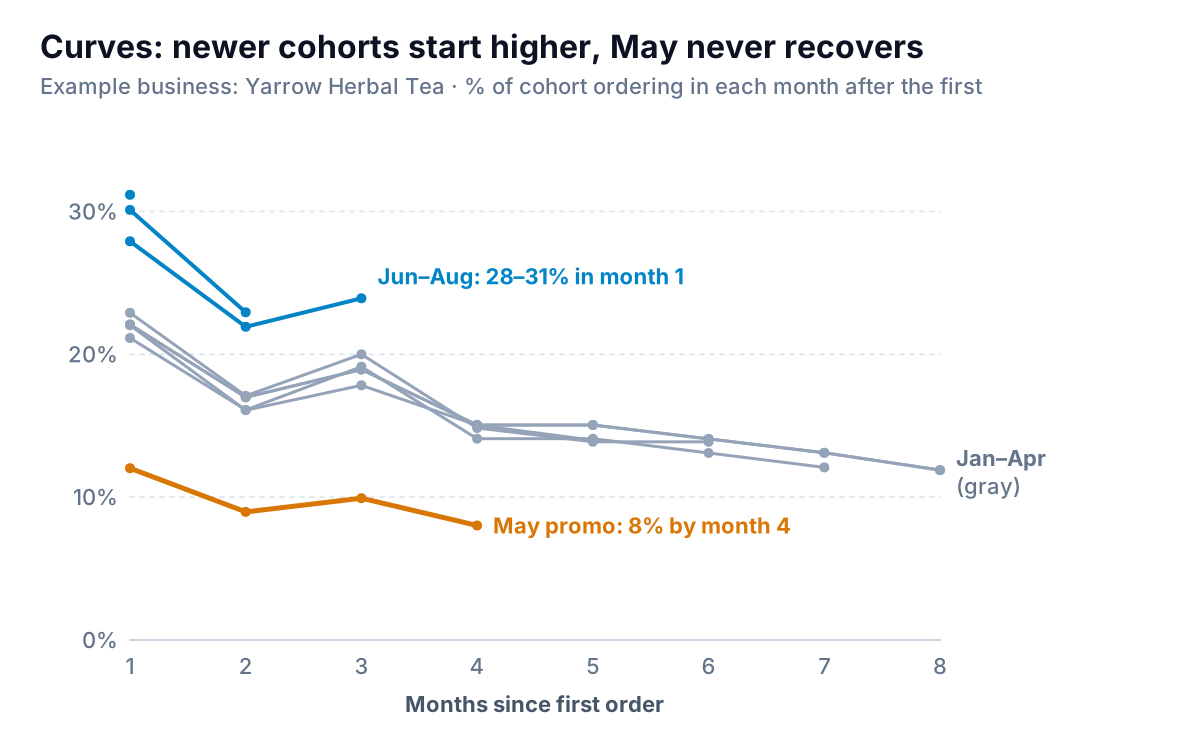
Eight coloured lines make spaghetti. The fix is to grey out the cohorts that form the normal pattern and colour only the ones you're talking about. On Yarrow's chart, that's one amber line for May and blue for June to August. Label the lines at their ends instead of using a legend; the reader shouldn't have to match colours to a key.
To build it in Excel, select the percentage block including the cohort labels and month headers, then insert a Line with Markers chart (Insert > Line). If the cohorts come out along the x-axis, use Chart Design > Switch Row/Column. Then click each baseline series and set its line to grey. Months that haven't happened stay off the chart if those cells are truly empty. In Google Sheets, insert a line chart, and in the chart editor's Setup tab use "Switch rows / columns" if needed; colour each line under Customize > Series. Both steps are covered in Google's add and edit a chart help. The practice workbook has the Excel version built, with the same colours as the figure.
Percentages or counts? Show both when you're judging a promotion
Every chart so far uses percentages, which is right for comparing cohorts of different sizes. But percentages throw away one thing an owner cares about: how many actual customers came back.
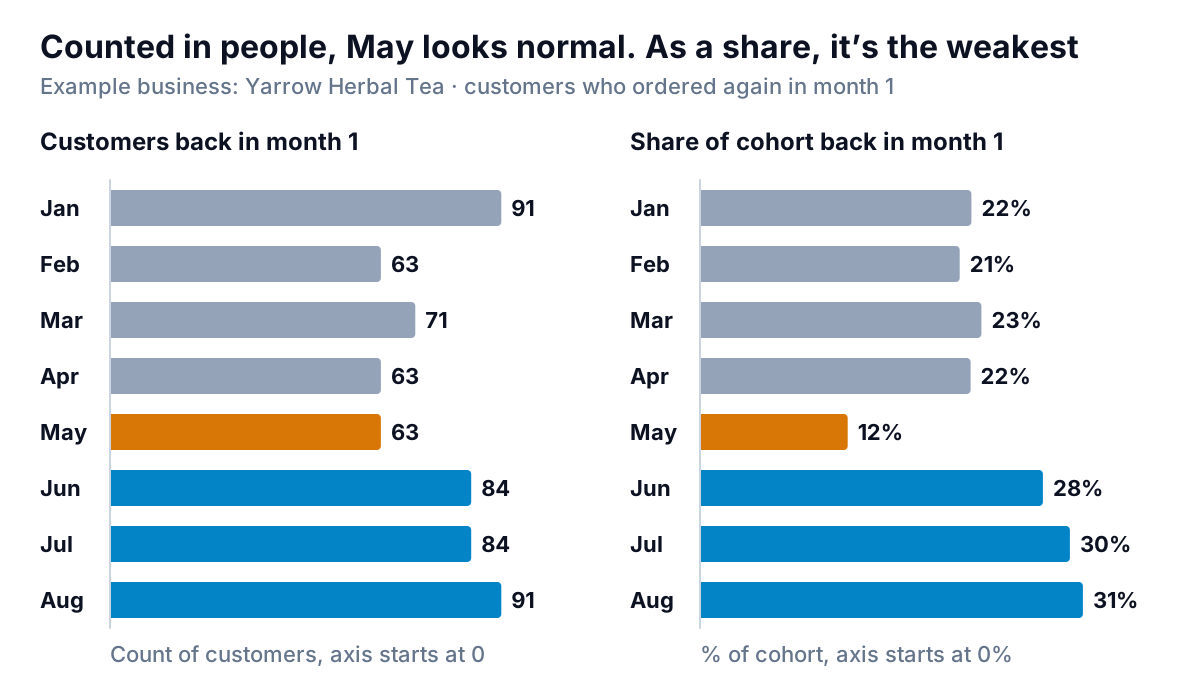
On counts alone, May looks like an ordinary month. On percentages, it's the weakest cohort by far. Both are true, and the promotion's verdict needs both: it did add 63 returning customers, but it took 524 half-price first orders to find them. If a normal month's cohort of about 290 yields 63 returners at full price, the sampler added roughly 230 extra half-price first orders whose buyers didn't come back the next month. Whether that was worth it is a margin question, which our customer lifetime value guide works through with cohort numbers.
A useful rule: chart percentages by default, and switch to counts (or put the cohort size beside every row, as in the heatmap) whenever cohorts differ in size by more than about half. Small cohorts need the opposite caution. In a cohort of 60 customers, one person is almost 2 points, so a 3-point swing between two small cohorts is mostly noise. If your monthly cohorts are that small, group them by quarter before you colour anything.
Reading the chart every month: a ten-minute routine
A cohort retention chart earns its place when someone looks at it on a schedule. Yarrow's owner does this on the first working day of each month, after the previous month's orders are in:
- Add the new diagonal. Every cohort gains one cell: the month that just ended. Paste the new counts, copy the percentage formula into the new cells, and check the colours didn't shift (they won't if the scale ends are fixed).
- Read month 1 for the newest cohort. It's the earliest signal you have. Compare it with the three cohorts before it. A gap of more than about 5 points on cohorts of a few hundred is worth an explanation.
- Read the new diagonal. All the new cells happened in the same calendar month. If they're all paler than their rows suggest, something happened that month (a stock-out, a price change, a slow courier) rather than to one cohort.
- Write one sentence under the chart. "June to August cohorts are 6–9 points better in month 1 since we added the second sample." The sentence is what people remember; the chart is the evidence.
If you sell on Shopify, its built-in Customer cohort analysis report is worth comparing against your own. Shopify's customer reports documentation says it groups customers by the date of their first order, offers a "Cohort grid (heatmap)" and a "Retention curve" view, and lets you switch the metric between number of customers, retention rate, net sales and others. Note one difference: Shopify's "Period 0" counts returning orders in the same period as the first order, so its numbers won't match a table that starts counting at month 1. Building your own still helps when you want to exclude wholesale or gift orders, or use fixed colour ends so months compare.
When the spreadsheet stops being worth it
The hand-built version has one weak point: every month, someone has to export orders, rebuild the pivot, extend the formulas and recheck the colour range. By the third month that usually slips, and a cohort chart that's two months stale can't warn you about anything.
Parity builds this from the data directly. Connect Shopify or Square, or upload an order export as CSV or Excel, and ask for "monthly first-order cohorts, retention by month since first order, as a heatmap and curves, excluding gift orders". It builds a dashboard with the cohort chart, the headline numbers and their trends, and a table of cohorts that need attention, and every number is checked against queries on the full dataset before you see it. You can refine it by chat and update it with next month's file.
Upload your order export and get a checked cohort retention chart, with the weak cohorts flagged. Build a report from your data free
The rest of this series covers the charts that sit next to this one. Churn charts handle the membership and subscription version, where people cancel rather than drift away. New vs returning customer charts show how much of each month's revenue comes from people who've bought before. And if you want to know where buyers drop out before the first order, that's a funnel chart. Yarrow's owner kept the sampler, by the way, but as a free extra in every first order rather than a half-price offer to strangers. The month 1 column is the reason.