When Nimbus HR Software, an example subscription business we'll follow in this guide, crossed $100,000 of monthly recurring revenue in June 2026, the founder posted the MRR chart in the team channel. It was a blue line that had gone up every month for a year, from $71,400 to $100,550. Nobody asked why the line was getting flatter. The answer was in a different MRR chart: new business had held steady at about $4,500 a month, while the MRR lost to cancellations had doubled.
An MRR chart is any chart of monthly recurring revenue over time, and there are two you need. The level line shows how big the business is. The movements chart shows why it changed: new and expansion MRR above zero, contraction and churn below, and a net line through the middle. This guide builds both from a Stripe export, adds a one-month bridge for board updates, and covers the mistakes that make a growing MRR line look healthier than it is.
If you need a refresher on what counts as MRR (annual plans at one-twelfth, no one-off fees, no tax), our guide to monthly recurring revenue covers the formula and the five movements. This post is about drawing them.
The level line: how big, and how fast
Start with what the founder posted, because it's half right. A line of MRR at each month end answers "how big is the business?" and, roughly, "is it still growing?"
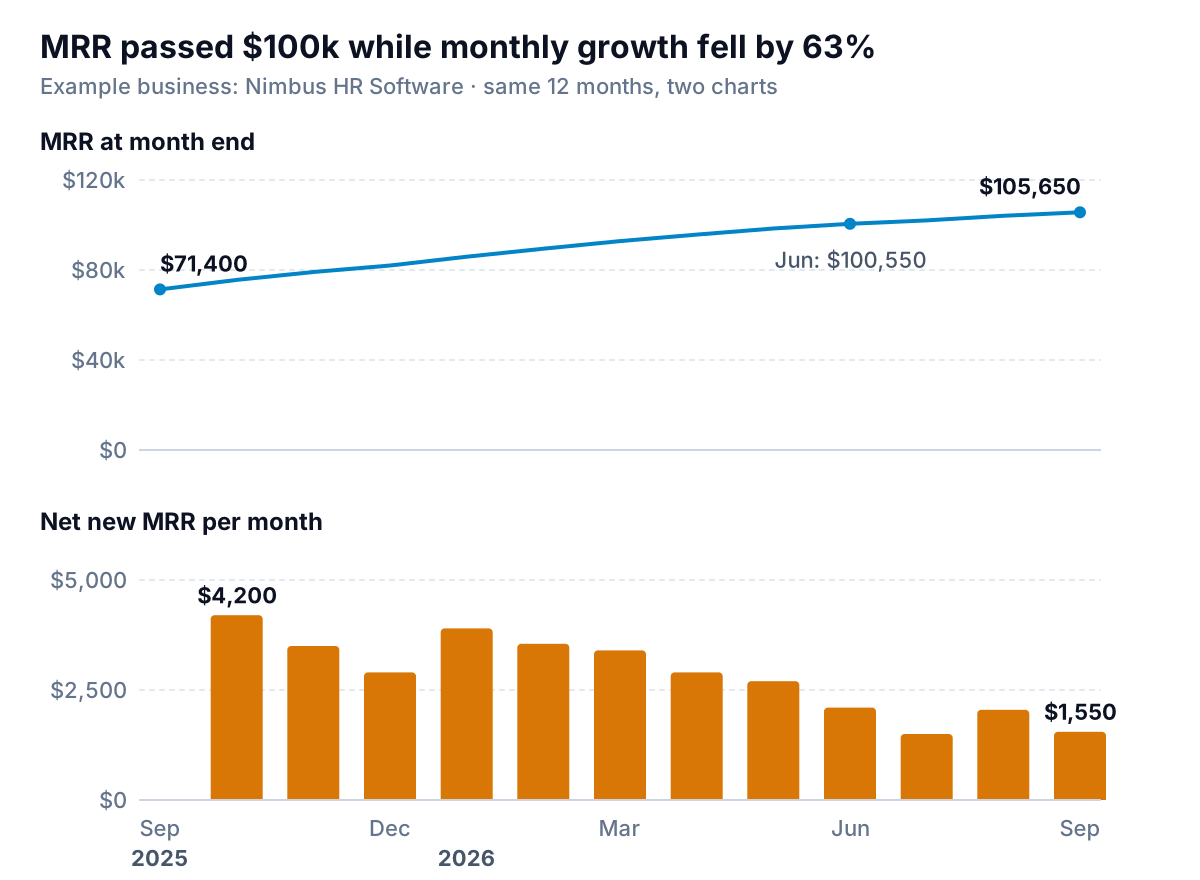
Nimbus ended September 2026 at $105,650 of MRR, 48% above the $71,400 it started the year with. On the top chart that looks like a steady climb. The bottom chart has the same twelve months as net new MRR, the change in MRR each month. October added $4,200. September added $1,550, 63% less. As a growth rate, that's 5.9% of starting MRR in October and 1.5% in September.
The level line hides this because a line that rises by less each month still rises. Your eye reads the direction, not the change in slope. That's why the level line should never be the only MRR chart in a monthly review. Three rules for drawing it:
- Start the axis at zero. A level line with its axis cut at $70,000 makes a 48% year look like a rocket launch. MRR is an amount, and readers compare heights.
- Show 12 to 24 months of month-end values. Daily MRR from a billing dashboard wobbles with every renewal date and failed payment. Month-end points line up with the movements chart and with your books.
- Label the endpoints and any milestone directly on the line, and drop the legend. If you want growth as a percentage, the sales growth chart guide covers growth-rate bars and log scales.
The MRR movements chart: why the line moved
The movements chart is the MRR chart that answers "why?". Each month gets one column split above and below zero. Above: new MRR from first-time customers, plus expansion from upgrades and added seats. Below: churn from cancellations, plus contraction from downgrades. A line through the middle shows net new MRR, which is the height of the positive stack minus the depth of the negative one.
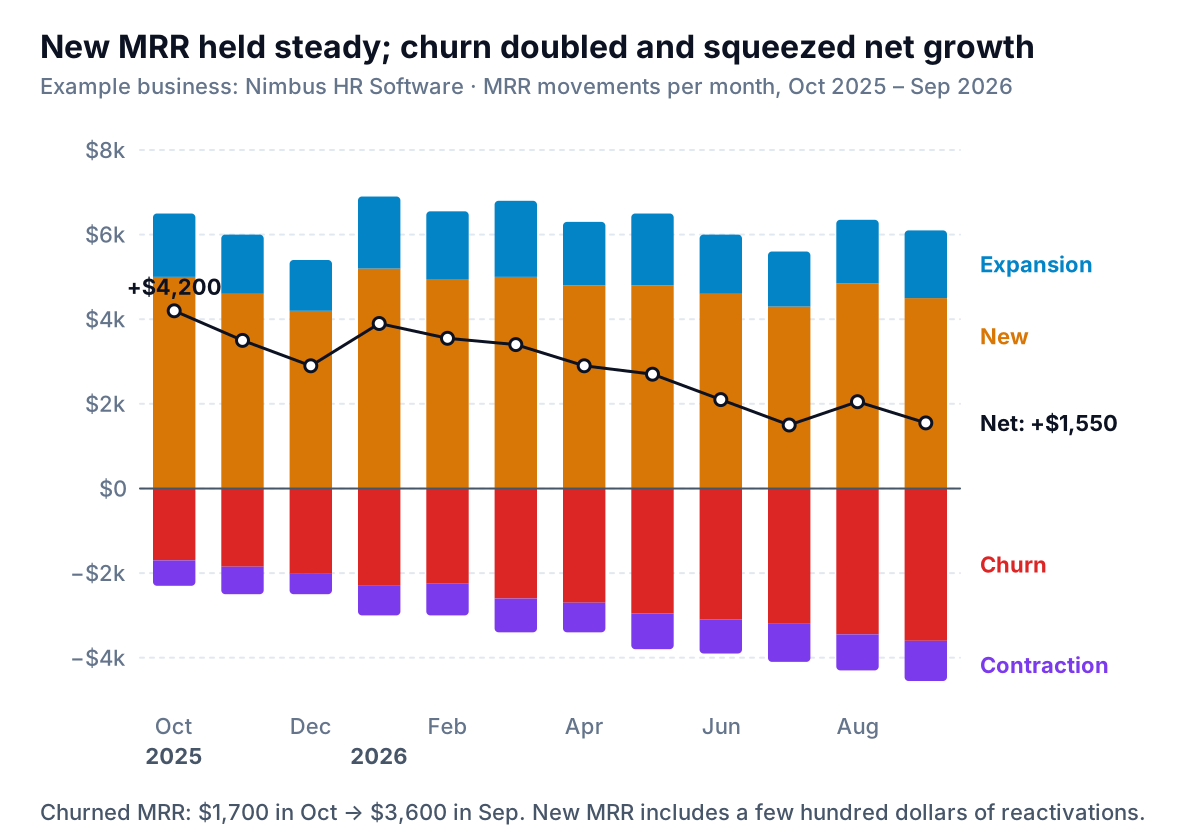
Read it in three passes:
- The net line. Falling, from +$4,200 to +$1,550. That's the problem the level line hid.
- The top of the stack. Roughly flat. Nimbus won $28,200 of new MRR in the first six months and $27,100 in the last six, so sales and marketing didn't slow down.
- The bottom of the stack. Deeper every quarter. Churned MRR went from $1,700 in October to $3,600 in September, $12,700 in the first half against $19,000 in the second. Lost MRR (churn plus contraction) rose from 3.2% of the month's starting MRR to 4.4%.
So the fix isn't more leads. It's finding out who is cancelling and why. Stripe's Billing analytics lets you click Explore on its MRR growth and Churned revenue charts to see the customers behind a data point, according to its analytics documentation.
Design choices that matter
- Put the biggest movement on the zero line. In a stacked column only the segment touching the baseline can be compared accurately month to month. The others float. New MRR sits on zero above the line. Churn, the story here, sits on zero below it.
- Keep to four or five colours. Stripe reports reactivation separately. At Nimbus it's a few hundred dollars a month, so the chart folds it into new and the footnote says so. If reactivations are a real share of your business, give them their own segment.
- Use red only for churn. It's the movement you want people to notice.
- Same axis for bars and line. Net new MRR is in dollars like the bars. Put it on a second axis and its scale stops matching the stack, so the line no longer equals top minus bottom.
Build the movements chart from Stripe data
1. Get the monthly roll-forward
Stripe's Billing overview offers prebuilt report downloads, and one of them, "Subscription metrics per month", includes the MRR roll-forward for each month, per Stripe's Billing analytics docs. The same page lists "Customer MRR changes", a log of every new subscriber, upgrade, downgrade, reactivation and churn, if you want to check a month customer by customer. Two cautions from that page. The prebuilt reports date things in UTC while the charts use your account's time zone, so monthly totals may differ slightly. And the MRR definition is configurable, for example whether discounts are subtracted, so check the setting before you compare with an older export. Our Stripe reports guide explains how MRR differs from charges and payouts.
If you bill outside Stripe, build the same table from a list of subscriptions with start dates, end dates and monthly values. The MRR guide walks through it.
2. Shape one row per month
| Month | New | Reactivation | Expansion | Churn | Contraction | Net | MRR at month end |
|---|---|---|---|---|---|---|---|
| Jul 2026 | 4,300 | 0 | 1,300 | −3,200 | −900 | 1,500 | 102,050 |
| Aug 2026 | 4,600 | 250 | 1,500 | −3,450 | −850 | 2,050 | 104,100 |
| Sep 2026 | 4,500 | 0 | 1,600 | −3,600 | −950 | 1,550 | 105,650 |
Two details make the chart work. Enter churn and contraction as negative numbers, so they stack below zero. And order the columns the way you want them stacked: the first series in each direction sits on the zero line. Add two check formulas: Net is =SUM(B2:F2), and month-end MRR minus the previous month-end must equal Net. If it doesn't, a movement is missing or a customer was counted twice. Fix the table before you chart it.
3. Chart it in Excel
- Select Month through Net and choose Insert > Recommended Charts, then All Charts > Column > Stacked Column. Microsoft's chart guide covers the dialog. Positive values stack up from zero and negative ones stack down.
- Click the Net series, then Design > Change Chart Type, and make Net a line. Microsoft's page on combination charts (it applies to Excel 2016 onward) shows the steps. Leave Secondary Axis unticked.
- Colour the segments and label the series at the right-hand end instead of using a legend.
- Build the level line as its own line chart from the month-end column, and set the vertical axis minimum to 0 in Format Axis > Axis Options.
In Google Sheets, a stacked column chart is a standard type (see Google's column chart help). Google added Clustered Column – Line and Custom Combo chart types in a July 2026 update, which is the route to a net line over the stack. If your Sheets doesn't show them yet, chart the movements as stacked columns and put a separate net-new line chart directly underneath with the months aligned.
The one-month bridge for a board or investor update
A twelve-month movements chart is for spotting trends. For "what happened in September?", a bridge reads faster: start from zero change, step up for each gain, step down for each loss, and end on the net.
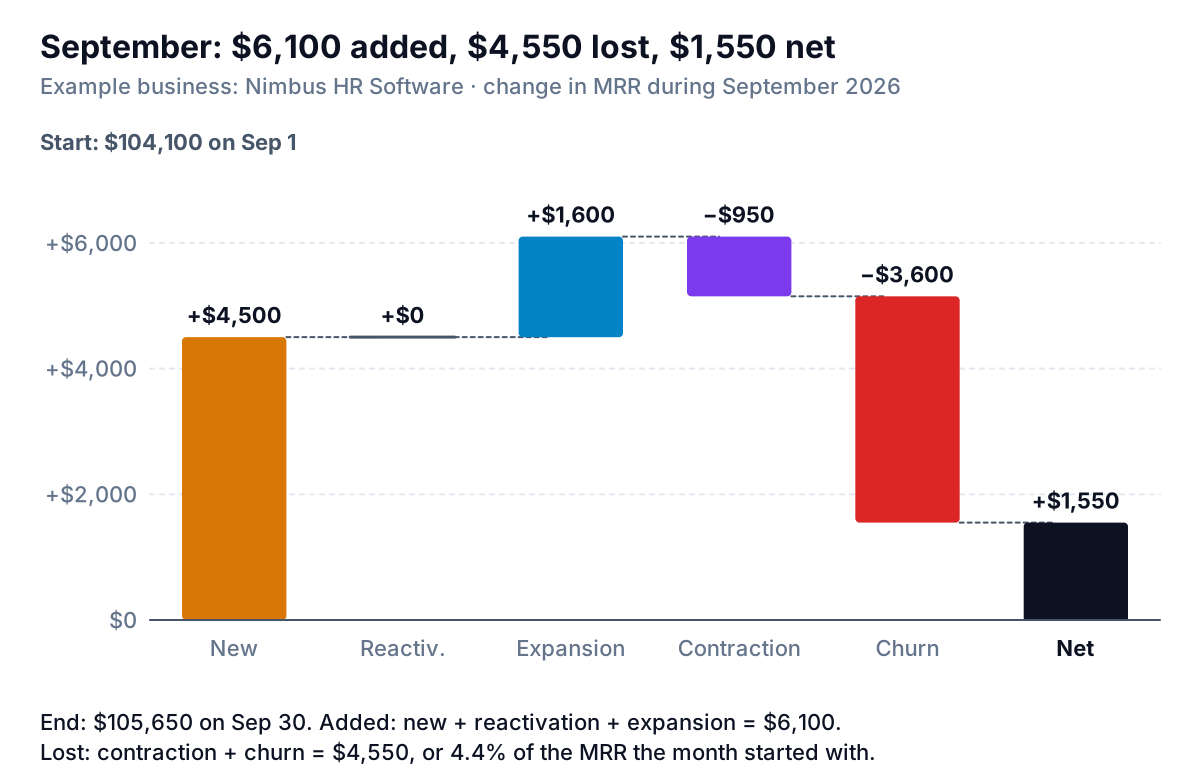
September at Nimbus: $6,100 added, $4,550 lost, $1,550 net. Notice what the bridge doesn't do. It doesn't draw a $104,100 starting bar and a $105,650 ending bar on an axis cut at $96,000, which is the usual way to make the steps visible. That version makes a 1.5% month look dramatic. Charting the change from the start keeps every bar honest and puts the two totals in the labels. Excel's built-in Waterfall chart works too, and our waterfall chart in Excel guide covers it. If you include the start and end totals as bars, keep the axis at zero.
Five ways an MRR chart flatters the business
- Only the level line. It rises whenever net new MRR is positive, however small. Always pair it with the movements chart or net new MRR bars.
- Cash plotted as MRR. A month when six annual plans were paid upfront shows a spike of twelve months' revenue. MRR counts each at one-twelfth. If your line jumps whenever annual renewals land, it's a cash chart.
- Net movements only. A single net bar per month hides whether a good month came from strong sales or unusually low churn. Show gross movements both sides of zero.
- Churn as a dollar amount with no context. $3,600 of churn means more at $50,000 of MRR than at $500,000. Add a small line of lost MRR as a percentage of starting MRR (Nimbus: 3.2% to 4.4%), and for customer-count churn see the churn chart guide. For retention by signup cohort, net dollar retention is the next measure to chart.
- ARR on a monthly business. ARR is MRR times twelve. Charting it makes every number twelve times bigger and changes nothing else, so it adds nothing for a business with monthly plans.
What the founder did next
With the movements chart on screen, Nimbus's next meeting had a better agenda. New MRR was fine, so marketing spend stayed put. The founder pulled the customer list behind July to September's churned MRR and found most of it came from customers in their first three months. That's an onboarding question, not a sales one, and it's the kind of thing a level line never raises.
Updating these charts monthly means re-exporting, checking the roll-forward and redrawing. Parity connects to Stripe directly and builds a dashboard from it: headline numbers with their trends, charts, what explains them, and a table of what needs attention, with every number checked against queries on the full dataset before you see it. You can ask it to split MRR into movements or add the lost-MRR percentage, and when you ask, it writes the monthly investor report from the same data.
Connect Stripe and get MRR charts checked against your billing data. Connect Stripe free
Built by hand or not, keep the level line and the movements chart on the same page. One shows how far you've come. The other shows whether you're still accelerating, and what's slowing you down.