In the first week of October, the owner of Quokka Toy Store, an example shop, has to place her last big order of wooden train sets and puzzles before December. Her supplier needs the number by Friday. Her spreadsheet says December will bring $222,600 in sales. What it doesn't say is how sure that number is, or whether the forecast that produced it has been any good this year. A forecast vs actual chart answers both. It plots what really sold as a solid line, the forecast for the months ahead as a dashed line, and a shaded range for how wrong the forecast could reasonably be, so one picture shows where you are, where you're heading and how much room to leave.
This guide is about the chart, not the forecast itself. If you still need to build one, start with how to create a sales forecast from your own sales history and come back. Quokka is fictional and its numbers are made up, but they add up, and you can check them yourself in the practice workbook (Excel, with the chart already built).
Three questions you ask of a forecast
Most forecast charts try to answer everything at once. Split the job by question:
- Where are we heading? You need the actuals so far, the forecast for the rest of the period and a range. That's the forecast vs actual chart proper: one line, two styles, one band.
- Is the forecast any good? You need the gap between what you forecast and what happened, month by month and year to date. That's a variance bar chart.
- Has the forecast moved? You need every version of the forecast you made, not just the latest one. That's a snapshot chart: the full-year number as it stood at the start of each month.
The decision rule: about to commit money (a stock order, a hire)? Look at the first chart. Deciding whether to trust the forecast? The second. Asked "why does the number keep changing?" Show the third. A monthly report to a partner usually needs the first two.
The forecast vs actual chart: solid, dashed and a band
Here is Quokka's 2026 so far, with the October forecast for the last quarter.
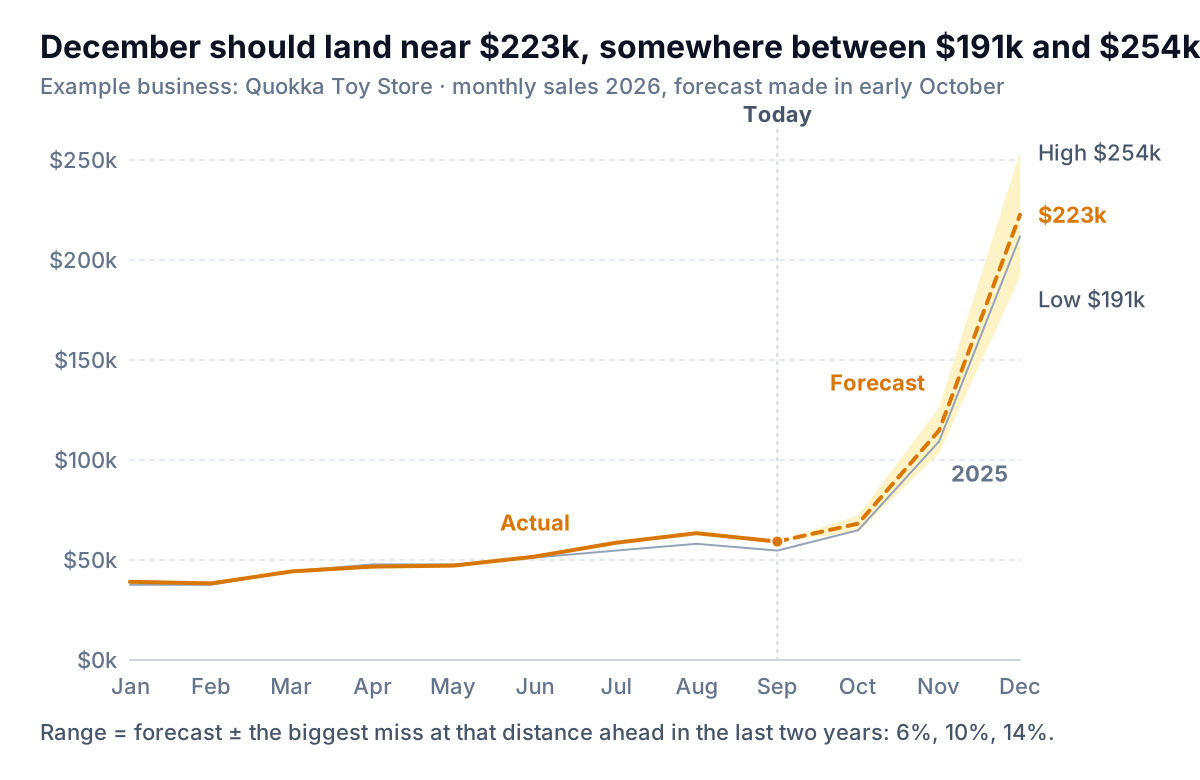
Five details carry this chart:
- One colour, two line styles. Actual and forecast are the same measure, so they get the same colour. The dash says "not yet real". Using a different colour for the forecast makes it look like a different thing, such as a target or a competitor.
- The lines meet. The dashed line starts at the last actual month (September, $59,200), not the first forecast month. Otherwise there's a gap between September and October that looks like missing data.
- A "Today" marker. Readers skimming a printed page miss dash patterns; they don't miss a labelled line.
- A range that widens. The band is narrow for October and wide for December. That's not decoration. In their forecasting textbook, Hyndman and Athanasopoulos note that prediction intervals usually get wider the further ahead you forecast, because there's more that can go wrong. A band of the same width all the way out claims more certainty about December than you have.
- Last year in gray. The 2025 line is there for context, thin and gray, so it doesn't compete. For a seasonal shop it answers the obvious follow-up: is that December spike normal? (Yes: last December was $211,800.)
How wide should the band be?
Statistical tools give you a confidence interval, and you can use it (more on Excel's below). For a small business there's a plainer rule that people trust more because they can check it: make the band as wide as your biggest miss at that distance in the last two years. Quokka looked back at its old forecasts. One month ahead, the worst miss was 6%. Two months ahead, 10%. Three months ahead, 14%. So October's range is $68,200 ± 6% ($64,100 to $72,300), November's is $114,800 ± 10% ($103,300 to $126,300), and December's is $222,600 ± 14% ($191,400 to $253,800).
That gives the owner her order decision. The base case says December lands near $223k; the low case, $191k, is what she can't afford to be overstocked for. She orders for the middle and keeps the option of a small top-up order in early December.
No old forecasts to check? Use a labelled placeholder until you have your own misses to measure.
Build the forecast vs actual chart in Excel
Everything depends on how you lay out the data. Put one row per month, with a separate column for each line on the chart:
| Month | Actual | Forecast | Low | High | Band (High − Low) | Last year |
|---|---|---|---|---|---|---|
| Aug 2026 | $63,400 | $58,100 | ||||
| Sep 2026 | $59,200 | $59,200 | $59,200 | $59,200 | $0 | $54,700 |
| Oct 2026 | $68,200 | $64,100 | $72,300 | $8,200 | $64,900 | |
| Nov 2026 | $114,800 | $103,300 | $126,300 | $23,000 | $109,300 | |
| Dec 2026 | $222,600 | $191,400 | $253,800 | $62,400 | $211,800 |
The forecast column repeats September's actual, which joins the two lines. Blank cells make each line stop where it should. Band is a helper: Excel can't shade between two lines directly, so you stack the band on an invisible Low series.
Then build it:
- Select the whole table and go to Insert > Line. You'll get six lines, which you'll fix next.
- Select the chart, then Chart Design > Change Chart Type > Combo. Microsoft's guide to the available chart types describes the custom combination as letting you "mix and match different chart types". Use the drop-down next to each series (the same drop-down Microsoft's secondary axis article shows) to set Low and Band to Stacked Area, and Actual, Forecast and Last year to Line. Leave every series on the primary axis.
- Right-click the Low area, choose Format Data Series, and set Fill to No fill. Give Band a light tint and no border.
- Delete the High series from the chart (it's only there to calculate Band).
- Select the Forecast line and use Format > Shape Outline, which Microsoft's chart formatting guide says changes an element's colour, weight or style. Give it the same colour as Actual and a dashed style. Make Last year thin and gray.
- Check how blanks are drawn: Select Data > Hidden and Empty Cells, and choose Gaps. Microsoft's article on empty cells in charts explains the options. If your blanks come from formulas returning
"", Excel may plot them as zeros; returningNA()instead keeps the gap. - Delete the legend and label the lines directly ("Actual", "Forecast", "2025"), then write a title that says the answer. "December should land near $223k, between $191k and $254k" beats "Sales forecast 2026".
The practice workbook has this chart built on its "Chart data" sheet; change one forecast and watch the band move.
In Google Sheets the same layout works. Google added line dash styles for chart series in 2021, so you can dash the forecast under Customize. For the range, the version that works in any tool is two thin gray lines for Low and High instead of a shaded band.
Excel's Forecast Sheet as a second opinion
Excel can draw a forecast chart for you, range included. Microsoft's guide to creating a forecast in Excel for Windows gives the steps, which apply to Excel for Microsoft 365, Excel 2024 and Excel 2021:
- Put dates in one column and sales in the next, at a consistent interval (the first of each month works).
- Select both columns, then Data > Forecast group > Forecast Sheet.
- In the Create Forecast Worksheet box, pick a line or column chart and set the Forecast End date.
- Open Options if you want to change anything. Confidence Interval is on by default at 95%. Seasonality is detected automatically; for monthly data with a yearly pattern you can set it to 12 manually.
- Select Create. Excel adds a new sheet with a table (your history, the forecast and two confidence bound columns) and the chart.
Two settings matter here. Forecast Start, set before your last actual month, makes Excel forecast months you already know using only earlier data. Microsoft calls this hindcasting: a quick test of how a forecast made in March would have done, without having saved old forecasts.
The other is the confidence level. Forecasting texts often show 80% and 95% intervals side by side; the 80% one is narrower and closer to what most owners mean by "likely". Say which you used in the chart's note.
Excel uses exponential smoothing on your history alone, so it can't know about a price rise or a new competitor. Use it to check your forecast's shape, and find out why if the two disagree. The sales forecast guide covers when to trust your judgement over the statistics.
Is the forecast any good? Two charts that answer it
A forecast vs actual chart drawn as two lines on a $0–$250k axis makes every month look like a near-miss, because the December spike sets the scale. Quokka's actuals were between $38,000 and $64,000 for nine months, and differences of $3,000 disappear. To judge the forecast, chart the difference itself.
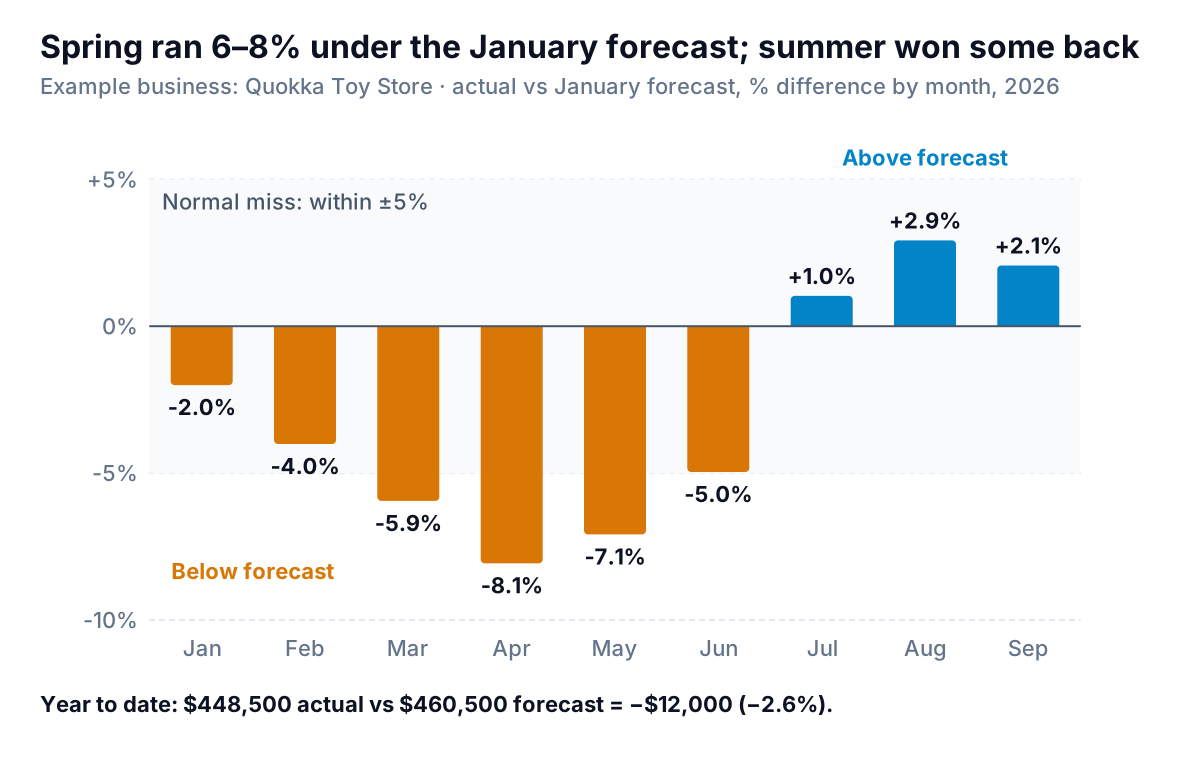
Read the band first: misses within ±5% are normal for Quokka, so most months need no comment. Then the bars outside it: March, April and May were 6–8% under. Then the footnote: year to date, the store is $12,000 (2.6%) behind, inside the normal range.
Choose percentages or dollars by the question. Percentages compare months of very different size fairly (a 5% miss in January and in December are equally "wrong" as forecasts). Dollars tell you what the miss cost. Quokka's monthly report shows percentages on the chart and the year-to-date dollar figure underneath. The budget vs actual chart post goes deeper on variance bars, including when to colour by favourable and unfavourable. Here the colours just say above or below; a miss in either direction is a forecasting error.
The snapshot chart: how the forecast moved
Most spreadsheets overwrite the forecast each month. That destroys the most useful record you have: what you believed, and when. Keep a copy. Once a month, write down the full-year number (actuals to date plus the forecast for the remaining months) and chart those snapshots.
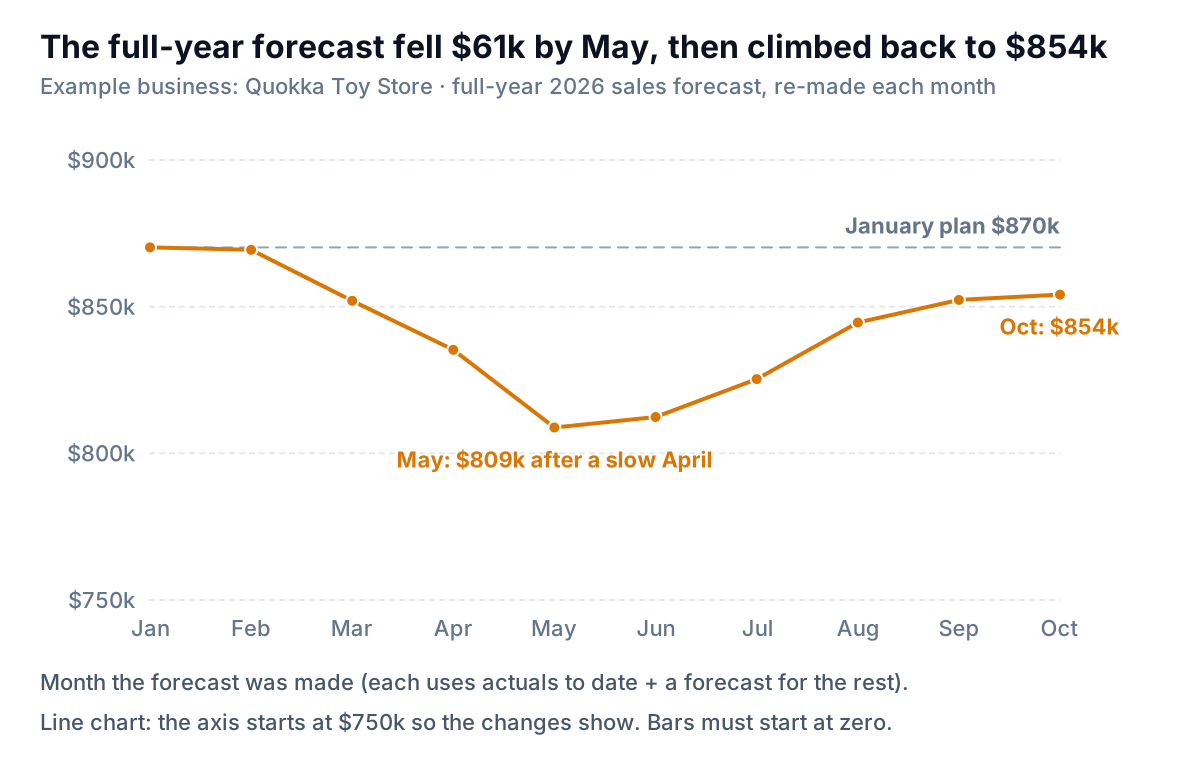
This one chart tells a story the others can't. After a slow April, the forecast was cut to $808,800 in May, $61,400 below the January plan. That's when Quokka trimmed a summer stock order. Summer then beat the forecast, and the full-year number climbed back to $854,100. In hindsight, May overreacted to two bad months. Next spring, the owner will wait for a third before cutting.
It's also the best answer to a lender who asks why the number keeps changing: the changes were explained responses to real sales. The guide to presenting financial data covers where it belongs in a pack.
How forecast charts mislead
- The forecast looks like history. One unbroken line from January to December, all the same style. The left panel below is how many spreadsheets draw it. Nobody can tell where the facts stop.
- The range is missing or too narrow. A single dashed line implies you know December to the dollar. A band that doesn't widen implies you know December as well as October.
- Cumulative lines. Year-to-date actual against year-to-date forecast always slopes upward and the two lines hug each other, so a 6% miss in a single month barely shows. Use cumulative lines to show progress toward an annual number, and variance bars to judge accuracy.
- Forecast and target on the same chart without labels. A forecast is what you expect; a target is what you want. If both appear, label them, and keep the target gray. The sales target chart post covers charts built around targets.
- Bars with a cut-off axis. The snapshot chart above starts at $750k, which is fine for a line because you read its slope. A bar chart that starts anywhere but zero makes a 3% difference look like a 50% one.
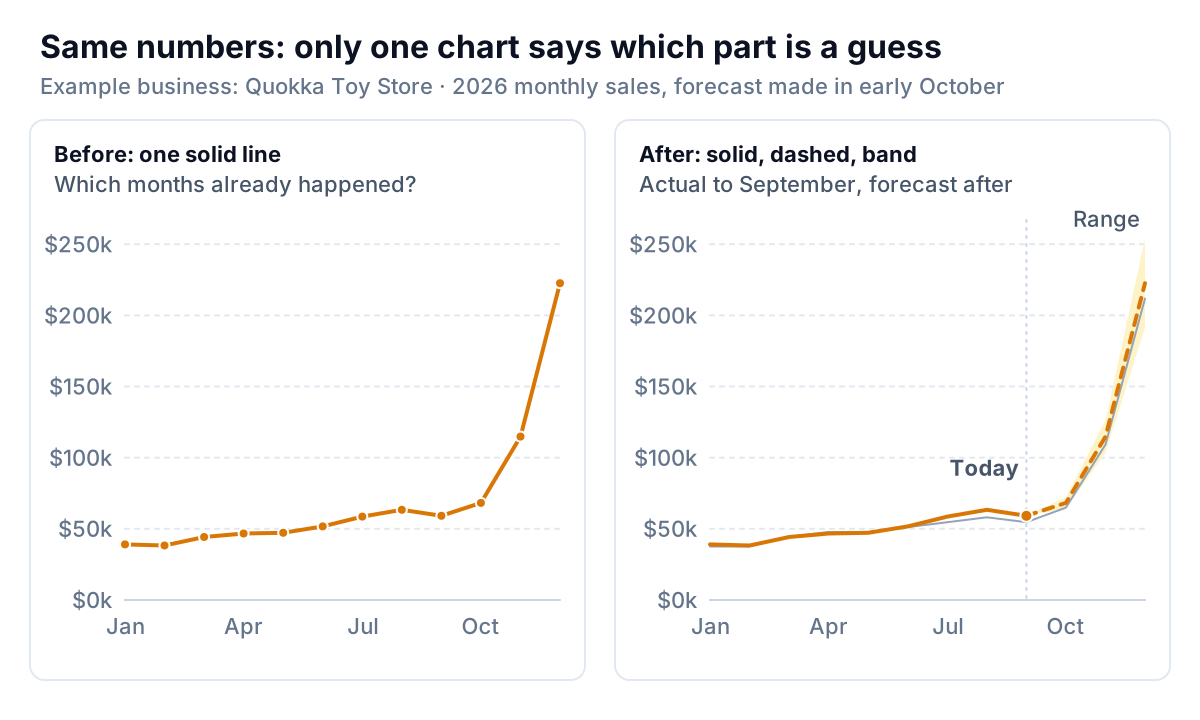
One more trap for seasonal businesses: Quokka's December is nearly four times its September, so the last quarter dominates any monthly chart. Judge accuracy from the variance bars, not the main chart. For the seasonal shape itself, see the seasonality chart post.
Keeping the chart current
Each month: type the new actual, clear that month's forecast, update the months left and copy the full-year number into the snapshot list. Then check three things: is the actual inside last month's band, is the year-to-date variance normal, and did the snapshot move more than it should?
If you'd rather not maintain the sheet, Parity can build the actuals side from your data. Connect QuickBooks Online, Shopify, Square or Stripe, or upload a spreadsheet with your sales and your forecast columns, and ask for a dashboard of forecast vs actual by month with year-to-date variance. It builds the charts and a table of the months that need attention, checks every number against queries on the full dataset, and updates when you upload next month's file.
Upload your sales history and forecast, and get checked forecast vs actual charts you can refine and share. Build a report from your data free
A forecast is never right, and the chart shouldn't pretend it is. Quokka's December will not be $222,600 exactly. What the owner needed in October was to know the likely range, how her forecasts had been doing, and whether she'd been overreacting. A solid line, a dashed line, a band and two small honest charts behind them told her all three. For the other charts a small business's numbers need, see the guide to financial charts.